
TYPO3 MCP prompts: ten starters and the Playground
TYPO3 MCP


TYPO3 workspaces keep a change as a draft until someone publishes it, and an AI assistant can use them from chat. Through MCP, the Model Context Protocol, your assistant writes a draft, lists what is waiting, shows it for review, publishes it or discards it. We ran that job on our demo install: two new headings drafted, one published, one dropped. AI Foundation, free and open source, provides the tools. Below are the prompts, what changed where, and what a workspace does not protect.
One minute, with captionsAll videos
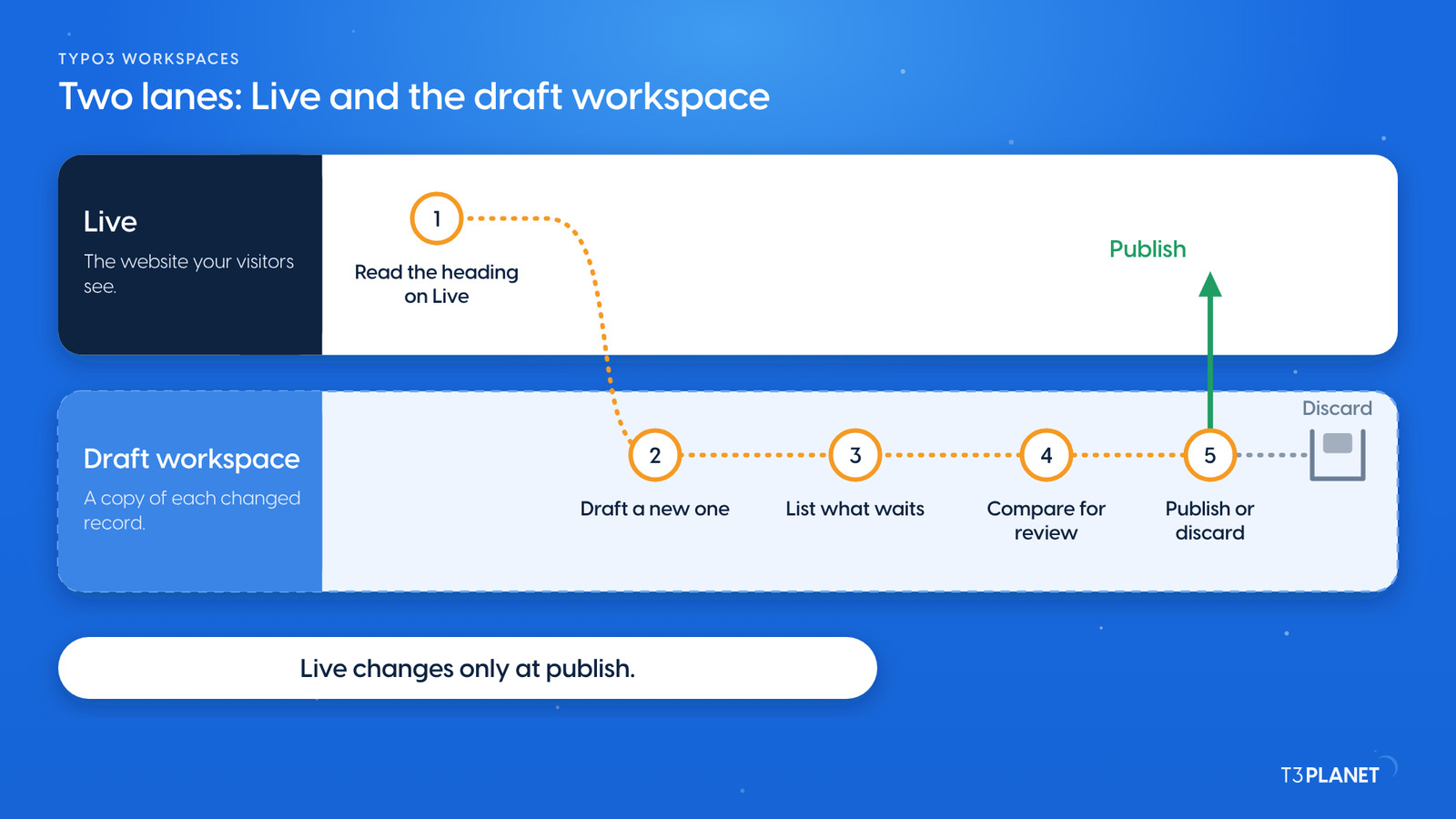
A workspace holds your change as a new version of the record, next to the live one. Your website keeps showing the live version. Publishing swaps the draft in; discarding drops it, and the live record stays as it was. The system extension is called workspaces and ships with TYPO3.
AI Foundation adds MCP tools for each step. The tools for pages and content accept a workspace, so one prompt can say as a draft. These tools did the work on our demo:
| Step | MCP tool | What happens in TYPO3 |
| Draft | write_table with a workspace | A new version of the record, in the draft workspace only |
| See what is waiting | workspace_changes_list | Every changed record, its live record and its stage |
| Review | content_list on Live and in the workspace | The live and the draft text side by side; a reviewer also sees them in the Publish module |
| Publish | workspace_publish | The draft replaces the live record |
| Discard | workspace_discard | The draft is dropped; the live record is unchanged |
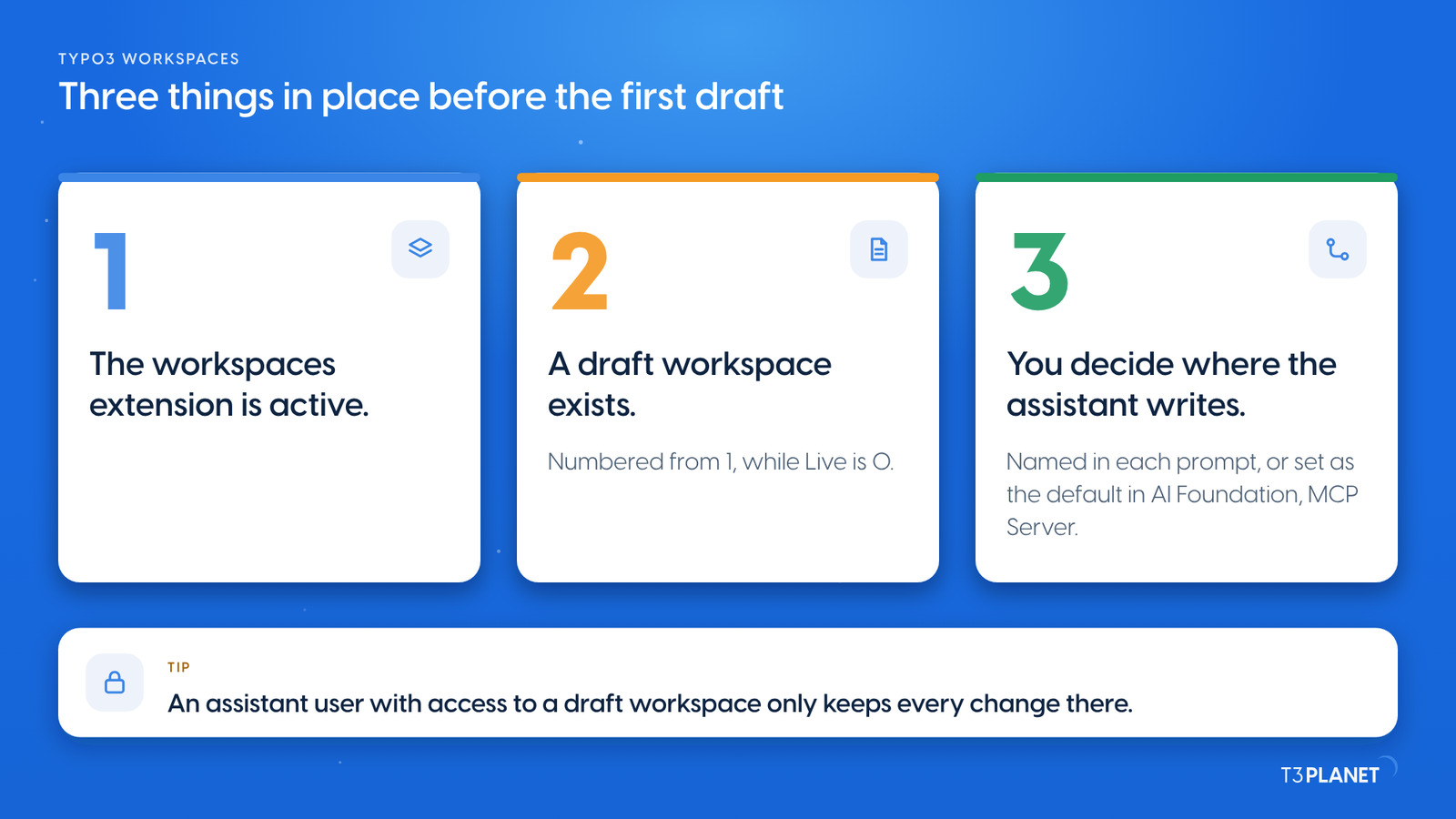
You need three things in place:
For everyday use, give your assistant a backend user whose groups have access to a draft workspace only, not to Live. Its changes then wait there, and a person with publish rights releases them. On our demo the assistant worked as an administrator and named the workspace in each prompt, so you can see every step from one chat.
Draft a clearer heading in both languages, as a draft only, not live.
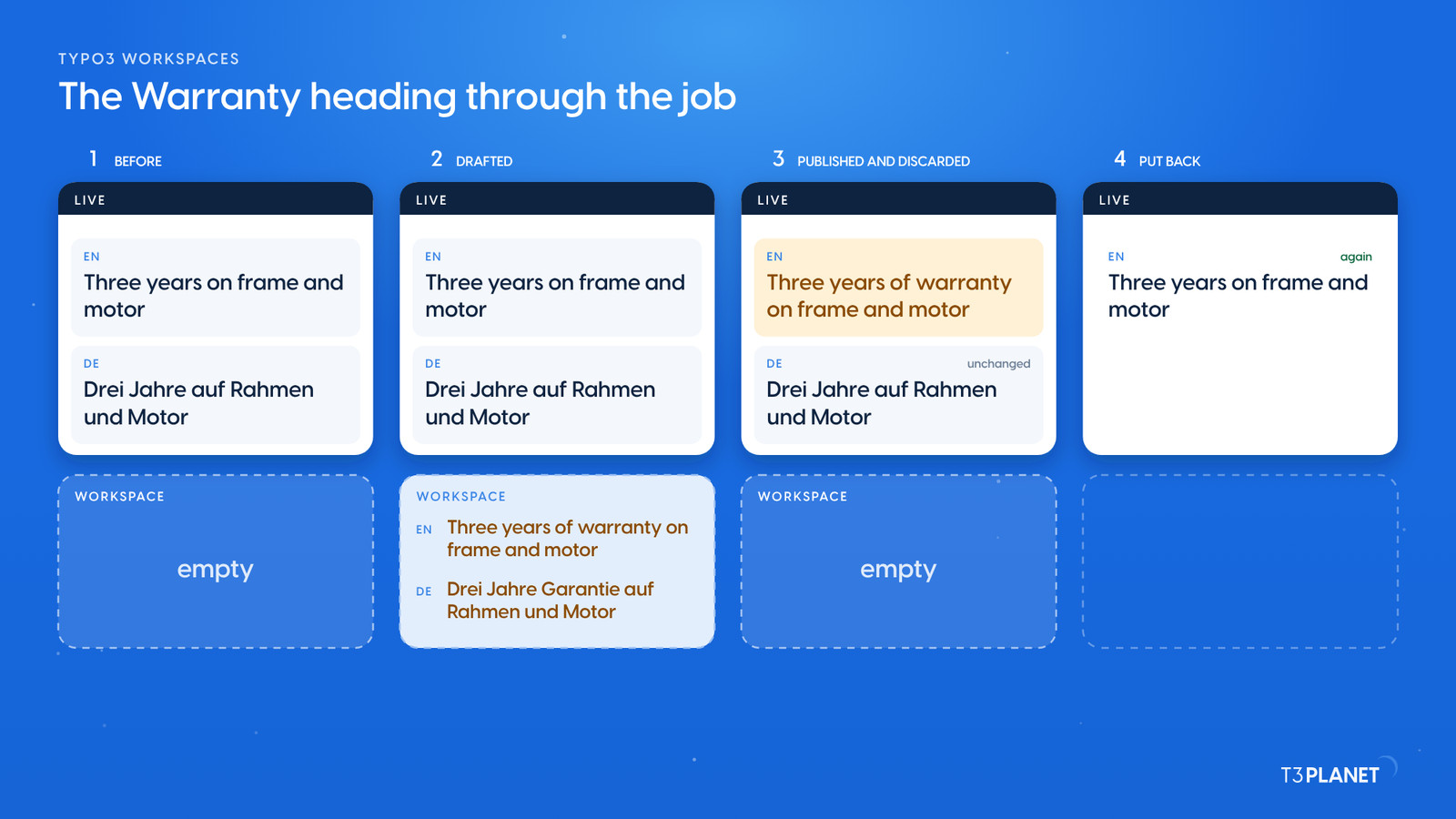
We ran the job on 5 October 2026 on the Warranty page of Mustermann Outdoor, a fictional brand on our demo install. Each prompt is in the words of the person who runs the site.
| # | Prompt | Tools used | What happened |
| 1 | Show me the heading on our Warranty page in English and German. | content_get | "Three years on frame and motor", and the German "Drei Jahre auf Rahmen und Motor" |
| 2 | Draft a clearer heading in both languages, as a draft only, not live. | write_table with the draft workspace | Two drafts. The live page still showed the old heading |
| 3 | What is waiting in the draft workspace? | workspace_changes_list | Two changed content elements, the English and the German heading, both on the Editing stage |
| 4 | Show me the old and the new heading side by side for both drafts. | content_list | The live heading next to each draft, in English and German |
| 5 | Publish the English one and drop the German one. | workspace_publish, workspace_discard | The English heading went live; the German draft was dropped, and the German page kept its heading |
Draft. The assistant read the current headings first, then wrote both new ones into the draft workspace. It checked the live record afterwards: unchanged.
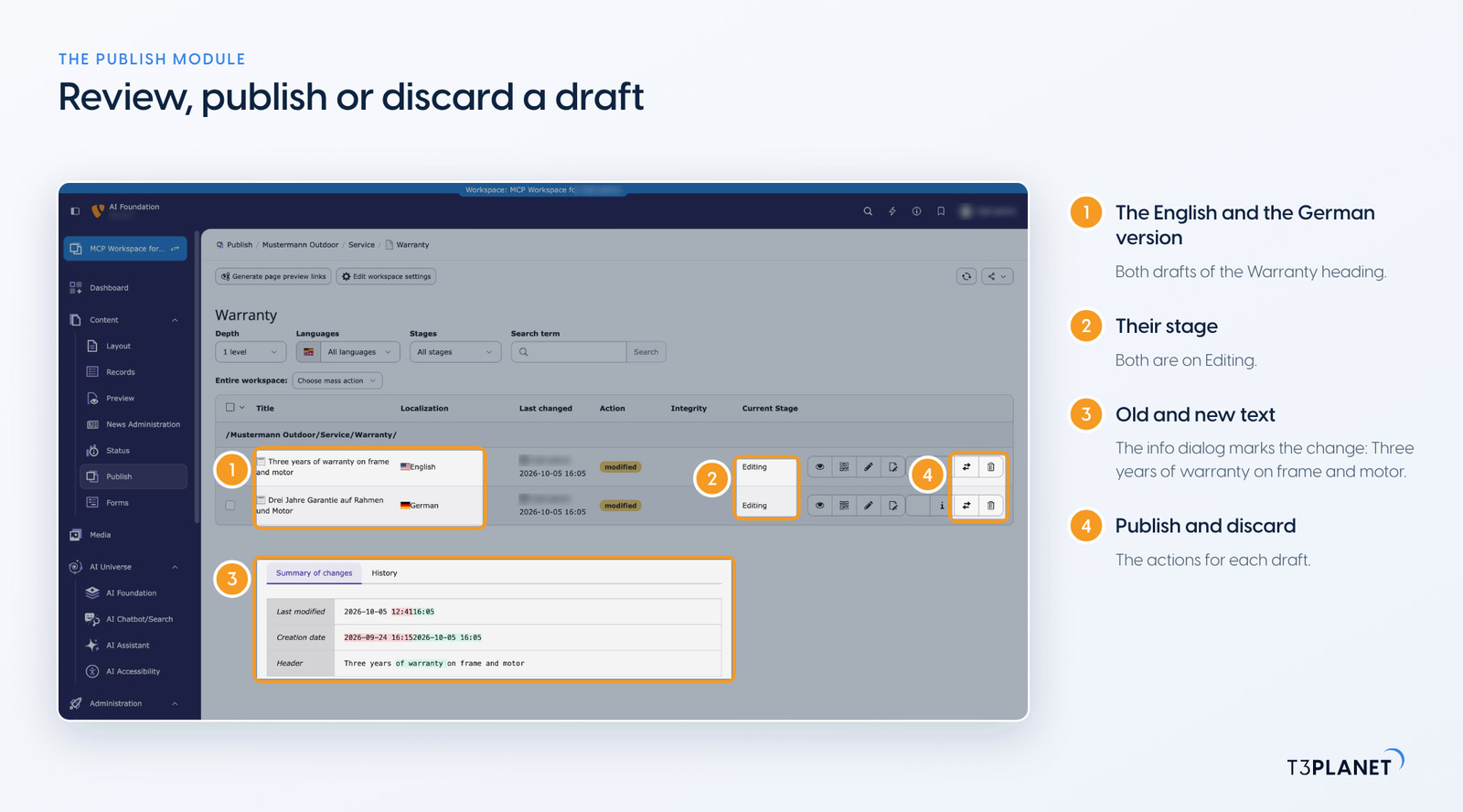
See what is waiting. The list showed two versions, each with the live record it belongs to and its stage. This is the list to read before anyone publishes.
Review. The assistant read each heading from Live and from the workspace and put old and new side by side. A reviewer sees the same in the backend, in the Publish module, which the workspaces extension adds: each draft, its stage and the difference. The stages, from Editing to Ready to publish, are set there.
Publish or discard. One prompt did both: the English draft went live, the German one was dropped. We opened the website afterwards. The English Warranty page showed the new heading, the German page the old one.
Publish the English one and drop the German one.
Put back. This was a demo, so we wrote the old English heading back on Live and checked the page again. On your site, a published change stays until you change it again. To take it back, ask the assistant to write the old value, which is why prompt 1 reads it first.
Every Friday: two new jobs for your AI assistant, each with a one-minute video.
This episodeEpisode 5 · 27 Oct 2026
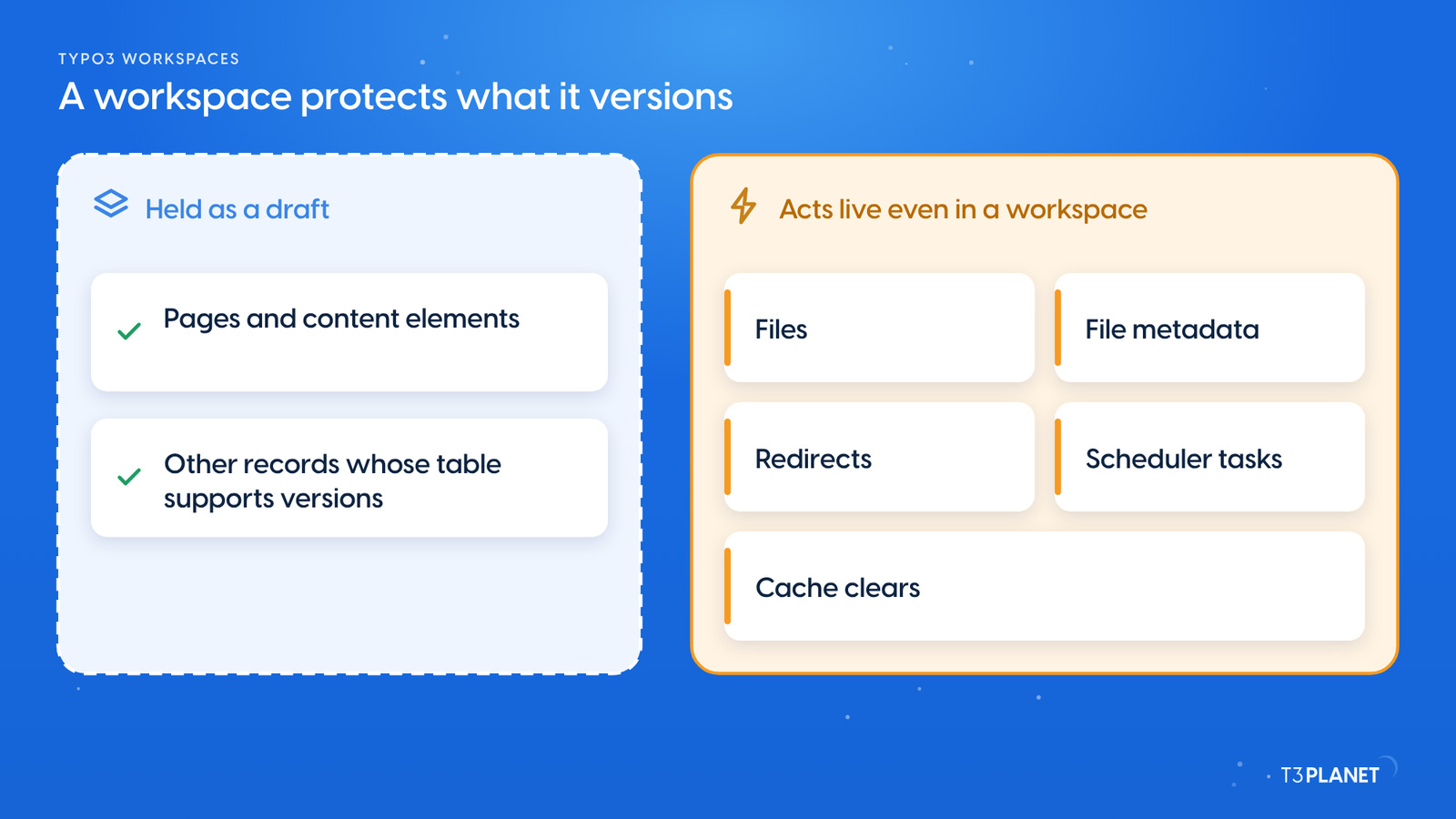
A workspace protects only what TYPO3 versions. Pages and content elements are held as drafts. Files, file metadata, redirects, scheduler tasks and cache clears act live, even when your assistant works in a workspace. So a prompt that renames a file or adds a redirect changes your site at once, whatever workspace you name.
Two more points stay with you:
The video for this episode runs the same five prompts in Claude on our demo install. It then shows the drafts in TYPO3's Publish module and the Warranty page before and after. Shown in Claude; other MCP assistants work too.
Every tool in this job is a core tool of AI Foundation, free and open source, no licence key, no registration. AI Assistant, AI Accessibility, AI Chatbot and AI Search add their own MCP tools and need their own licences. Together with AI Foundation they bring 100+ MCP tools.
What your assistant reads, it sends to its vendor, as with any chat.
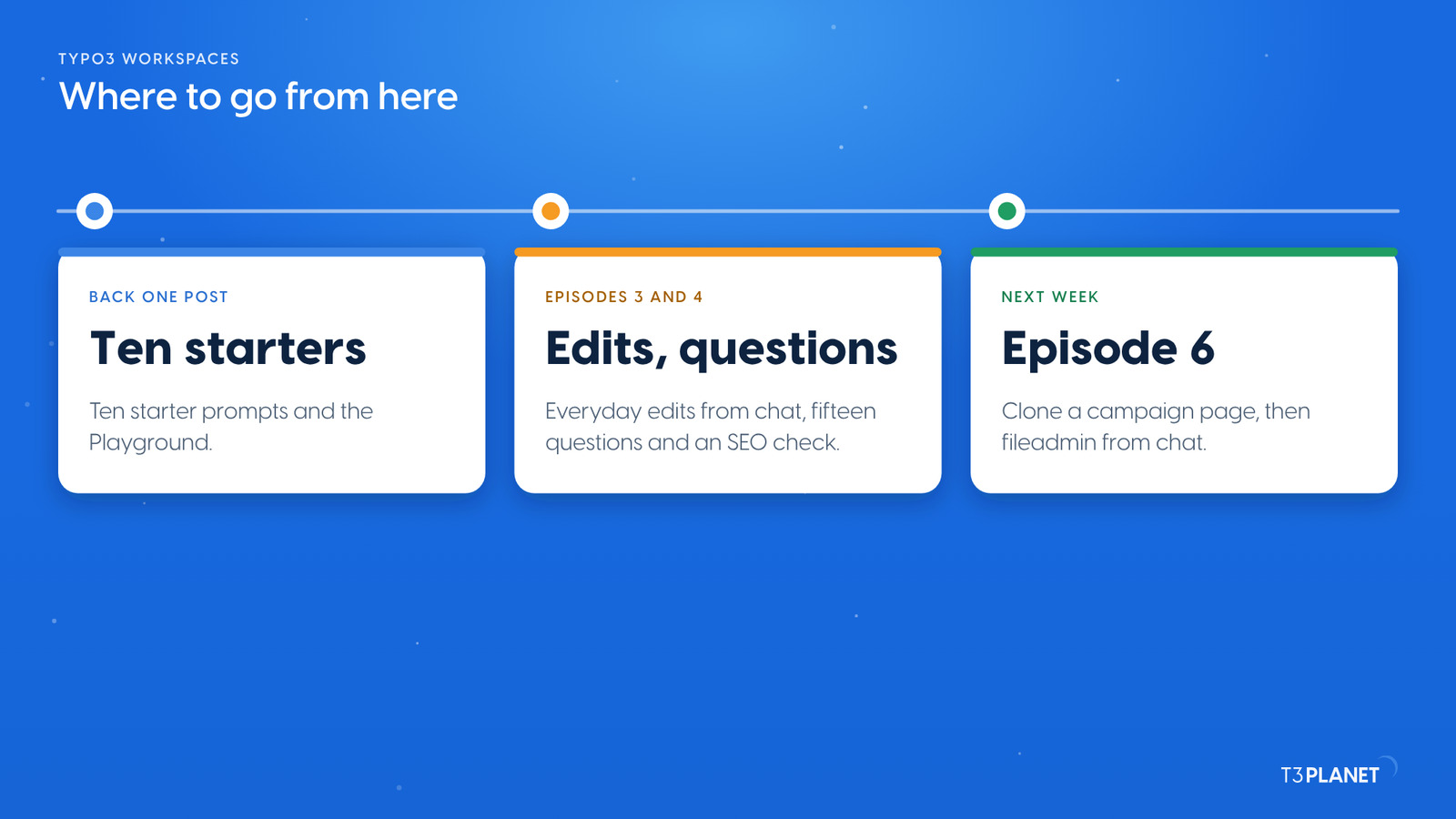
The first post of this episode, TYPO3 MCP prompts, gives you ten starters that only read, and the Playground to try one tool by hand. Episode 3 brought everyday edits from chat; a draft workspace is the safe place to start them. Episode 4 asks your TYPO3 fifteen questions and checks your SEO by conversation. Next week, episode 6 clones a campaign page with all its subpages and puts fileadmin in order from chat.
The series comes from T3Planet by NITSAN Technologies, a TYPO3 Association Gold Member with more than 15 years of TYPO3 work. Jürgen, our AI Consultant for TYPO3, writes its episodes. Every episode runs its job on our demo install before it is published.
write_tableTwo drafts written to the draft workspaceworkspace_changes_listWaiting changes listed: two content elementscontent_listLive and draft headings read side by side for reviewworkspace_publishEnglish draft published to Liveworkspace_discardGerman draft discarded; Live unchangedWhat stays with you: who may publish, and putting a published value back if you do not want it.
A place where changes to pages and content are kept as drafts, next to the live version. Your website shows the live version until someone publishes the draft. Live is workspace 0; draft workspaces start at 1.
Yes, if its backend user has the right to publish. Through AI Foundation's MCP tools it can draft, list, compare for review, publish and discard. If you want a person to release every change, keep the publish right away from that user.
No. Files, file metadata, redirects, scheduler tasks and cache clears act live, even in a workspace. Only records that TYPO3 versions, such as pages and content elements, are held as drafts.
Plan the way back before you publish: ask your assistant for the current value before the change, then have it write that value back if you do not want the change. Before you publish, discarding workspace changes leaves the live page as it was.
Jürgen Pietschmann
AI Consultant for TYPO3Jürgen Pietschmann is a T3Planet Product Consultant at T3Planet Shop. He specialises in integrating AI into editorial workflows – from intelligent content creation and automated SEO to AI-powered search and chatbot solutions for TYPO3 sites. As a technical consultant for T3Planet AI Universe, he works closely with agencies and editorial teams on practical TYPO3 implementations. Jürgen has been writing the This Month in TYPO3 series since December 2025 and has spoken at T3CON25 and TYPO3 Developer Days 2026 (T3DD26), where he co-presented Content Editing Unlocked.
More From Author