
TYPO3 MCP clients compared: which AI assistant works with your TYPO3?
TYPO3 MCP


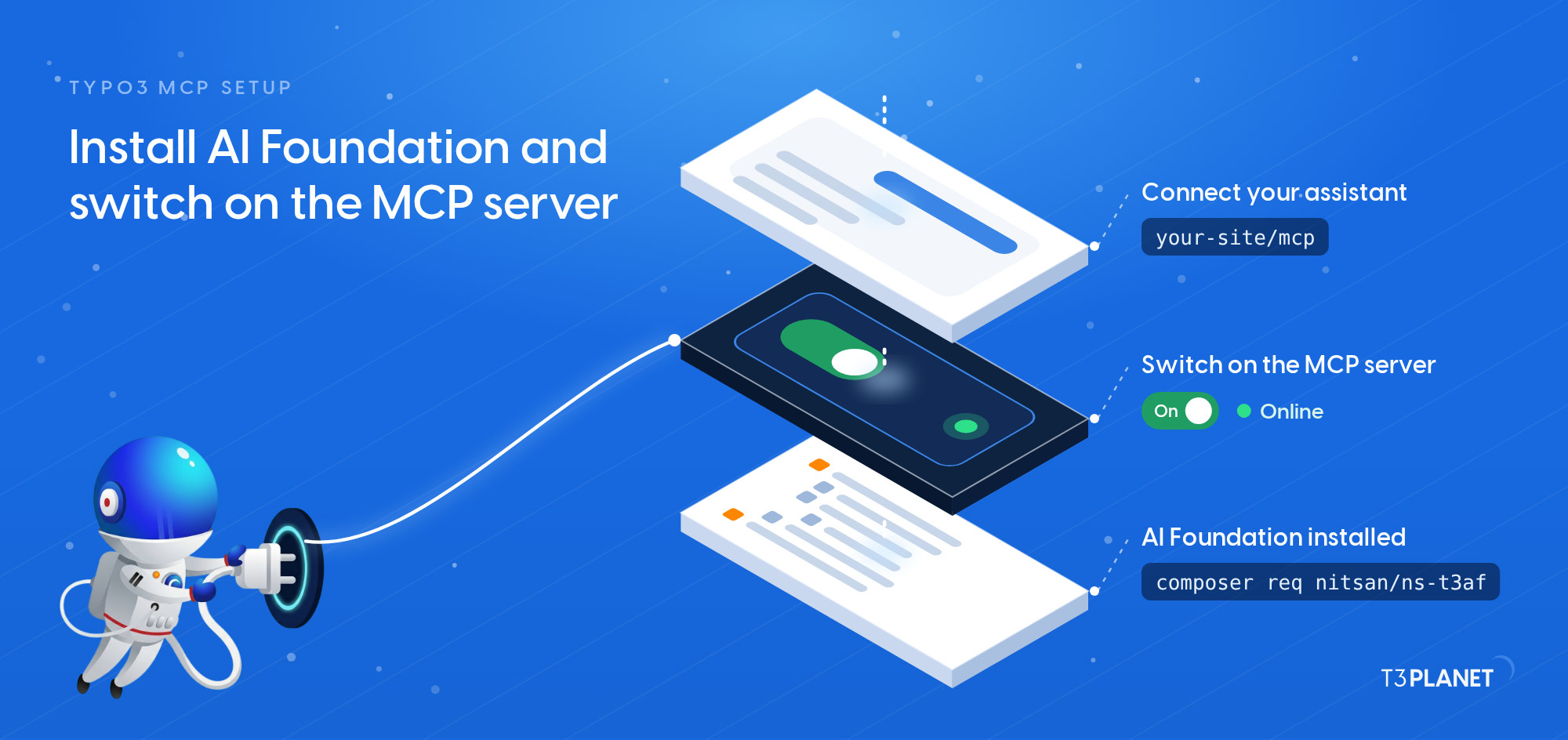
This TYPO3 MCP setup takes four steps: install AI Foundation with Composer, switch on its MCP server, connect your AI assistant with a sign-in in your browser (OAuth), and check that it answers.
MCP, the Model Context Protocol, is the open standard an assistant such as Claude or Cursor uses to work inside TYPO3 through a set of tools. AI Foundation adds that MCP server to TYPO3, and it is free and open source, no licence key, no registration. Each step names the command or the backend path and what you should see afterwards, so you can check it on your own install. The screens below come from our demo install, and so does the first question at the end.
One minute, with captionsAll videos
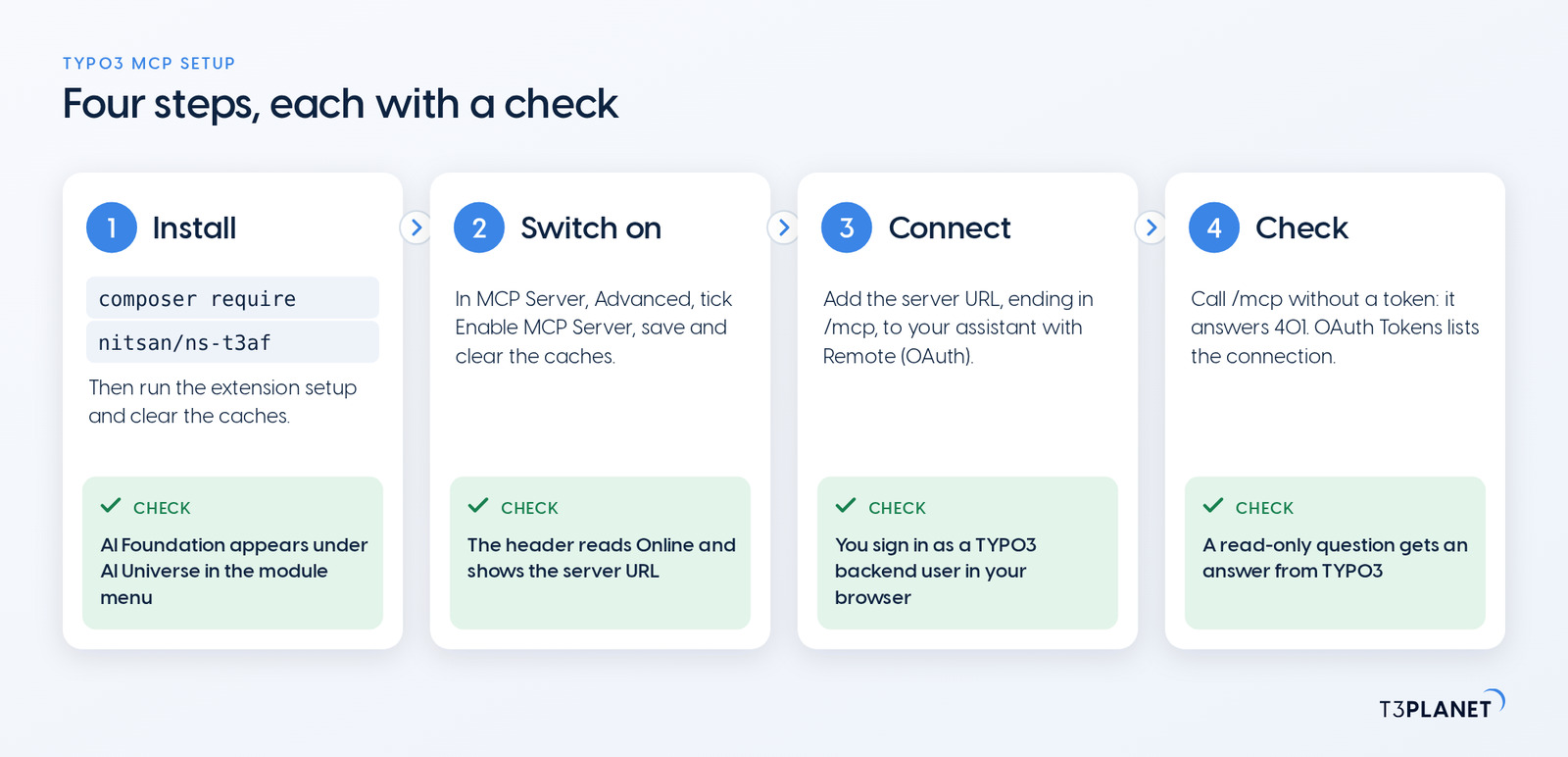
You set up TYPO3 MCP in four steps. Install AI Foundation with composer require nitsan/ns-t3af, run the extension setup and clear the caches. In AI Foundation, MCP Server, Advanced, make sure Enable MCP Server is ticked, so the status reads Online. Add the server URL ending in /mcp to your assistant and sign in through OAuth as a TYPO3 backend user. Then check it: /mcp refuses you without a token, OAuth Tokens lists the connection, and a first question gets an answer.
What MCP is, and what it changes for TYPO3 teams, is in our explainer on TYPO3 MCP. This post stays with the method.
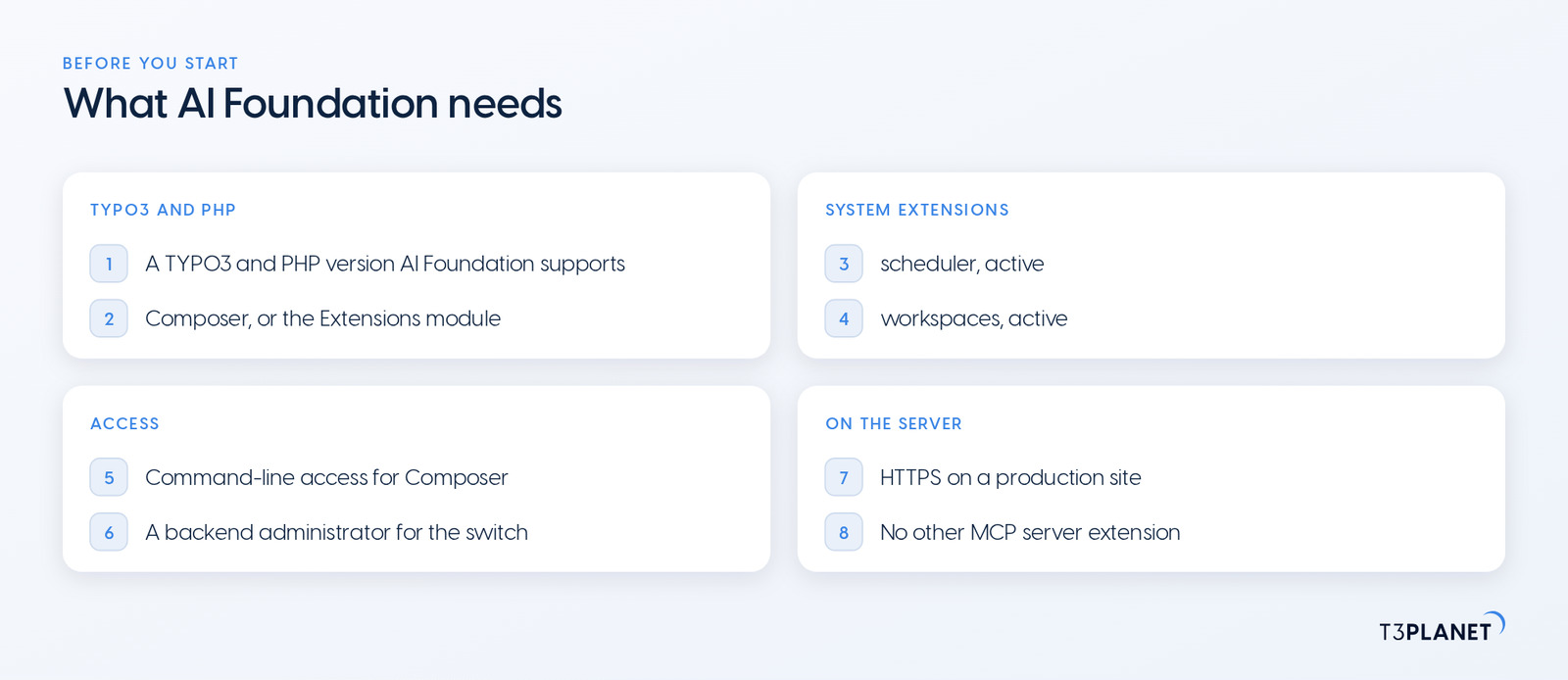
Check these points before you run the first command:
| Requirement | What AI Foundation needs | Why it matters |
| TYPO3 | v12, v13 or v14 | The versions AI Foundation supports |
| PHP | 8.2 or later | The minimum AI Foundation runs on |
| Install route | Composer, or the Extensions module on installs without Composer | Composer is the route shown here |
| System extensions | scheduler and workspaces, both active | Both ship with TYPO3, and AI Foundation relies on them |
| Access | Command-line access to the project, and a backend administrator | Composer runs on the server; the switch sits in the backend |
| Production site | HTTPS | Sign-in and tokens travel over it; the documentation advises against switching on MCP on a production site without it |
| Other MCP servers | No other MCP server extension installed | AI Foundation brings its own MCP server, and Composer refuses to install it next to another one |
The installation guide in our documentation lists the finer points, such as the recommended PHP version and the databases AI Foundation is tested with. Read it before you install on a production site.
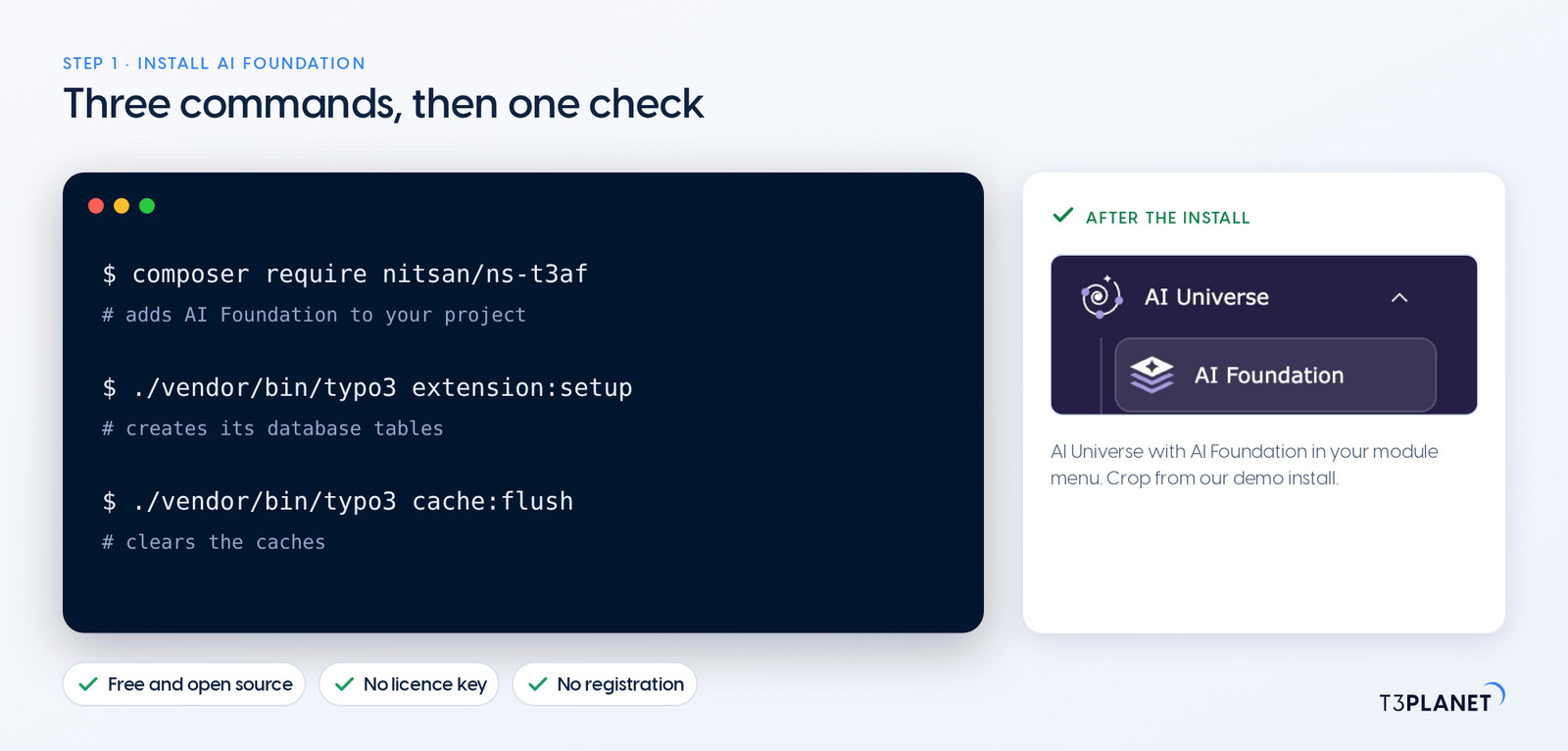
The TYPO3 MCP installation is one Composer package. Run these three commands in the root of your TYPO3 project:
composer require nitsan/ns-t3af
./vendor/bin/typo3 extension:setup
./vendor/bin/typo3 cache:flushThe first command adds AI Foundation, the second creates its database tables, and the third clears the caches. Reload the backend: the module menu now shows AI Universe, with AI Foundation below it. On an install without Composer, get the extension from the TYPO3 Extension Repository in the Extensions module, activate it and clear the caches.
There is nothing to activate afterwards: AI Foundation is free and open source, no licence key, no registration. Our post on the free AI extension for TYPO3 explains what that covers. If Composer is new to you, our guide to installing TYPO3 extensions with Composer covers the basics.
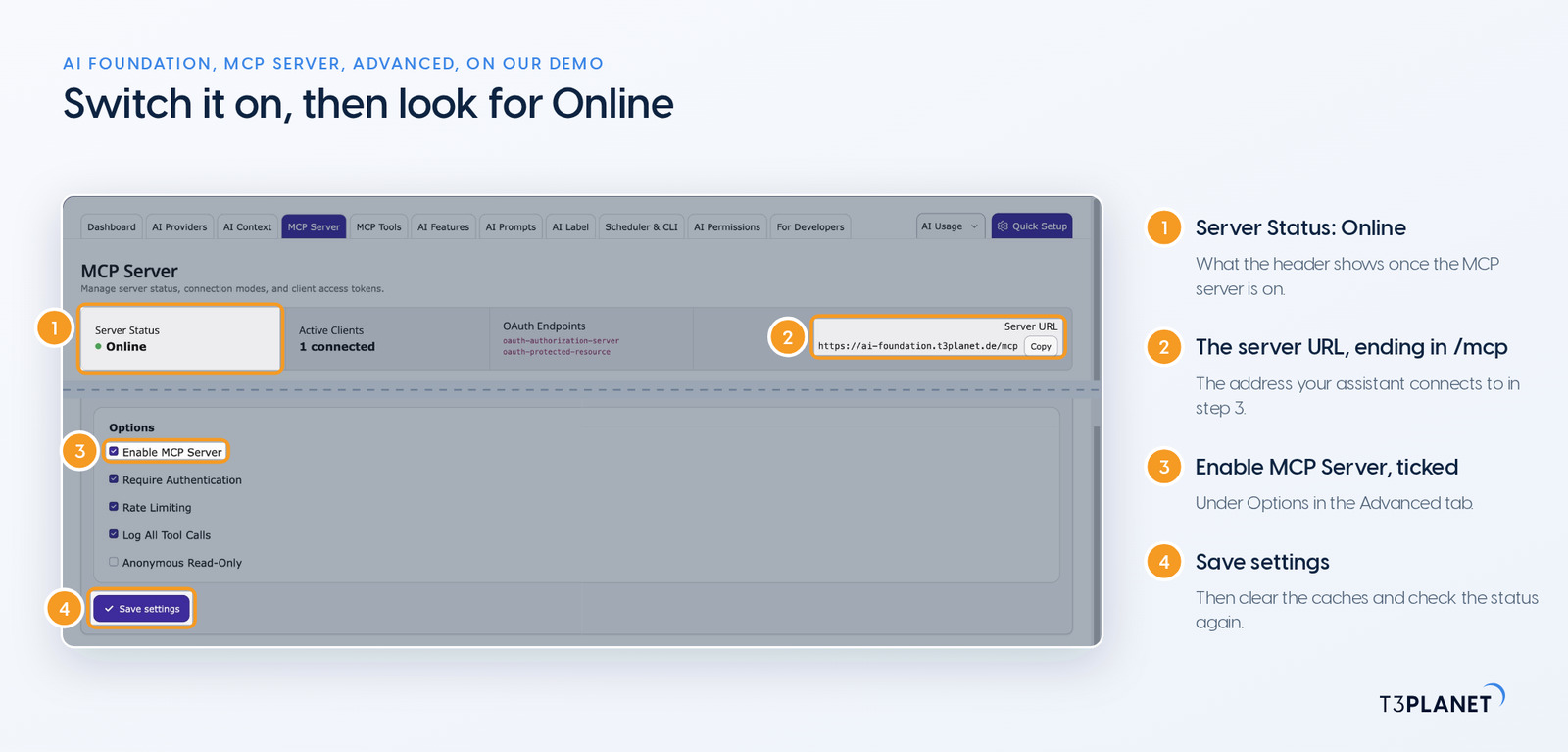
Open AI Foundation in the module menu, then the MCP Server tab and its Advanced tab:
The same header shows the Server URL, which ends in /mcp. That is the address your assistant connects to in the next step, and the Copy button next to it puts it on your clipboard.
The documentation recommends finishing the AI Providers setup before you switch on MCP, with your own API keys as the default (MCP server documentation).
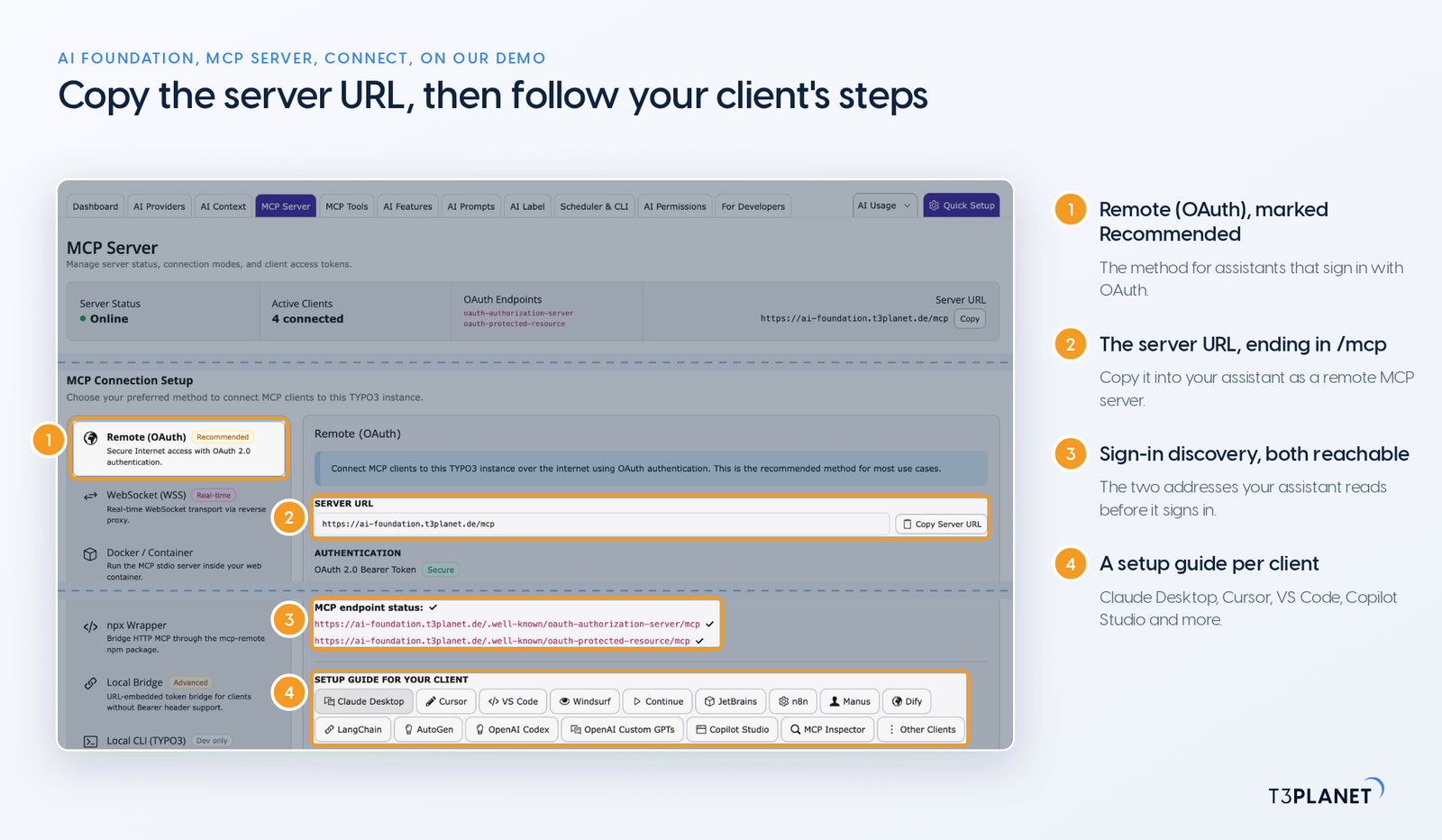
In the Connect tab, pick Remote (OAuth), marked Recommended, and copy the server URL. Then:
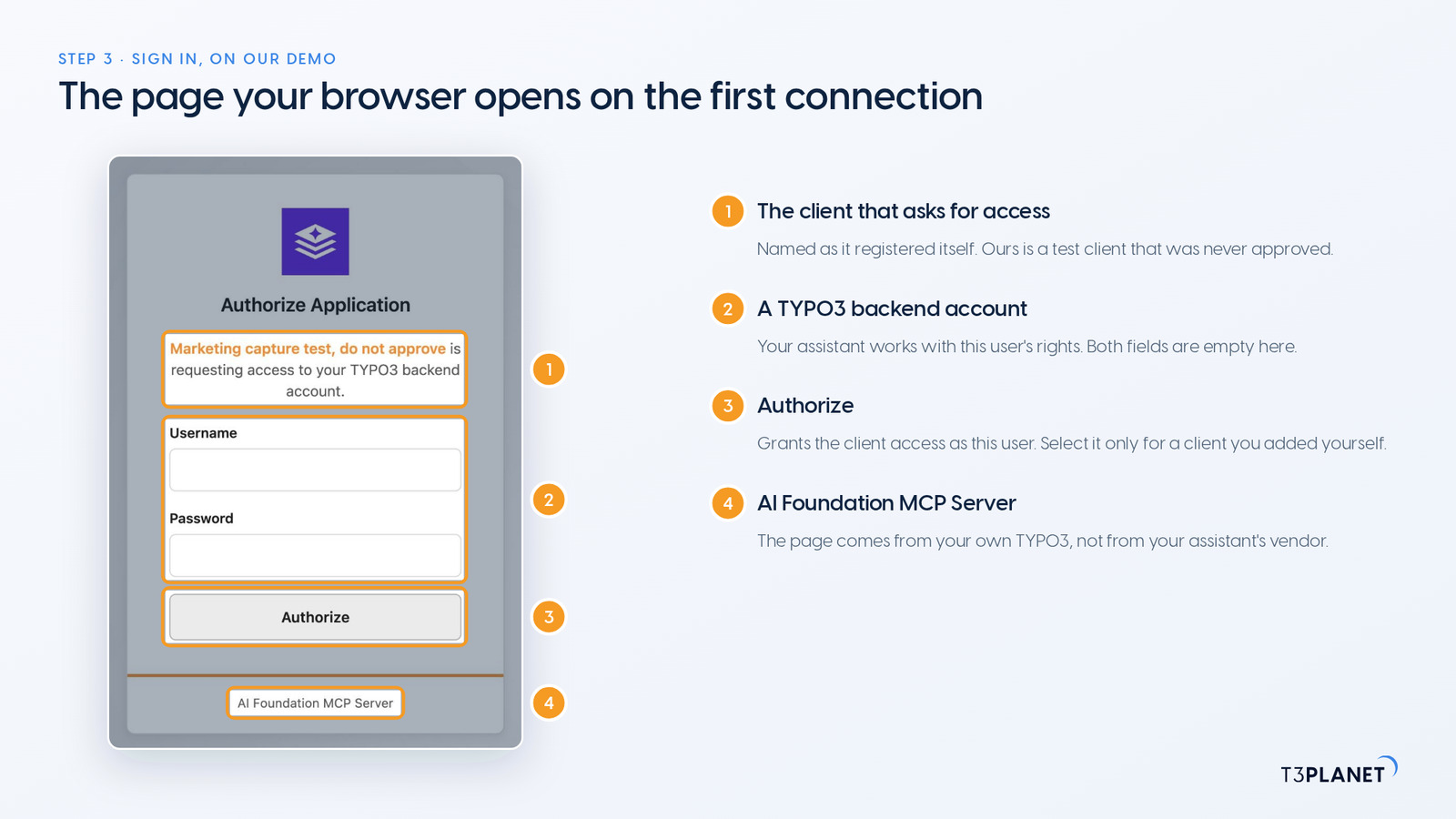
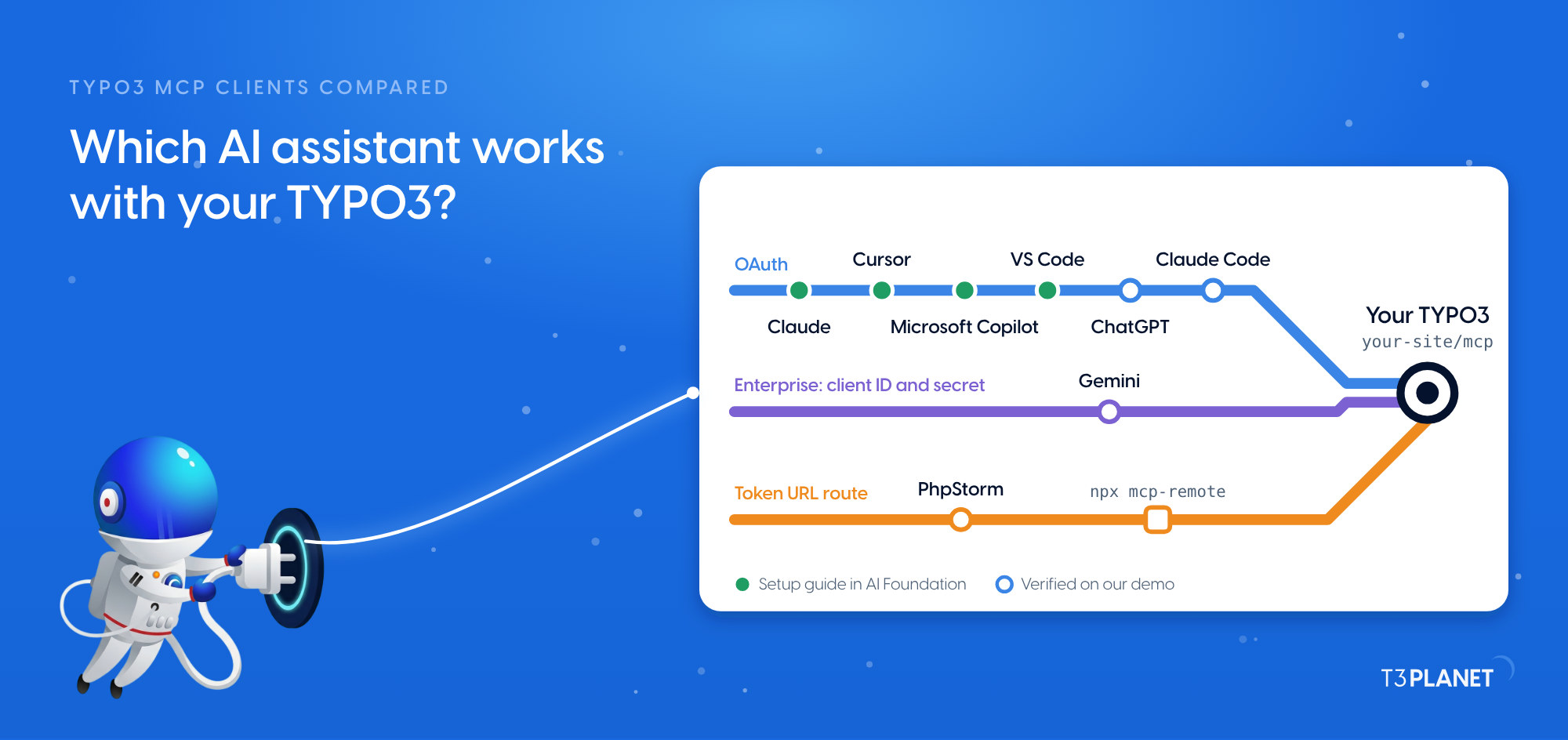
An assistant that registers itself on its first connection, as Claude did on our demo install, needs no client ID or secret from you. The sign-in follows the authorization rules of the Model Context Protocol: OAuth with PKCE, a check that stops an intercepted sign-in code from being used by anyone else, and our demo install lists S256 as its only PKCE method. From then on, the assistant can do in TYPO3 exactly what that backend user can do. The Connect tab also offers other methods, such as a token URL for clients without OAuth; Remote (OAuth) is the one to start with.
Every Friday: two new jobs for your AI assistant, each with a one-minute video.
This episodeEpisode 2 · 19 Oct 2026
Three checks tell you the setup works, from the outside in.
The endpoint answers. Without a token, /mcp has to refuse you, and the OAuth discovery document has to answer with JSON. Replace the example address with your own:
curl -sS -o /dev/null -w "%{http_code}\n" https://www.example.com/mcp
# 401: the MCP server runs and asks for a sign-in

curl -sS https://www.example.com/.well-known/oauth-authorization-server/mcp
# JSON with authorization_endpoint, token_endpoint and code_challenge_methods_supportedA 401 is the answer you want here. A 503 means the MCP server is switched off, which step 2 fixes.
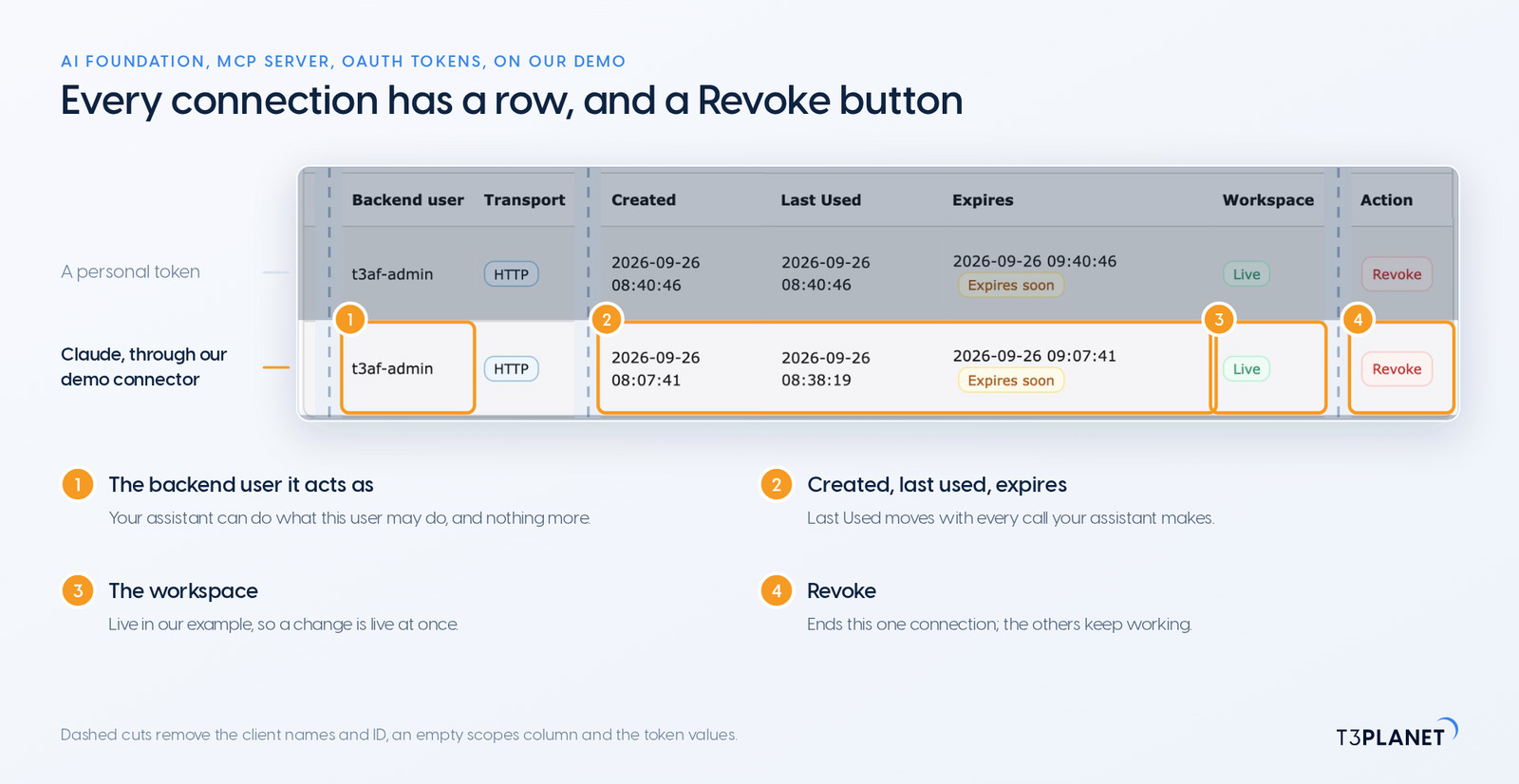
The connection is listed. MCP Server, OAuth Tokens shows one row per connected client: the backend user it acts as, when its token was created and last used, when it expires, the workspace and a Revoke button.
Your assistant answers from TYPO3. Ask a question that only reads, such as Give me a quick overview of the pages on our website and the languages they exist in. On our demo install, the assistant read the page tree and the site languages, then answered: two sites, each in English and German, how many of their pages are translated, and which pages have no German version, the Tents page among them. Nothing was changed.
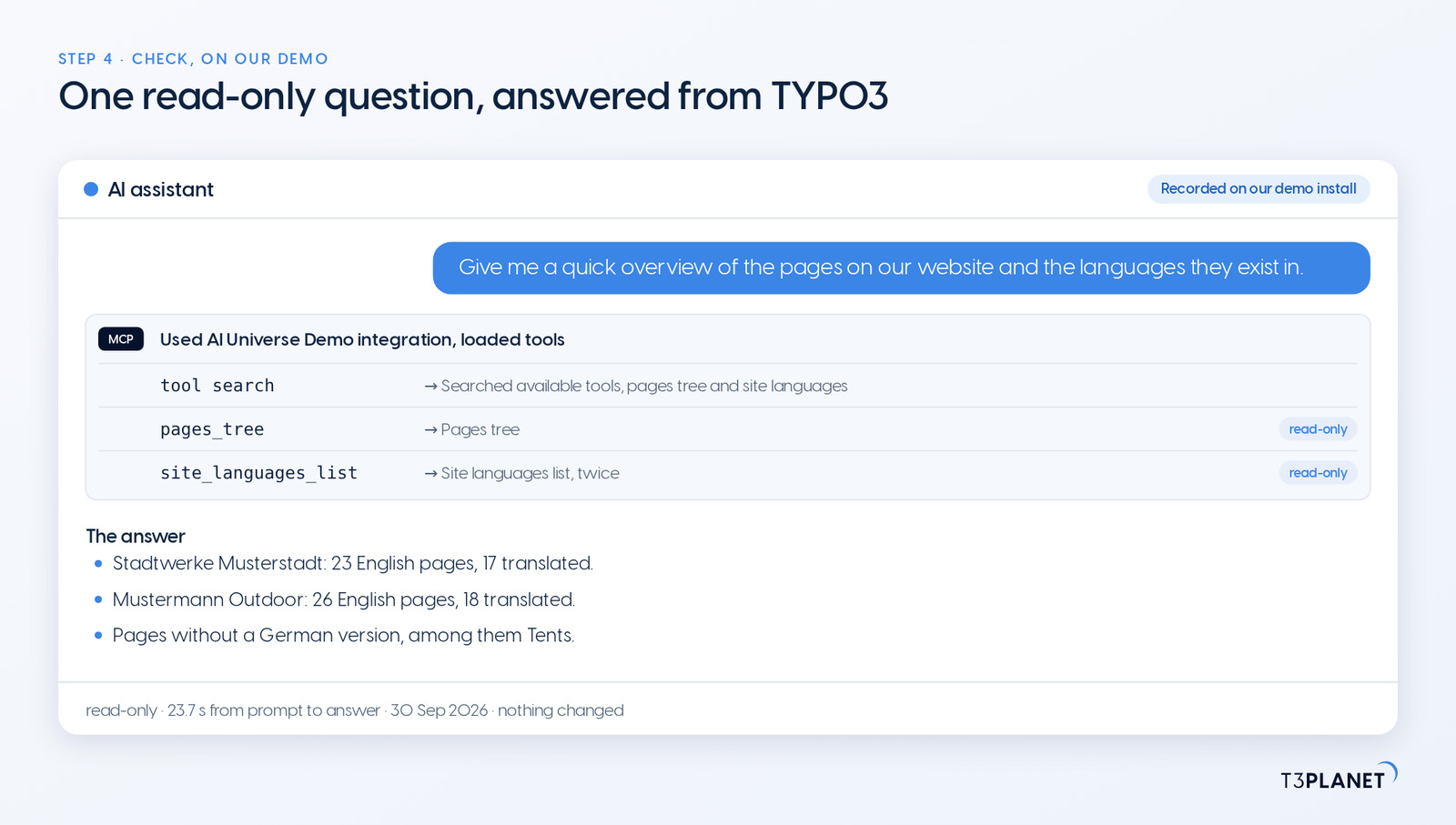
The video for this episode starts with the first prompt on our demo TYPO3, recorded on 30 September 2026 through the MCP server of AI Foundation, as an administrator working on Live: Give me a quick overview of the pages on our website and the languages they exist in. The assistant read the page tree and the site languages and answered in 23.7 seconds on our demo install, measured from the prompt to the finished answer. Nothing was changed. The video then checks the connection in TYPO3: the MCP Server module with its status and server URL, the sign-in in your browser that you approve as a backend user, and the OAuth Tokens list, where you can revoke the connection. The core tools are free with AI Foundation, and extensions add licensed tools. The install itself is not shown: our demo already runs AI Foundation, and the commands are in step 1.
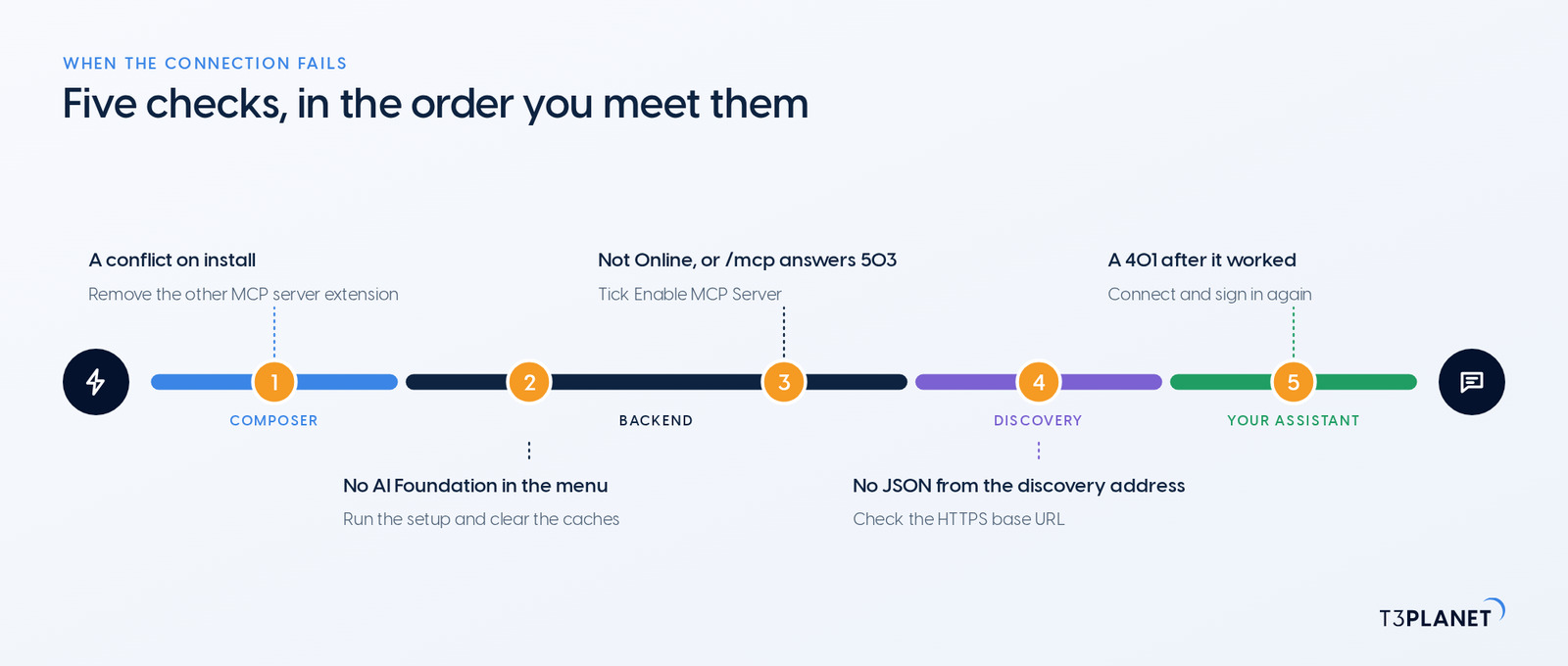
When the connection fails, check these five points, in the order you would meet them:
| What you see | Likely cause | What to do |
Composer refuses to install nitsan/ns-t3af and names a conflict | Another MCP server extension is installed | Remove that extension first; AI Foundation brings its own MCP server |
| No AI Foundation in the module menu | The setup or the cache flush did not run, or scheduler or workspaces is not active | Run extension:setup and cache:flush again, and activate both system extensions |
Server Status is not Online, or /mcp answers 503 | Enable MCP Server is not ticked | Tick it in MCP Server, Advanced, save and clear the caches |
| The discovery address does not answer with JSON | The site base URL, HTTPS or the site routing | Check that the site configuration uses your public HTTPS address, then clear the caches |
| Your assistant gets a 401 after it worked before | Its token expired or was revoked | Connect again from your assistant and sign in; OAuth Tokens shows the new row |
The documentation keeps a longer list of known problems, next to the installation guide.
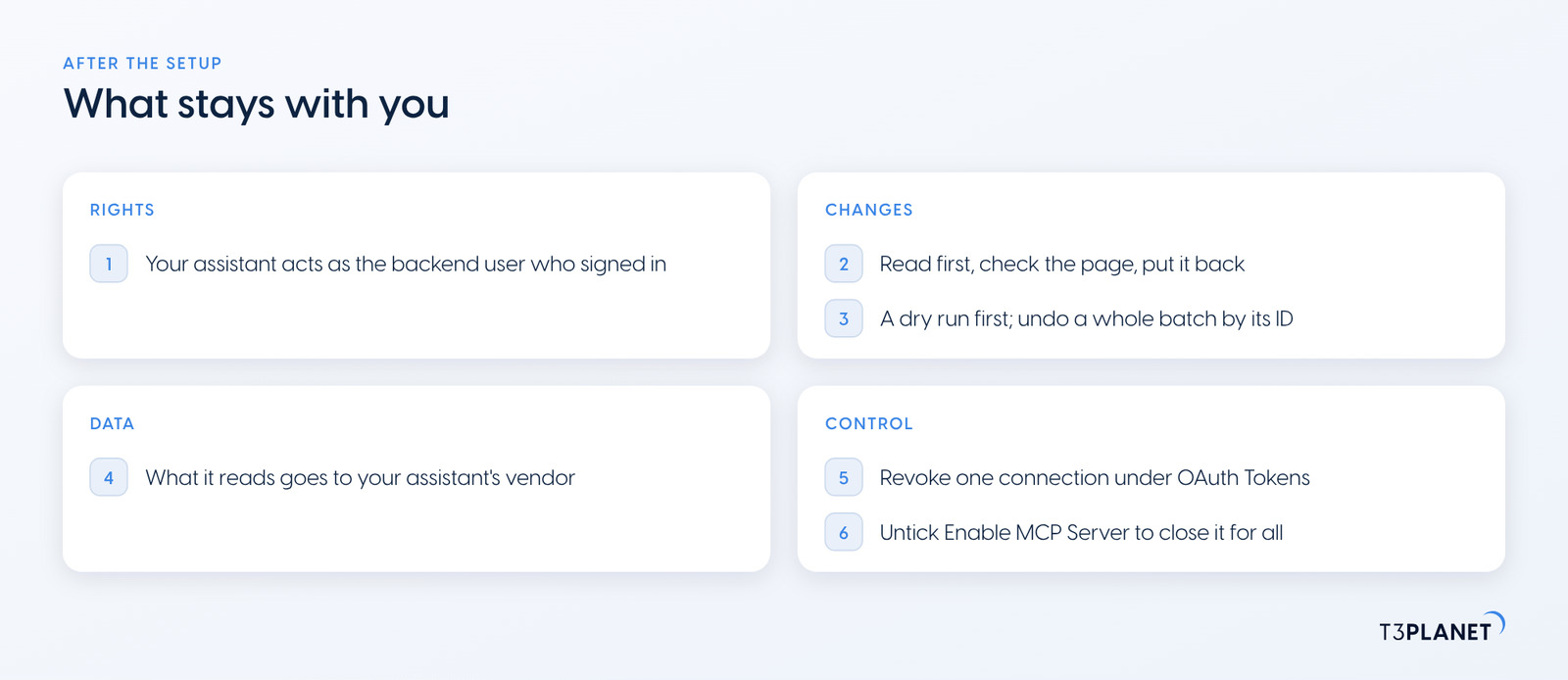
The setup gives your assistant access, and the control stays with you:
records_apply, ask for a dry run first and keep the batch ID: records_undo takes the whole batch back, as episode 3 shows.composer remove nitsan/ns-t3af.AI Foundation's core tools are free. AI Assistant, AI Accessibility, AI Chatbot and AI Search add their own MCP tools and need their own licences; together with AI Foundation they bring 100+ MCP tools.
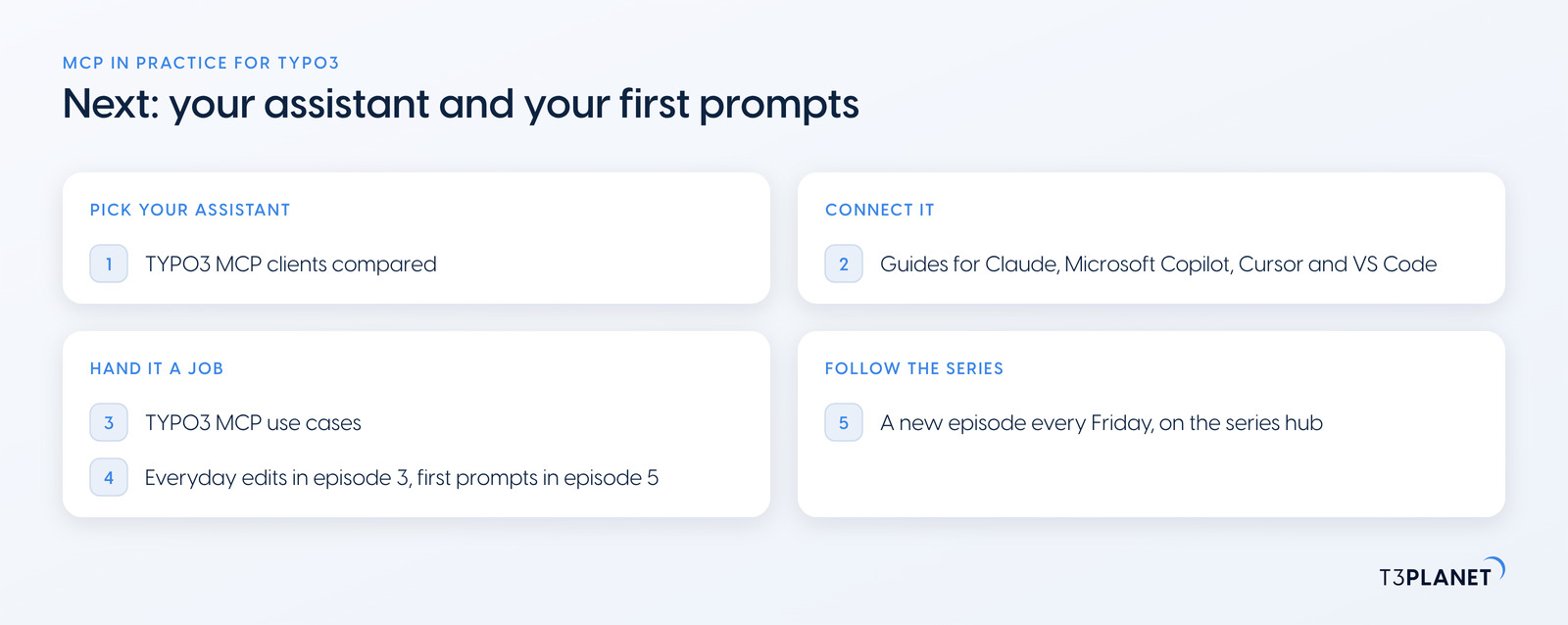
Which assistant fits your team, on which plan and with which sign-in, is the subject of TYPO3 MCP clients compared, the other post of this episode. What you can hand over once it is connected, free or licensed, is on the map of TYPO3 MCP use cases. Episode 3 brings everyday edits from chat, and episode 5 your first prompts in the Playground.
The series comes from T3Planet by NITSAN Technologies, a TYPO3 Association Gold Member with more than 15 years of TYPO3 work, and its episodes are written by Jürgen, our AI Consultant for TYPO3. Every episode runs its job on our demo install before it is published.
Give me a quick overview of the pages on our website and the languages they exist in.
pages_treePage tree read: the pages and their translationssite_languages_listSite languages read: English and GermanWhat stays with you: choosing the backend user the assistant signs in as, and ending a connection under OAuth Tokens when you no longer want it.
No. AI Foundation, the T3Planet extension that adds the MCP server to TYPO3, is free and open source, no licence key, no registration. The AI assistant you connect comes with its own plan from its vendor.
TYPO3 v12, v13 and v14, with PHP 8.2 or later. The installation guide in our documentation lists the finer points.
An assistant connects if it can add a remote MCP server and complete AI Foundation's OAuth sign-in, or use the token URL the Connect tab offers for clients without OAuth. Our series guides cover Claude, Microsoft Copilot, Cursor and VS Code, and our comparison of TYPO3 MCP clients shows plan, sign-in and status for eight assistants.
Revoke its connection in MCP Server, OAuth Tokens; the other connections keep working. To close the MCP server for every client, untick Enable MCP Server in the Advanced tab.

Jürgen Pietschmann
AI Consultant for TYPO3Jürgen Pietschmann is a T3Planet Product Consultant at T3Planet Shop. He specialises in integrating AI into editorial workflows – from intelligent content creation and automated SEO to AI-powered search and chatbot solutions for TYPO3 sites. As a technical consultant for T3Planet AI Universe, he works closely with agencies and editorial teams on practical TYPO3 implementations. Jürgen has been writing the This Month in TYPO3 series since December 2025 and has spoken at T3CON25 and TYPO3 Developer Days 2026 (T3DD26), where he co-presented Content Editing Unlocked.
More From Author