

Connect Microsoft Copilot to TYPO3
This guide connects Microsoft Copilot to your TYPO3 through the MCP server of AI Foundation, T3Planet's free and open source extension. MCP, the Model Context Protocol, lets Microsoft Copilot call the tools of your TYPO3 with the rights of one backend user. AI Foundation ships setup steps for Microsoft Copilot in the Connect tab of its MCP server.
- Assistant Microsoft 365 companies
- Setup guide in AI Foundation.
What you can do once Microsoft Copilot is connected
Start with a question that only reads, then hand over real work. Every episode of the series comes with a one-minute video.
 Ask a first questionTYPO3 MCP: What Is the Model Context Protocol and How Do You Use It?Read
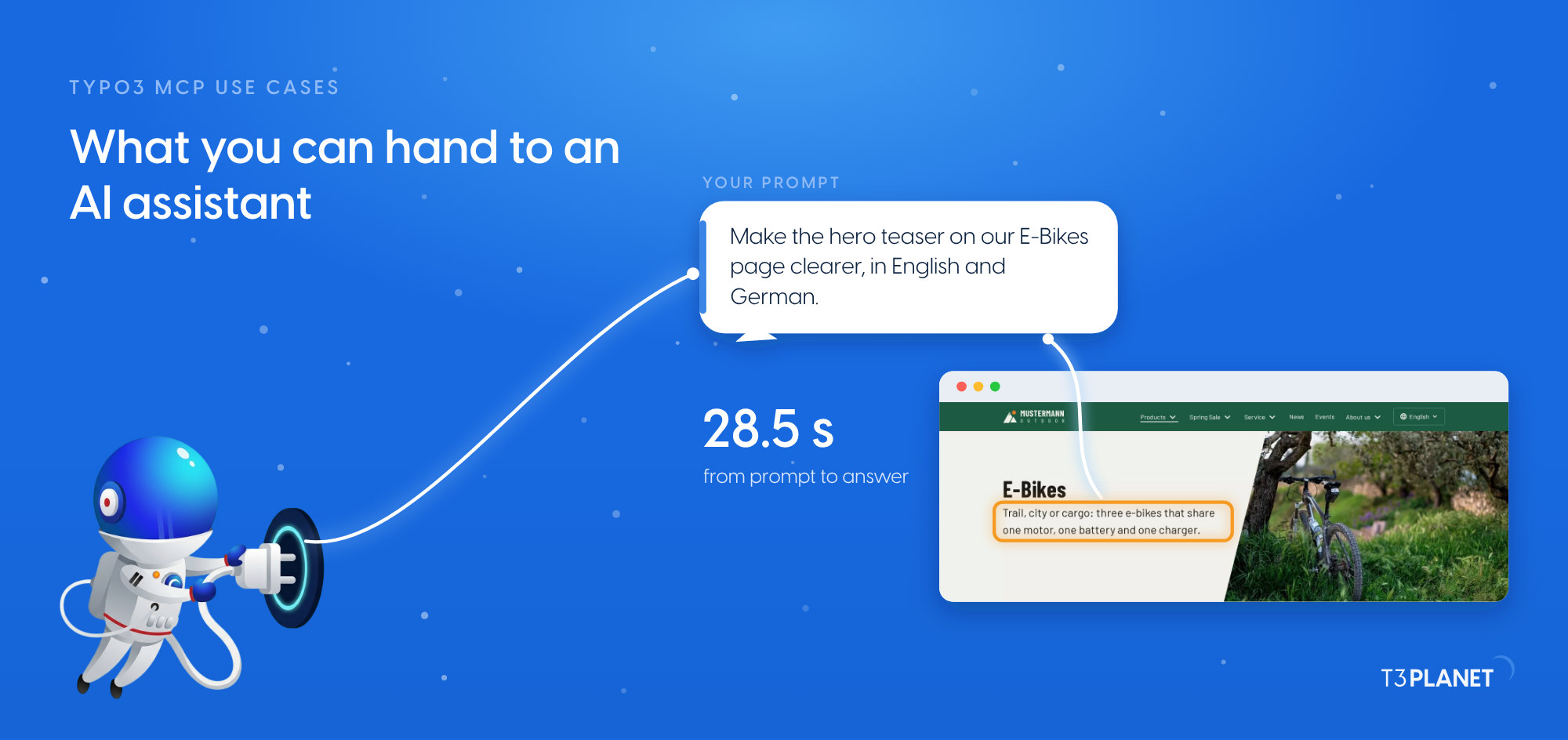 See what you can hand overTYPO3 MCP use cases: what you can hand to an AI assistant, on one mapRead
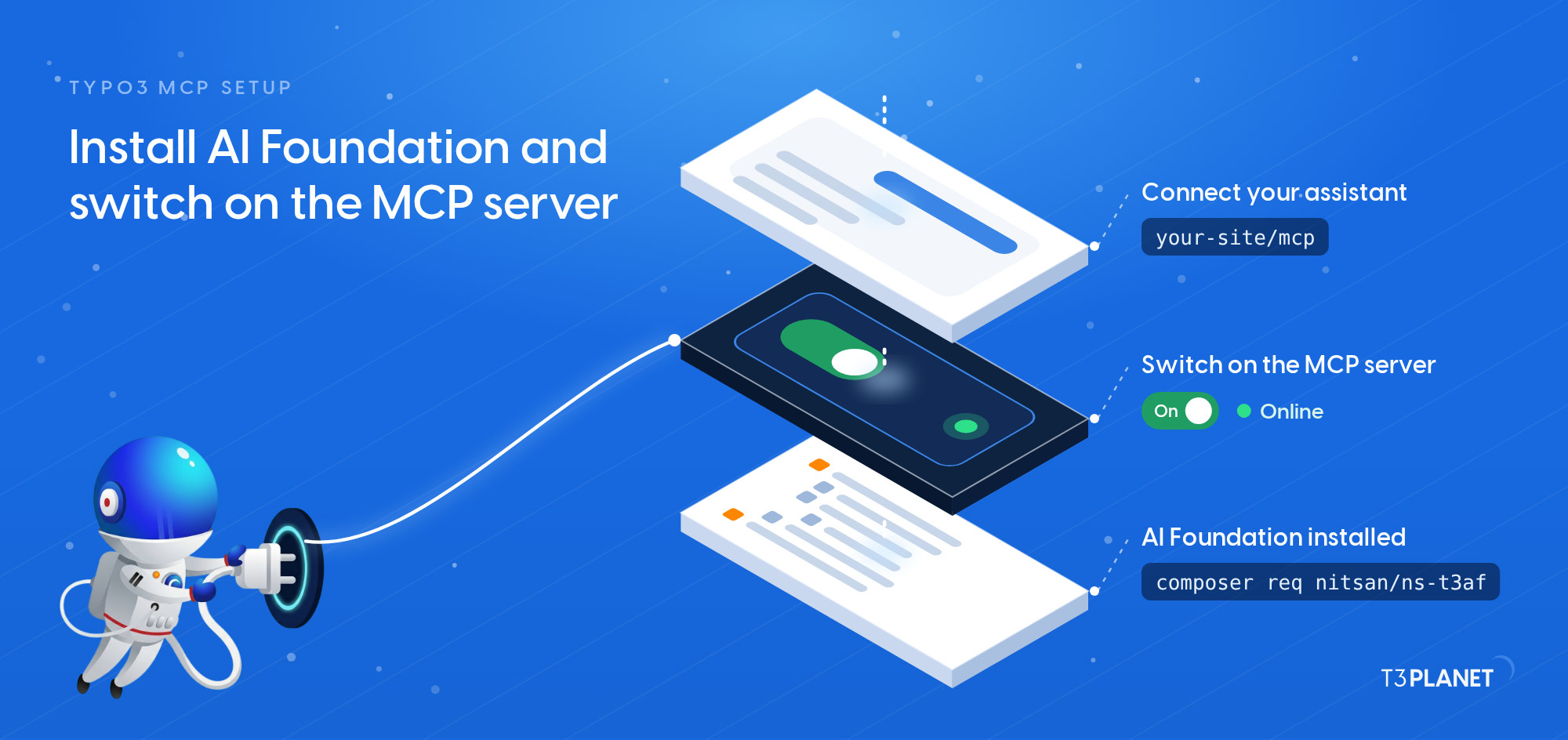 Set up and check the serverTYPO3 MCP setup: install AI Foundation and switch on the MCP serverRead
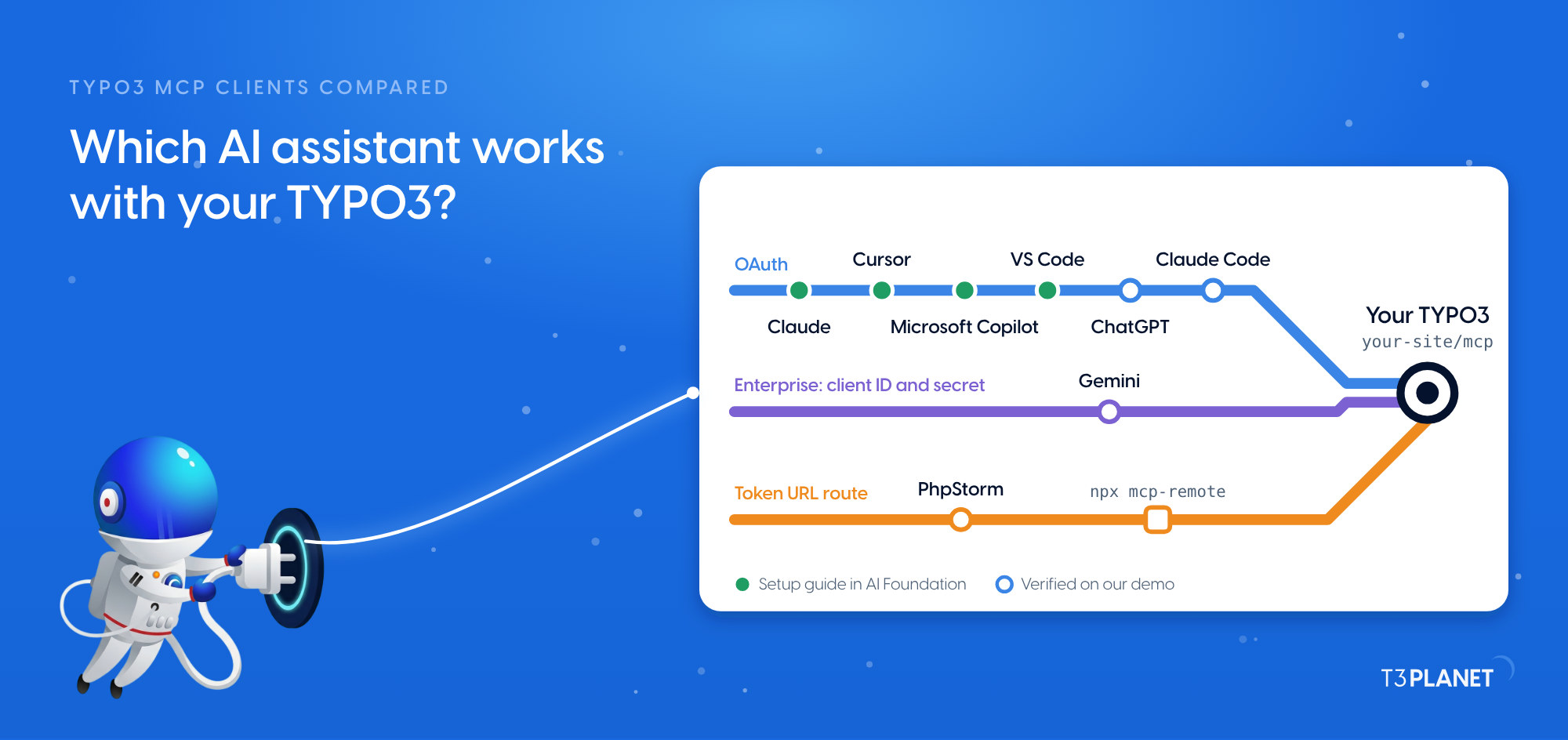 Compare the assistantsTYPO3 MCP clients compared: which AI assistant works with your TYPO3?Read
- Try your first promptsTYPO3 MCP prompts: ten starters and the Playground
- Ask your TYPO3 anythingAsk your TYPO3 anything: 15 questions answered in seconds
Before you start
- AI Foundation is installed and its MCP server is switched on. Our setup episode TYPO3 MCP setup shows both.
- You have the server URL of your TYPO3: in the backend, open MCP Server > Connect. It ends in /mcp.
- You know which backend user the assistant should act as. It gets that user's rights, so choose one whose rights fit the job.
- Copilot Studio in your Microsoft tenant. Microsoft explains the licensing (Microsoft); your organisation's data policies can also apply to the MCP server.
Connect Microsoft Copilot
- Microsoft Copilot reaches TYPO3 through an agent built in Copilot Studio. Open the agent, or create one, and check that generative orchestration is on, as Microsoft's MCP help asks.
- Add the MCP server to the agent as a tool, as Microsoft's help describes, and paste the server URL of your TYPO3.
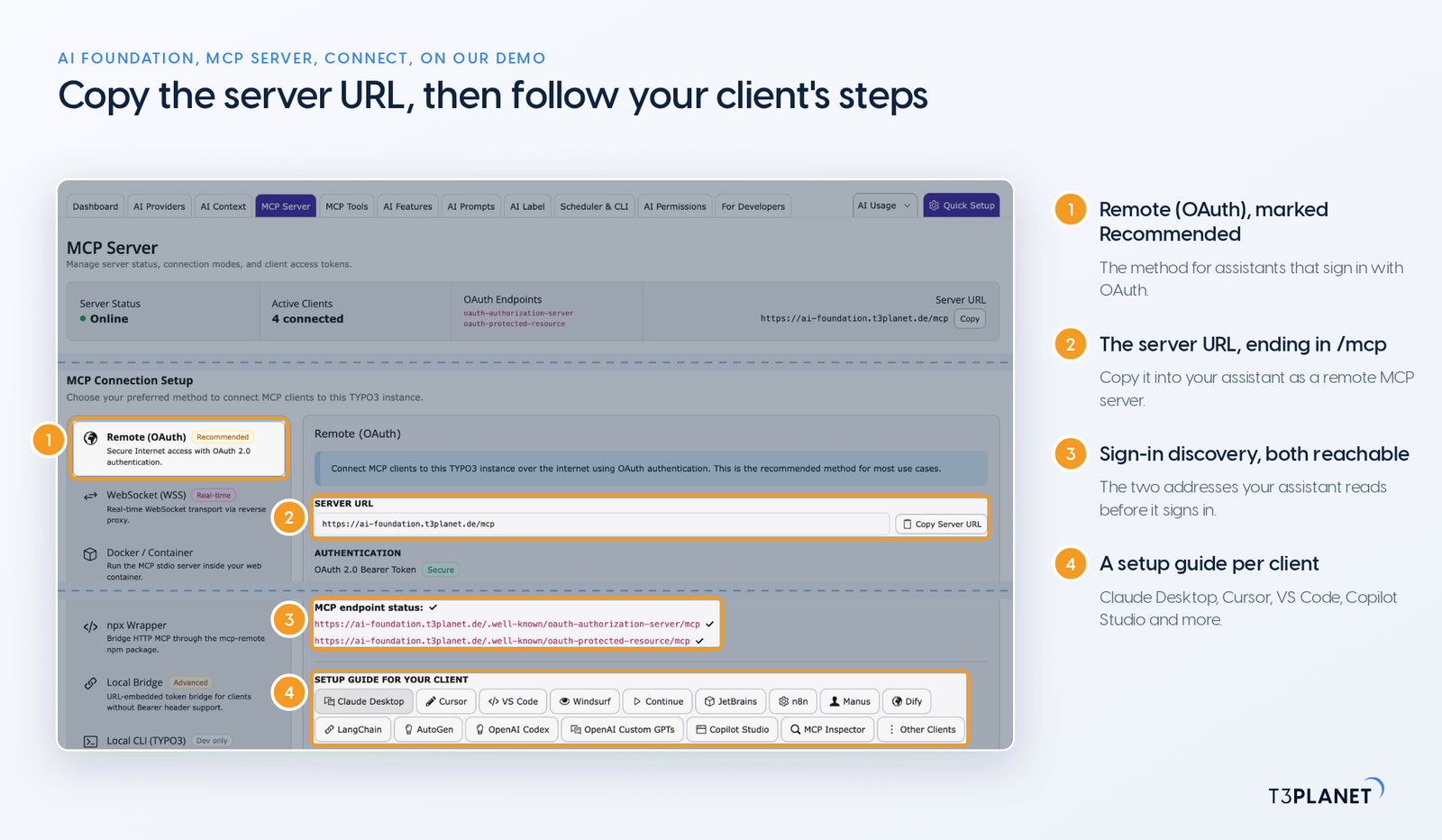
MCP Server > Connect on our demo install: copy the server URL here. It ends in /mcp. - For the authentication, choose OAuth 2.0 with dynamic discovery. AI Foundation's server lets Copilot Studio register itself, so no client ID or secret is needed.
- Test the agent in the test chat. Microsoft Copilot opens a TYPO3 page in your browser. Sign in as the backend user the assistant should act as, and approve the access.
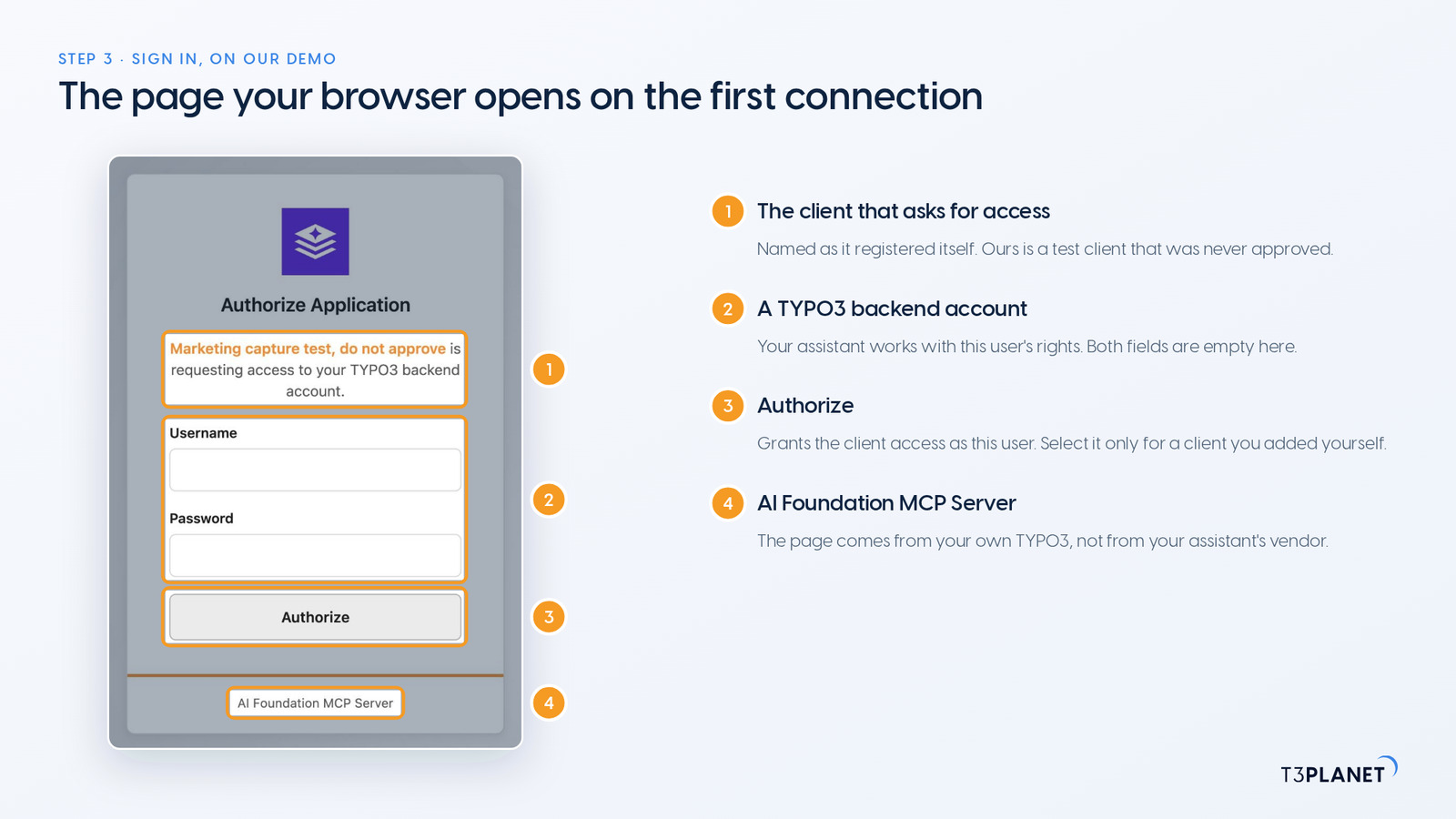
The page your browser opens on the first connection. It comes from your own TYPO3, not from the assistant's vendor. - Publish the agent to the channels your team uses when the test works.
Check the connection
- Ask a first question that only reads, in your own words, for example: Give me a quick overview of the pages on our website and the languages they exist in.
- In TYPO3, open MCP Server > OAuth Tokens. The connection is listed with its backend user and when it was last used. Revoke ends this one connection and leaves every other assistant connected.
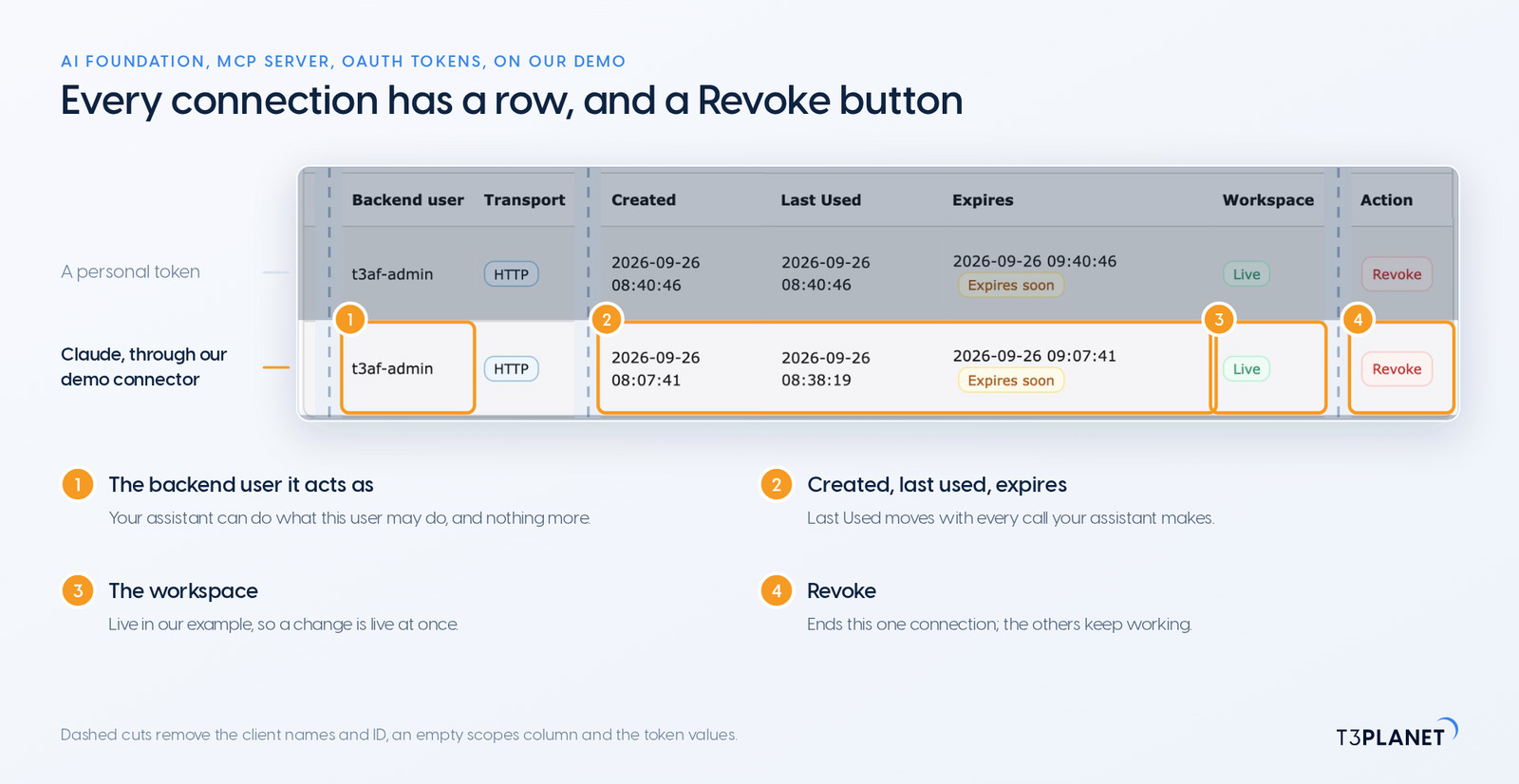
MCP Server > OAuth Tokens: one row per connection, each with its own Revoke. Dashed cuts remove client names, an ID and the tokens.
Good to know
- There is no dry run and no undo tool. Ask the assistant to show the current value before a change, check the page after it, and have it write the old value back if needed.
- On Live, a change is live at once, because the assistant works as the backend user who approved it.
- What Microsoft Copilot reads through MCP goes to its vendor, as with any chat.
- AI Foundation's core tools are free. AI Assistant, AI Accessibility, AI Chatbot and AI Search add tools of their own and need their licences.
Troubleshooting
What we met on our demo install, in the order you meet it.
The sign-in page does not open
Check that Microsoft Copilot has the server URL from MCP Server > Connect, ending in /mcp. Without a token, /mcp should answer 401. A 503 means the MCP server is switched off: tick Enable MCP Server under MCP Server > Advanced, save and clear the caches.
The sign-in stops with a redirect error
If Microsoft Copilot's setup names a redirect URI, add it under MCP Server > Advanced > Allowed Redirect URIs in TYPO3, then sign in again.
The discovery address does not answer with JSON
The sign-in needs your TYPO3's OAuth discovery address. If it does not answer with JSON, check that the site configuration uses your public HTTPS address, then clear the caches.
Microsoft Copilot gets a 401 after it worked before
Its token expired or was revoked. Connect again from Microsoft Copilot and sign in; MCP Server > OAuth Tokens then shows the new row.
Questions about Microsoft Copilot and TYPO3
Is AI Foundation free?
Yes. AI Foundation and its MCP server are free and open source, with no licence key and no registration. Its core tools are free; AI Assistant, AI Accessibility, AI Chatbot and AI Search add tools of their own and need their licences. What Microsoft Copilot costs is up to its vendor.
What can Microsoft Copilot do in my TYPO3?
What the backend user who approved the connection may do, through the tools AI Foundation provides. AI Foundation and the AI Universe extensions together bring 100+ MCP tools. Choose a backend user whose rights fit the job.
Can I undo a change Microsoft Copilot made?
There is no dry run and no undo tool. Ask Microsoft Copilot to show the current value before a change, check the page after it, and have it write the old value back if needed. On Live, a change is live at once.
Where does my content go?
What Microsoft Copilot reads through MCP goes to its vendor, as with any chat. Whether that fits your data protection rules is yours to judge, depending on the model you choose.
Can Microsoft Copilot and another assistant use the same TYPO3?
Yes. Each connection gets its own row in MCP Server > OAuth Tokens, so your editors and your developers can each use their own assistant, and you can revoke one without touching the others.
How do I disconnect Microsoft Copilot?
In TYPO3, open MCP Server > OAuth Tokens and select Revoke in its row. That ends this one connection; every other assistant stays connected.
Connect another assistant
One MCP server, a guide per assistant. Each one gets its own connection, and you can revoke one without touching the others.
- ClaudeEditors, marketers, admins
- ChatGPTTeams on ChatGPT
- GeminiGoogle users (Gemini Enterprise: admin setup)
- Claude CodeDevelopers, in the terminal
- CursorDevelopers
- VS CodeDevelopers with GitHub Copilot
- PhpStormTYPO3 developers
TYPO3 MCP clients compared: how each assistant signs in and its status with AI Foundation.
Which assistant fits your team, on which plan, is compared in TYPO3 MCP clients compared. Every guide and episode is on the hub of MCP in Practice for TYPO3.