
TYPO3 content editing with AI: four everyday edits from chat
TYPO3 MCP


TYPO3 MCP explained: connect Claude or Cursor to TYPO3 under its own user, with drafts first. What the Model Context Protocol is, plus a six-step setup.

Ask a chat assistant for a meta description and the real work starts afterwards: copy, open the page in the TYPO3 backend, paste, save. Then the next page. The Model Context Protocol, MCP for short, takes that loop away. Your assistant reads the page tree, drafts pages and uploads files inside TYPO3 itself. It only gets the rights you choose to give it.
Anyone searching for TYPO3 MCP wants two answers. One is a definition. The other matters more: what a connected AI may touch. You will find both below, followed by a six-step setup and a security checklist.
One minute, with captionsAll videos
MCP is an open standard for connecting AI applications to the systems where your data lives. With it, an assistant such as Claude, ChatGPT or Cursor can query a database, work with files, or create pages in a CMS like TYPO3.
Since 9 December 2025 the protocol has been hosted by the Agentic AI Foundation, a fund under the Linux Foundation co-founded by Anthropic, Block and OpenAI. It began at Anthropic, which open-sourced MCP on 25 November 2024. The goal was to end one-off integrations, because every new data source needed its own. The latest specification is dated 2026-07-28.
Think of MCP like a USB-C port for AI applications.
Model Context Protocol documentation, modelcontextprotocol.io, accessed 11 September 2026
One port, many devices. The TYPO3 equivalent is one MCP server inside the installation you already run. Any suitable assistant connects to that one server, so no assistant needs an extension of its own.

Start with the server, which exposes data and actions. On a TYPO3 site it runs inside your installation. The host is the AI application you work in, such as Claude Desktop or Visual Studio Code. The host opens one client per server connection, and that client carries the conversation.
Servers offer three kinds of primitive, in the specification's terms:
| Primitive | Think of it as | In a CMS |
| Tools | actions the AI can take | creating a page, setting a redirect |
| Resources | reading material for context | a file's contents, a record |
| Prompts | reusable request templates | a meta description template |
For TYPO3, tools matter most. They are what changes your site.
Local development usually pipes messages through standard input and output (stdio) on one machine. Across the network, the assistant talks to TYPO3 over HTTP. For that route, the MCP architecture overview recommends OAuth, the common standard for delegated access. Both routes come ready for you in AI Foundation.

Behind the diagram are four hops:

Without MCP, AI reaches TYPO3 by hand: a chat draft, a person, a paste. TYPO3 never learns where the text came from. The table shows what the Model Context Protocol for TYPO3 changes:
| Aspect | Clipboard workflow | MCP server in TYPO3 |
| Getting text onto the site | a person copies, pastes and reformats it | the assistant creates it, as a draft if you like |
| Context the AI has | whatever you paste into the chat | page tree, content and fields, within its rights |
| Control over access | nothing to set; a person does every step | a dedicated backend user with its own permissions |
| Adding another AI tool | one more custom integration | the same server address for any suitable MCP client |
| Audit trail | the person's save only; the AI's part is invisible | server-dependent; AI Foundation records tool calls, success rates and errors in the backend |
The access row is where TYPO3 AI integration pays off. Your editors already work inside a permission model, and an AI with its own backend user slots straight into it. From then on, you govern it like any other account.

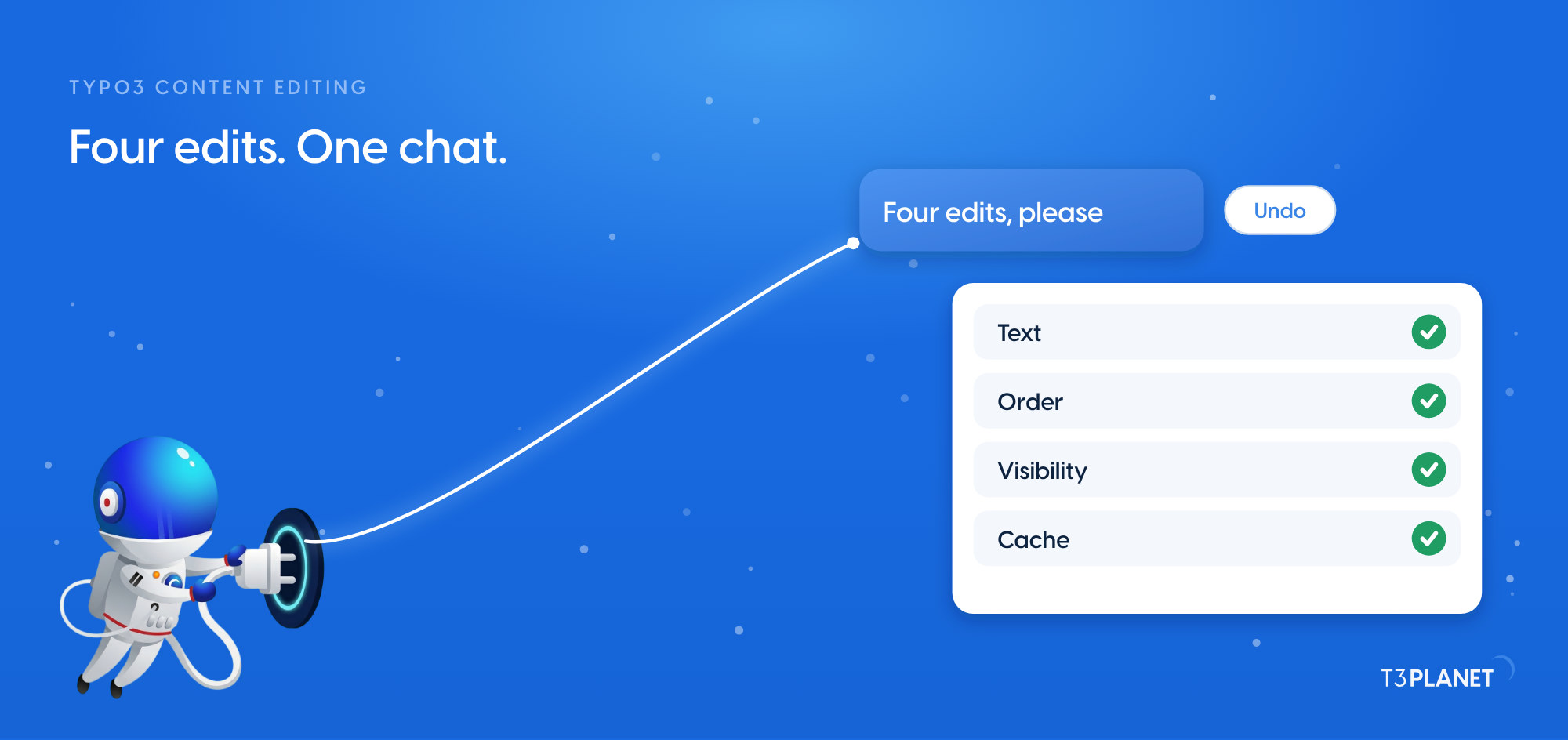
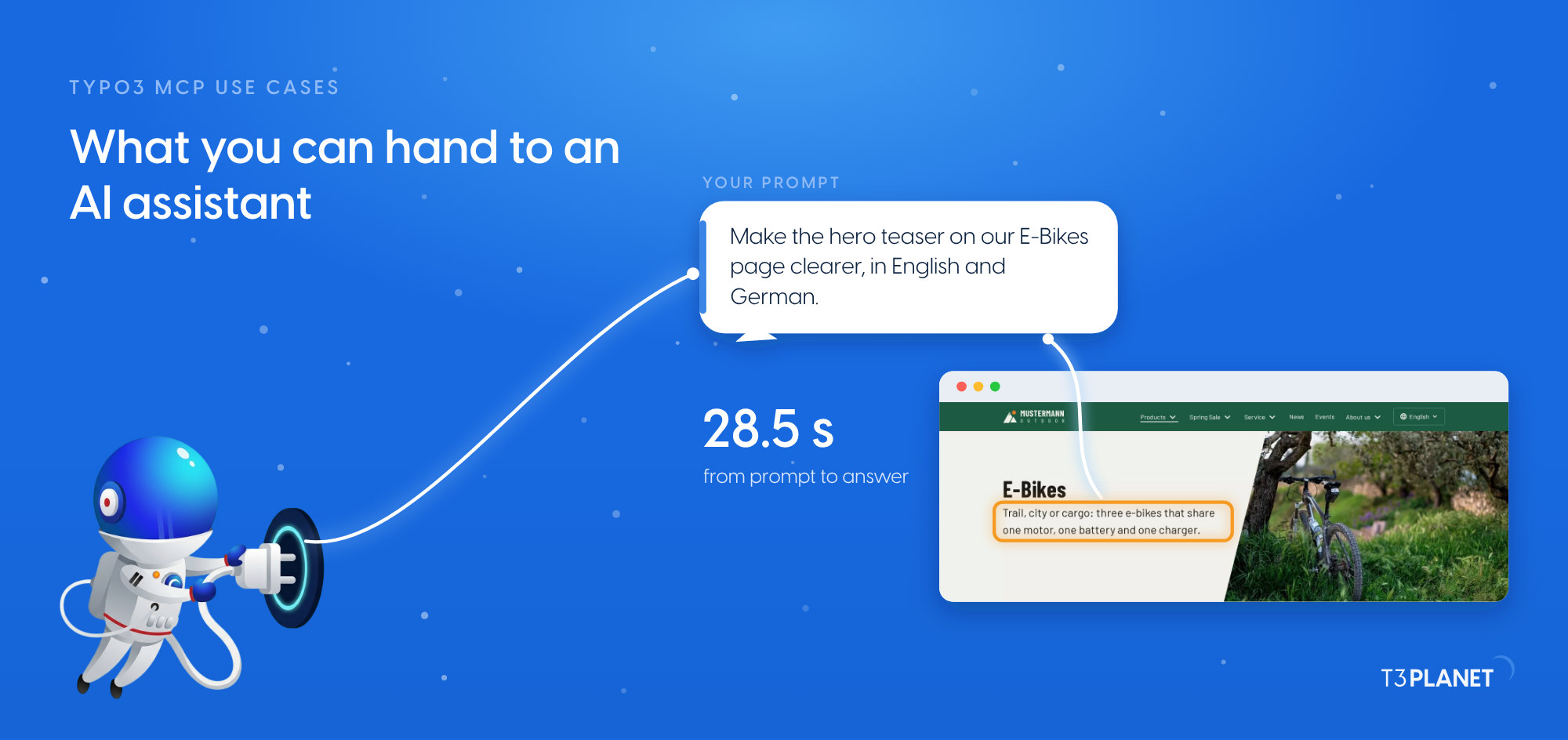
Start with the chores. These four requests show the style: plain language, nothing more.
What is available depends on your installation:
| What the AI can do | Tools for | Free or licensed |
| read and create pages, edit content, query a table schema | pages, content, records | free, in AI Foundation |
| upload files, including straight from a URL, rename, move | files and media | free, in AI Foundation |
| work with workspaces, redirects, the scheduler, the cache, permission checks | operations | free, in AI Foundation |
| generate metadata, translate pages, queue bulk jobs | SEO and translation | licensed, with AI Assistant (T3AI) |
| create and sync data sources | chatbot and search | licensed, with AI Chatbot (T3AC) and AI Search (T3AS) |

More than 100 MCP tools ship with the foundation and the AI extensions combined. Every one of them slots into the installation you already have.
The same MCP server can open your own tables and endpoints to the assistant.
prompts/list and prompts/get, including the built-in add_content_text_block for turning an editor's brief into a text element.


Every Friday: two new jobs for your AI assistant, each with a one-minute video.
This episodeEpisode 1 · 1 Oct 2026
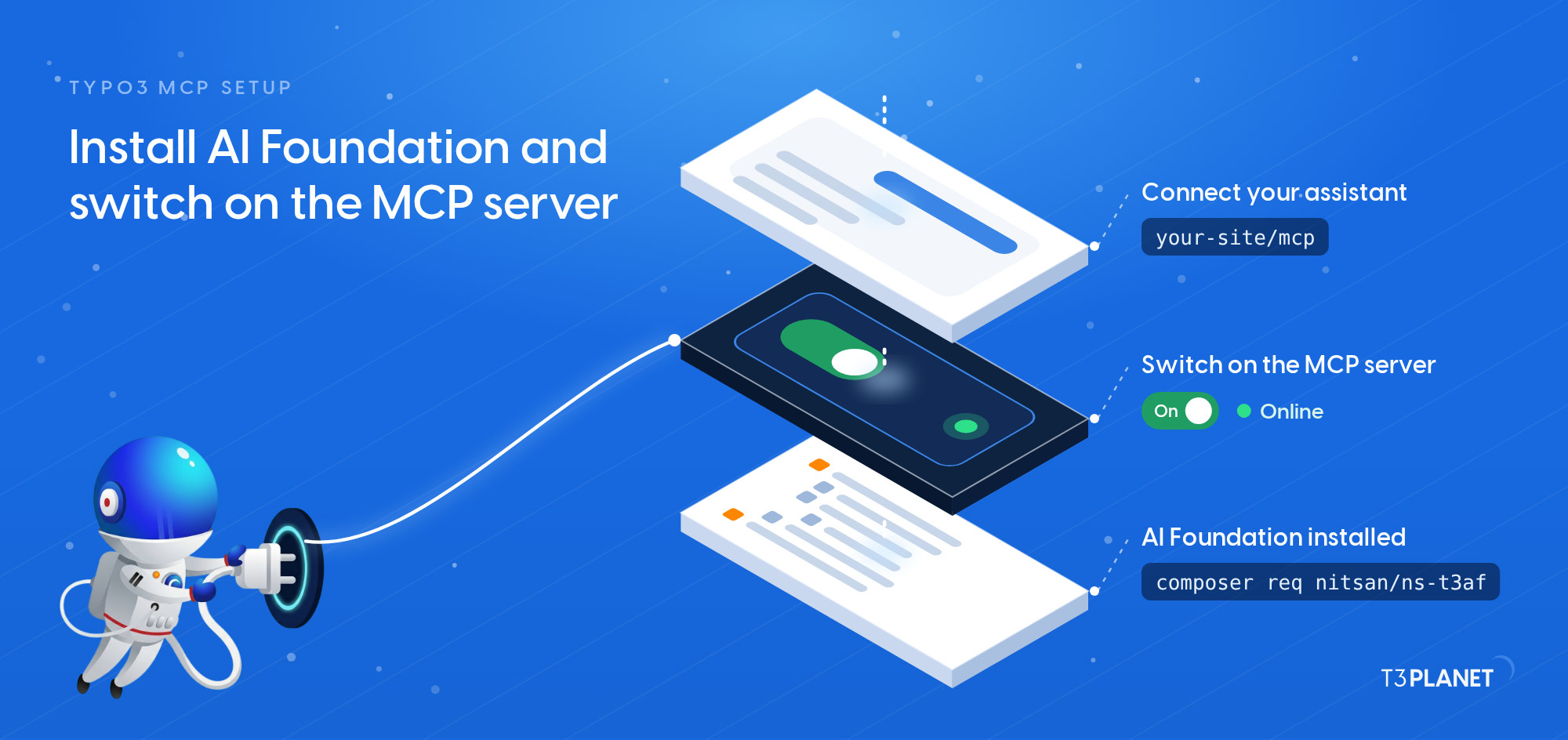
Bring TYPO3 v12, v13 or v14, PHP 8.2 or later, and Composer. The six steps at a glance:
composer require nitsan/ns-t3af. No licence key, no registration.Our post on TYPO3 MCP setup walks through every step in detail, with screenshots and a final check.
Working locally with the DDEV development environment? AI Foundation connects directly through the TYPO3 command line too. Building extensions with an assistant is covered in our guide to Claude Code and TYPO3.
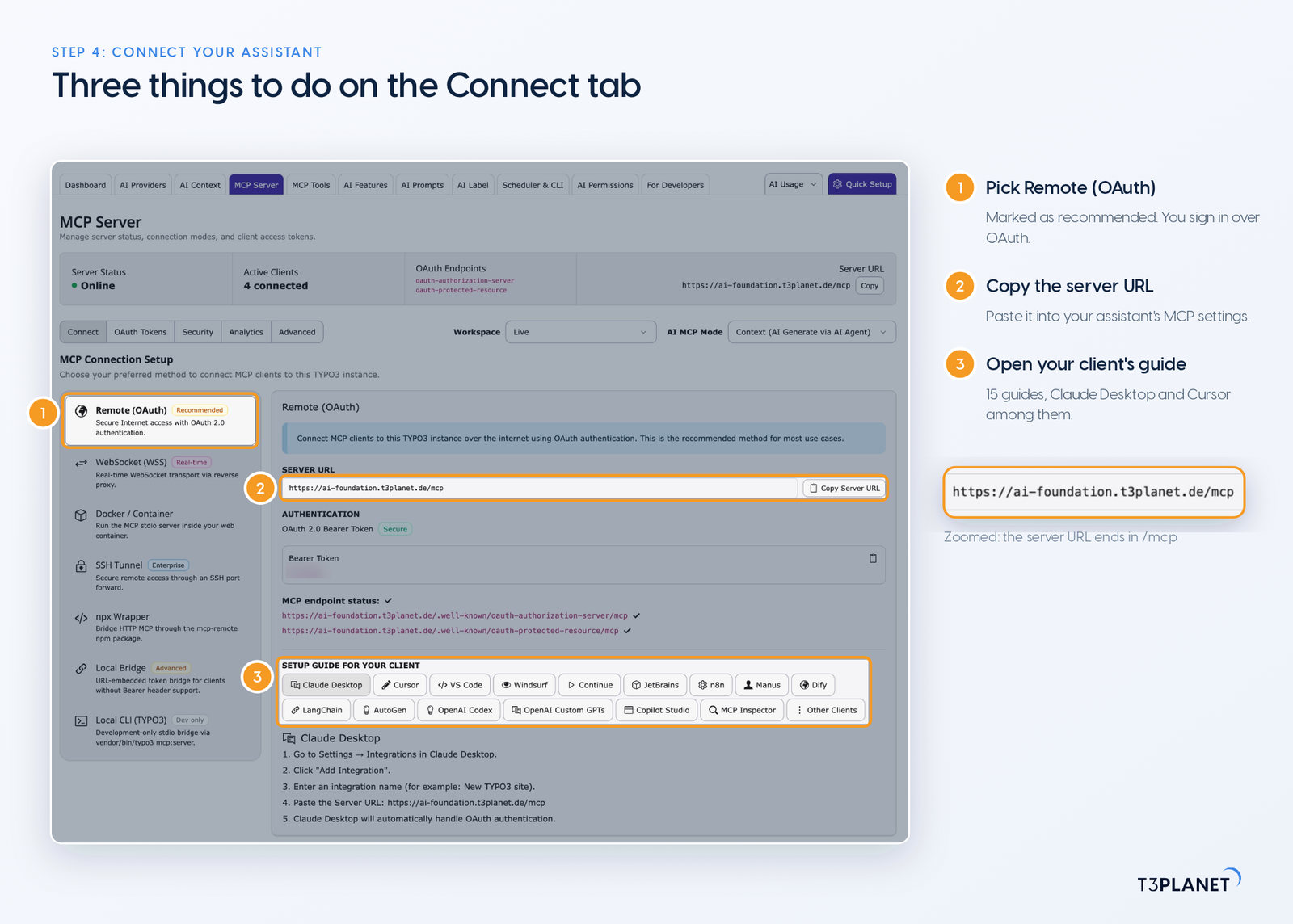
The screenshots show the AI Foundation interface, captured on t3planet.de. The Connect tab was captured on our demo install.
The MCP server guide in the AI Foundation documentation covers every connection method in detail. For the first steps with someone at your side, book an MCP demo for TYPO3 with Jürgen.
This post is its own example. Claude, Anthropic's AI assistant, reaches our TYPO3 installation on t3planet.de through the AI Foundation MCP server. Here are two moments from the work, one reading and one writing.
The first task came before any writing. Claude had to find out whether one of our pages already covered the topic. Two calls to the pages_search tool settled it:
Two read-only calls turned a hunch into a decision, and nothing on the site changed. This post explains the protocol; the existing one covers the product.

Writing uses the same connection. With the copy approved, Claude builds this page in both languages, title, description and content included, and leaves it hidden. A person on our team decides when it goes live.

The first post we built this way taught us one thing. The database reported a clean save, yet the rendered page had defects. A clean save proves nothing, so every page now gets a browser check in both languages, on desktop and phone. Open every AI-written page in a browser before it goes live. The check fits the review your team already runs.
Pick a mode, and you pick the author. AI Foundation's two MCP modes also decide where your content travels.
After a mode switch, reconnect the client so it gets the new tool descriptions.
Native mode is where multi-LLM in TYPO3 happens: several large language models side by side. Seven platforms are built in, each a dependency in the Packagist listing for version 1.2.2: OpenAI, Anthropic, Google Gemini, Mistral, Azure, OpenRouter and Ollama. Any OpenAI-compatible provider works too. Run Ollama and the model stays on your own infrastructure. On your own API keys, the default, content goes straight from your server to the provider you picked, with T3Planet outside that data path.
Which provider sees which content is among the first questions in any data protection review, as our GDPR check for AI chatbots and AI search shows. With AI Foundation that choice stays yours, and the software fits around it. How far your content travels then differs, depending on the model you choose; with the optional AI Credits, T3Planet is in the data path as well. Our post on the MCP-First AI Foundation for TYPO3 goes deeper into managing providers, prompts and budgets.

An assistant with write access is a colleague with a login. Hold it to the same rules. AI Foundation puts six controls in your hands:
Five questions worth asking of any MCP server for TYPO3, ours included:

Everything in the setup above runs on AI Foundation for TYPO3, T3Planet's open-source AI foundation. Behind it is NITSAN Technologies, a team with more than 15 years of TYPO3 experience, over 3,200 customers and Gold membership in the TYPO3 Association. One backend module holds the MCP server and your AI providers. Add the AI extensions and it carries more than 100 MCP tools. The foundation itself costs nothing.
Browse the AI extensions that build on it in our overview of TYPO3 AI extensions. Then explore AI Foundation for TYPO3, or book an MCP demo for TYPO3 with Jürgen and make the first connection together, on your own use case.
Which pages are under Products?
pages_tree15 nodes: 9 English pages, 6 German translationsWhat stays with you: checking the answer against the page tree. The call only reads, so nothing on the site changed.
Clients that can reach a remote MCP server and sign in with OAuth 2.1. The MCP Server module saves you the search: it ships setup guides for 15 of them, Claude Desktop, Cursor, VS Code, Windsurf and n8n included. On your own machine, the TYPO3 command line is a second route. The long answer, assistant by assistant, is in our post on TYPO3 MCP clients.
The foundation is free: GPL-2.0-or-later, no licence key, no registration, no domain limit, production included. Costs come from elsewhere: licences for AI extensions that add tools, such as AI Assistant, and model usage. On your own keys, your provider bills that usage directly.
Not unless you let it. Its backend user needs either a publish right or access to the live workspace. Without either, pages and content sit in draft until a person acts. Files, redirects and scheduler tasks skip the draft stage in TYPO3, so treat those rights as live access.
Not necessarily. A backend extension works for your editors inside TYPO3. MCP lets your existing assistant reach in. AI Assistant's SEO and translation features are also available as MCP tools.
Your own tables are within reach only after Discover Extension Tables has found them and you have enabled them. The MCP tools do not write relation fields such as categories and tags today. There is no dry run and no undo tool. So check every change in the backend and on the rendered page, and reverse a wrong one there by hand, as you would one of your own. For review, AI Foundation can hold changes back in a TYPO3 draft workspace, but only what TYPO3 versions: changes to files, file metadata, redirects and scheduler tasks take effect at once, and so does clearing the cache.
Jürgen Pietschmann
AI Consultant for TYPO3Jürgen Pietschmann is a T3Planet Product Consultant at T3Planet Shop. He specialises in integrating AI into editorial workflows – from intelligent content creation and automated SEO to AI-powered search and chatbot solutions for TYPO3 sites. As a technical consultant for T3Planet AI Universe, he works closely with agencies and editorial teams on practical TYPO3 implementations. Jürgen has been writing the This Month in TYPO3 series since December 2025 and has spoken at T3CON25 and TYPO3 Developer Days 2026 (T3DD26), where he co-presented Content Editing Unlocked.
More From Author