
 AI Assistant
 AI Chatbot
 AI Search
 AI Accessibility
 AI Localization
 AI Builder
TYPO3 MCP: What Is the Model Context Protocol and How Do You Use It?
TYPO3 MCP


TYPO3 MCP on a T3Karma site: install AI Foundation, switch on the MCP server and let your assistant build pages, with workspaces and undo.
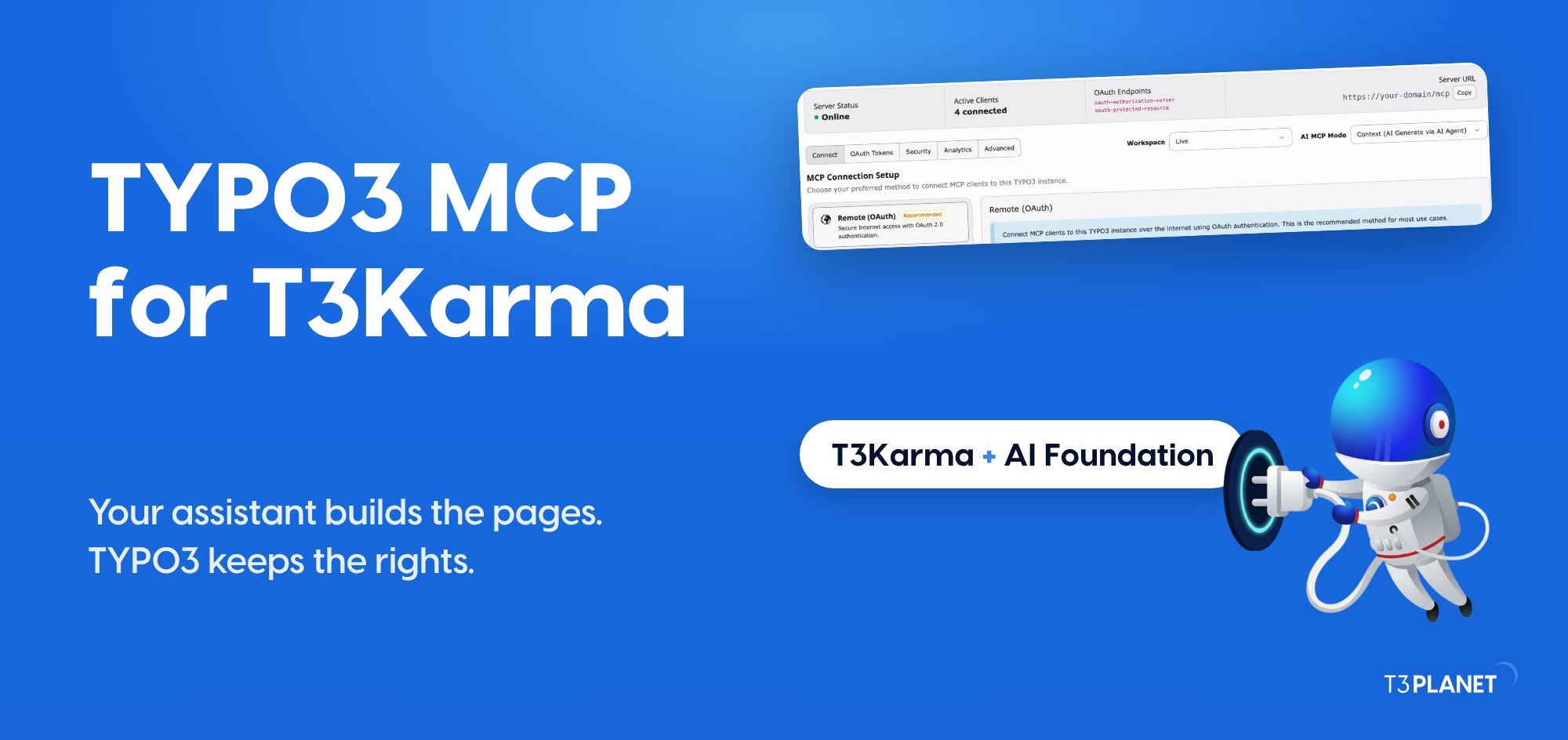
TYPO3 MCP lets an AI assistant read and write your TYPO3 content through a standard connection, while backend rights, workspaces and whole-batch undo stay in control.
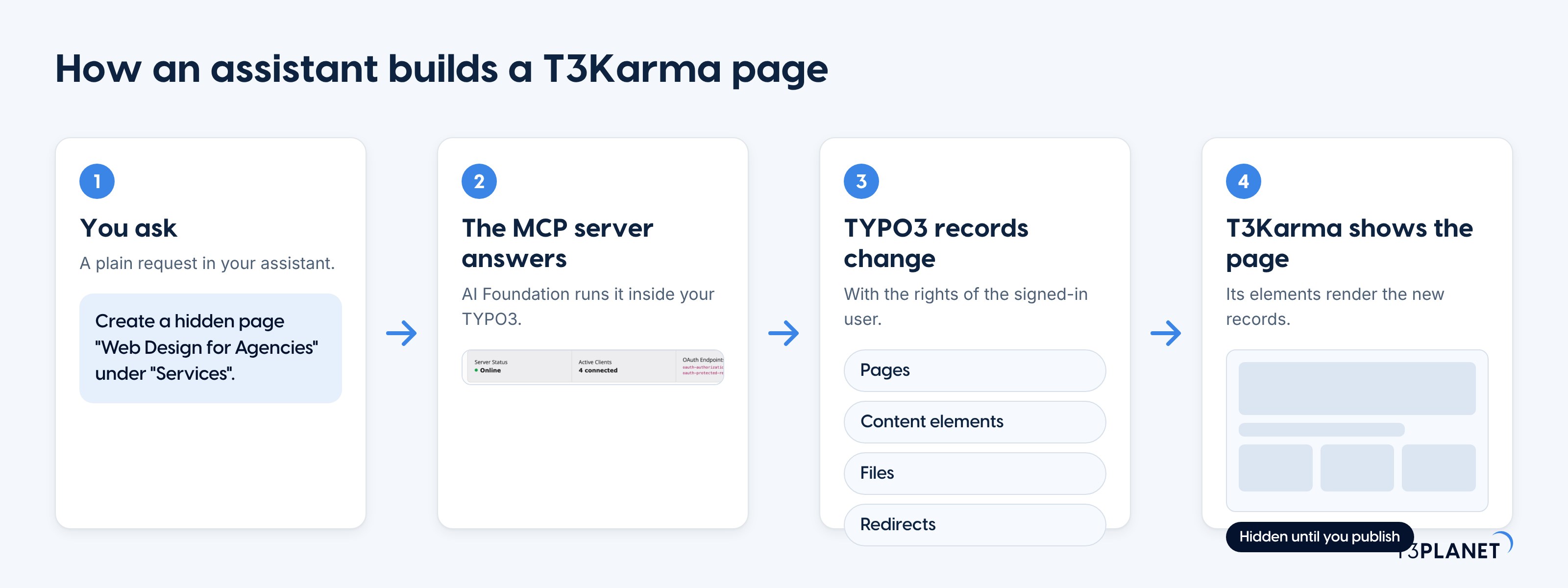
TYPO3 MCP means connecting an AI assistant to a TYPO3 website through the Model Context Protocol. Without it, an assistant can only write text that you copy into the backend by hand. With it, the assistant can look up a page, create one, fill the fields and report back, using the same records TYPO3 itself uses.
pages_get to read a page or content_list to list the elements on it.The assistant never gets a free hand in the database. It can only call the tools the server offers, and each call runs with the rights of the signed-in backend user.
An AI assistant on its own can write the text for a page. It cannot put that text into your TYPO3 backend. You copy it over, pick the content element, choose the column, set the SEO fields and repeat for the next page. The time goes into the clicking, not the thinking.
The T3Karma TYPO3 multipurpose template already removes most of the layout work: it ships with more than 150 content elements and over 40 ready-to-use demos. What is left is filling those elements, page after page.
That is the job TYPO3 MCP takes over. T3Karma holds the design and the elements, and the assistant uses the MCP tools to place content in them. It pays off most where many pages share one layout: agency sites, multi-location sites and microsites. It also helps when you move to one of the other TYPO3 templates later, because the content stays in TYPO3 records.
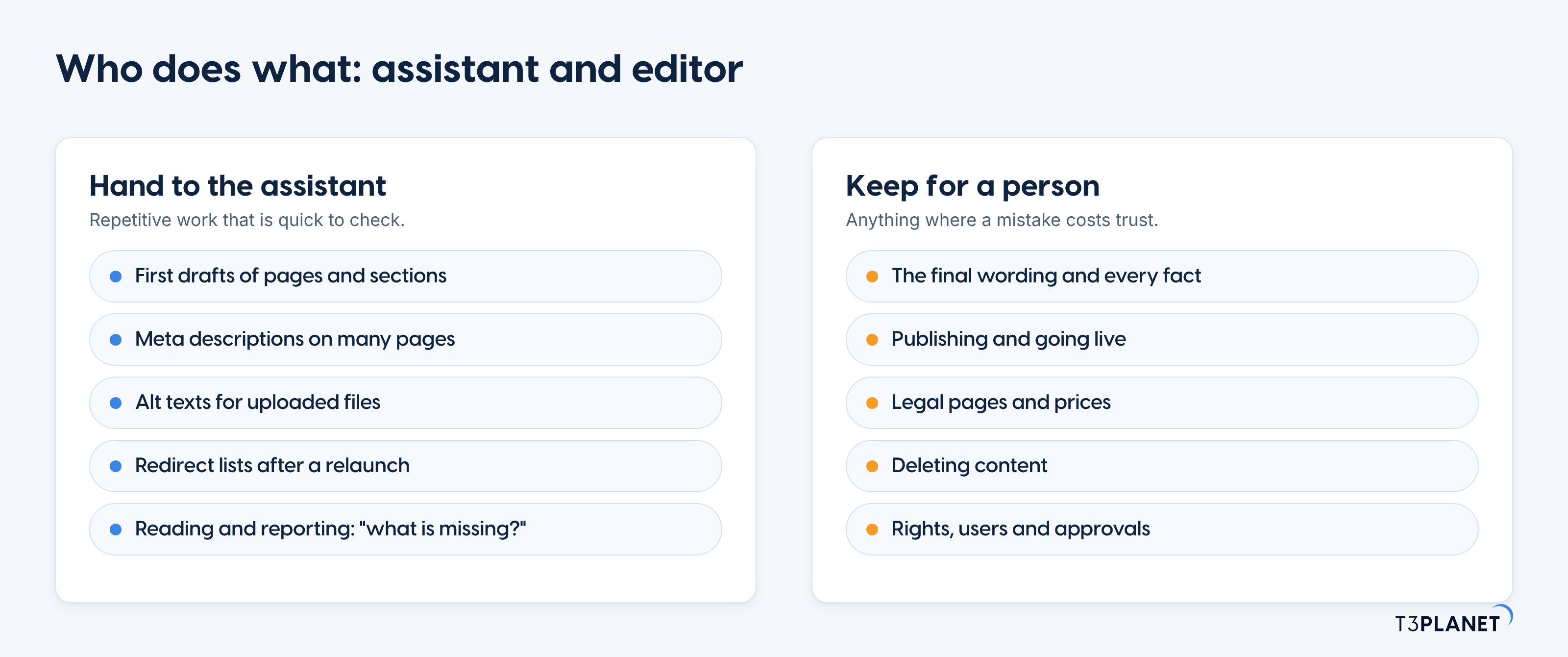
The best results come from a clear split. The assistant is fast at repetitive work that is quick to check. A person keeps everything where a mistake costs trust.
Editor tip: treat every assistant result like a draft from a new colleague. It is usually good, and it is yours to check before it goes live.
Installing with Composer is a one-time job for a developer or administrator. After that, editors work in plain language.
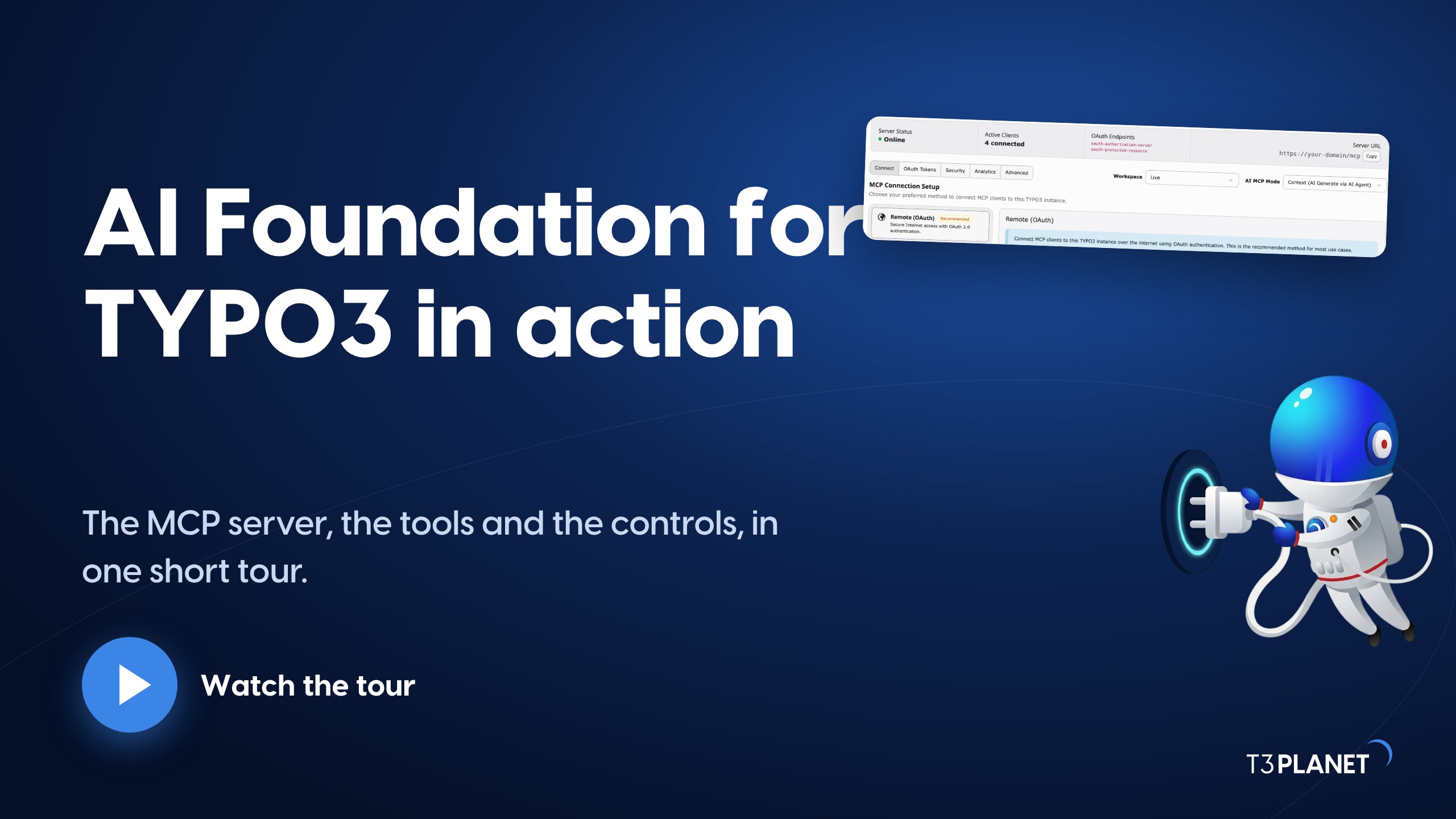
Prefer to see it first? This short tour shows the AI Foundation MCP server, its tools and the controls in a TYPO3 backend.
The full walkthrough is in our TYPO3 MCP setup guide. For a T3Karma site the path is the same as for any TYPO3 site.
Run this from your project root, where T3Karma is already installed. For a full rollout checklist, see the free TYPO3 MCP Starter Kit.
composer require nitsan/ns-t3af
vendor/bin/typo3 extension:setup
vendor/bin/typo3 cache:flushOpen AI Foundation > MCP Server > Advanced, tick Enable MCP Server and save. When the header shows Server Status: Online, the server is running. The screen shows the server URL, which ends in /mcp.
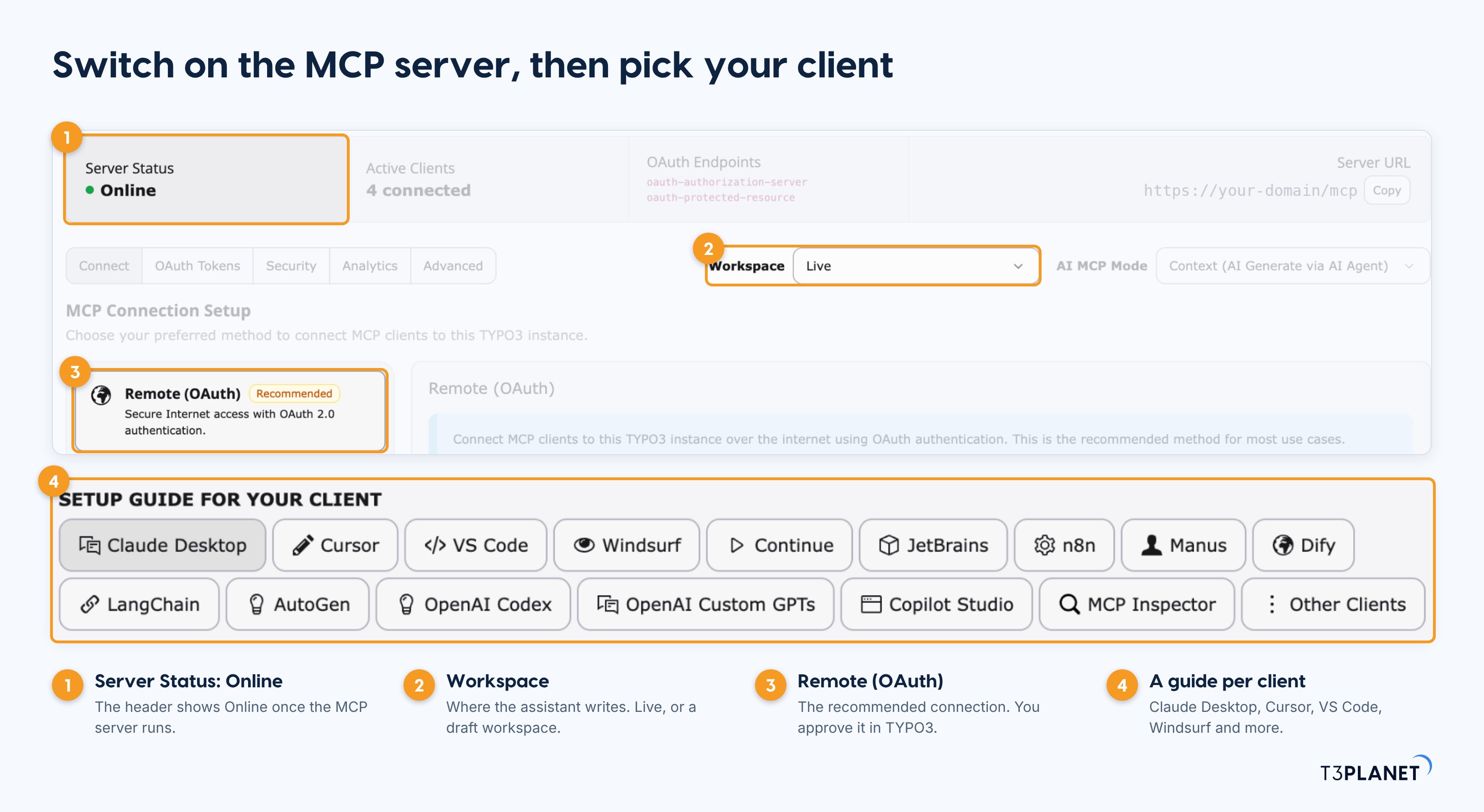
Add the server URL as a remote MCP server in your assistant. TYPO3 then asks you to sign in and approve the connection. No password and no token goes into the assistant's settings. The MCP Server screen has a setup guide for Claude Desktop, Cursor, VS Code, Windsurf, Continue, JetBrains and more. Our TYPO3 MCP clients guide helps you choose.
extension:setup and cache:flush again and reload the backend./mcp and opens over HTTPS from the machine where your assistant runs.Five minutes of preparation make the first run calm.
MCP tools work on TYPO3 records, and everything in a T3Karma site is a record. That gives the assistant these areas:
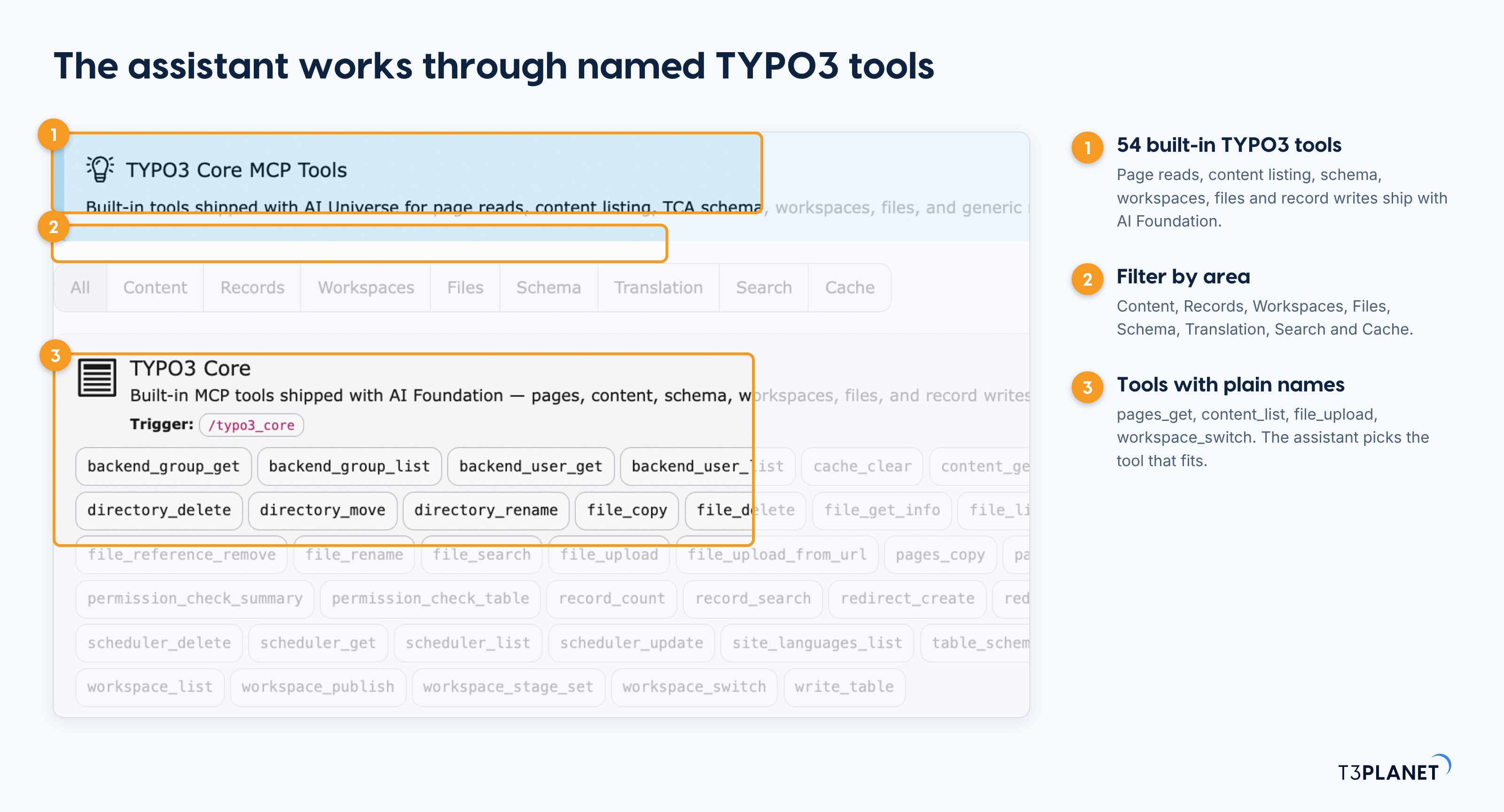
The assistant only gets the tools and fields your backend user is allowed to use. A tool that the user's rights do not cover is not offered.
A good prompt answers five questions. You do not need technical words.
Make the Services section better.
Under "Services", list the pages with an empty meta description. Do not change anything. Show me the page title and uid for each.
Start small and read the result before you go further. These prompts are starting points, not recorded results. Each comes with a check and a way back.
Show me the page tree under "Services" and list the content elements on the page "Web Design".
Check: compare the answer with your page tree. Way back: nothing changed. It also shows the assistant which element types and columns your T3Karma layout allows, so later pages copy them.
Create a hidden page "Web Design for Agencies" under "Services". Use the same layout and element types as "Web Design", and write the text for a DACH audience.
Check: open the page in the backend and the preview. Way back: undo the batch or delete the hidden page. Nothing goes live until you publish it.
For every page under "Services" with an empty meta description, write one of at most 155 characters and apply it as a dry run first.
Check: a dry run reports what would change without writing anything. Way back: undo the batch ID. For bulk SEO work across a whole site, see the TYPO3 AI Assistant (T3AI).
List the images in "fileadmin/services" without an alt text and suggest one for each. Wait for my approval before you write them.
Check: read the suggestions, then approve. Way back: files act live, so edit a wrong alt text straight away. To audit a whole site, use TYPO3 AI Accessibility.
Create 301 redirects from these five old URLs to the new pages under "Services". Show me the list first.
Check: open each old URL in a browser. Way back: redirects act live, so delete or correct a wrong one right away.
Replace "Web Studio" with "Web Agency" in the headings of all pages under "Services". Use a dry run first.
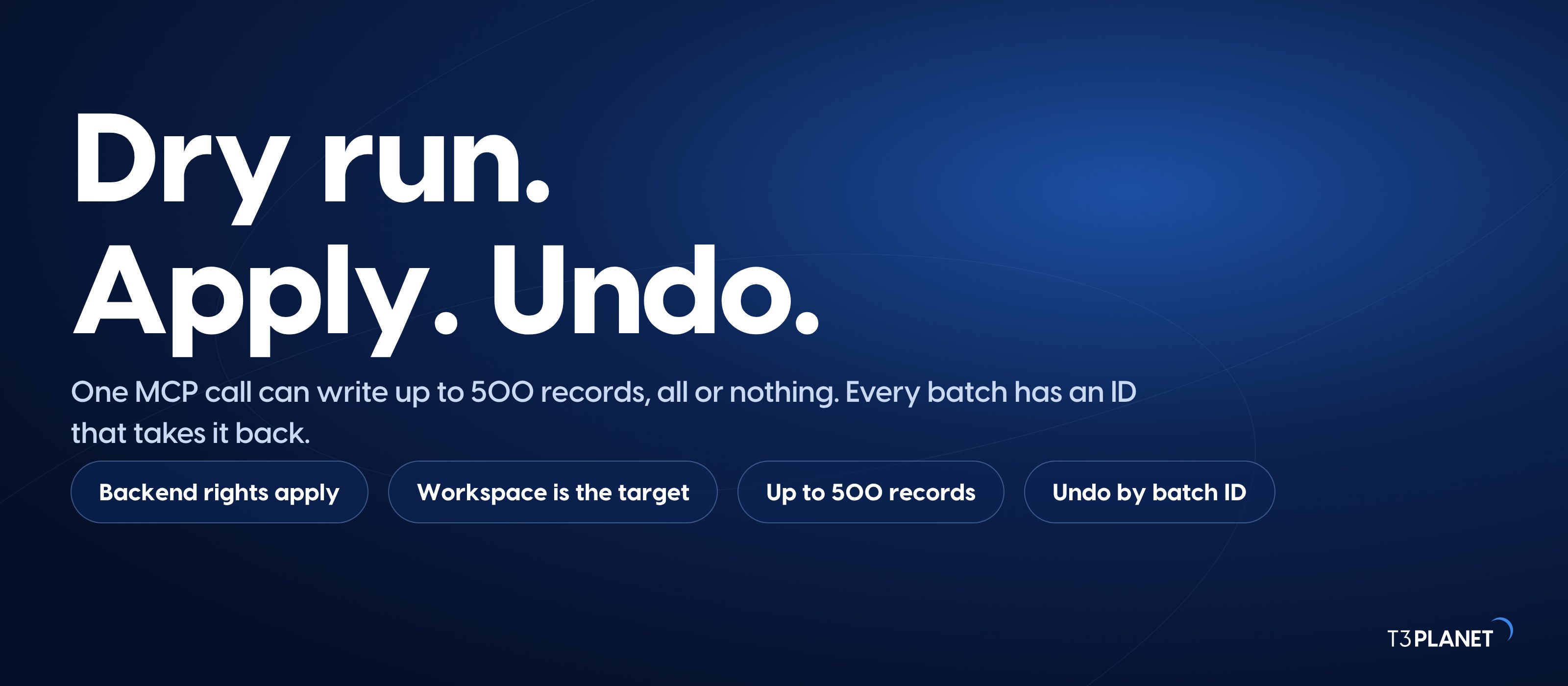
Check: preview the result in a draft workspace. Way back: one call undoes the whole batch.
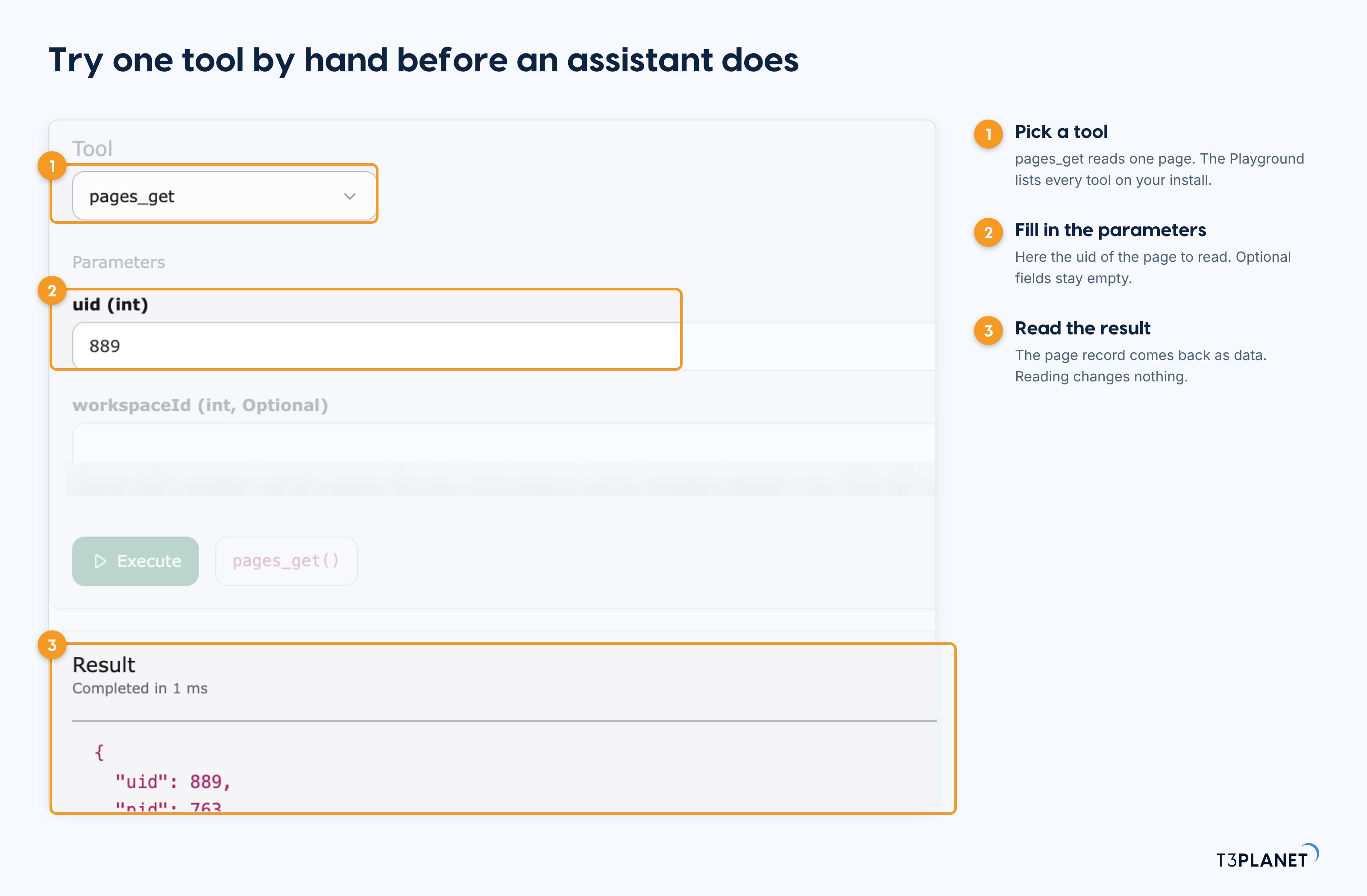
More starting prompts are in TYPO3 MCP prompts (ten starters and the Playground), and real jobs by role are in TYPO3 MCP use cases. The Playground lets you try a single tool by hand before an assistant does.
Letting an assistant write to a live site needs rules. AI Foundation gives you four:
Two habits make this safer on a production site. Build new pages hidden and publish them yourself. And let the assistant read an existing T3Karma page before it writes. Refused and failed requests are logged in AI Usage & Logs, so you can check afterwards what the assistant did.
An assistant is fast at the first version of ten pages. The last ten percent is yours: a sharper headline, a different image, one more card. T3Karma 14.0.2 makes that part easier. Editors can now change the image gallery, modal and text-animation elements directly in the Visual Editor, without opening a backend form.
Read what is new in T3Karma v14 for the rest of the release.
AI Foundation is self-hosted. By default it uses your own AI provider key, with no T3Planet proxy in the data path. AI Credits are an optional second path.
Your assistant and your AI provider do receive the text you send them. For client sites, check their terms and, where personal data is involved, your data processing agreement. AI Foundation also has an AI Label setting that records how much AI was involved in a record. Read more about TYPO3 AI from T3Planet.
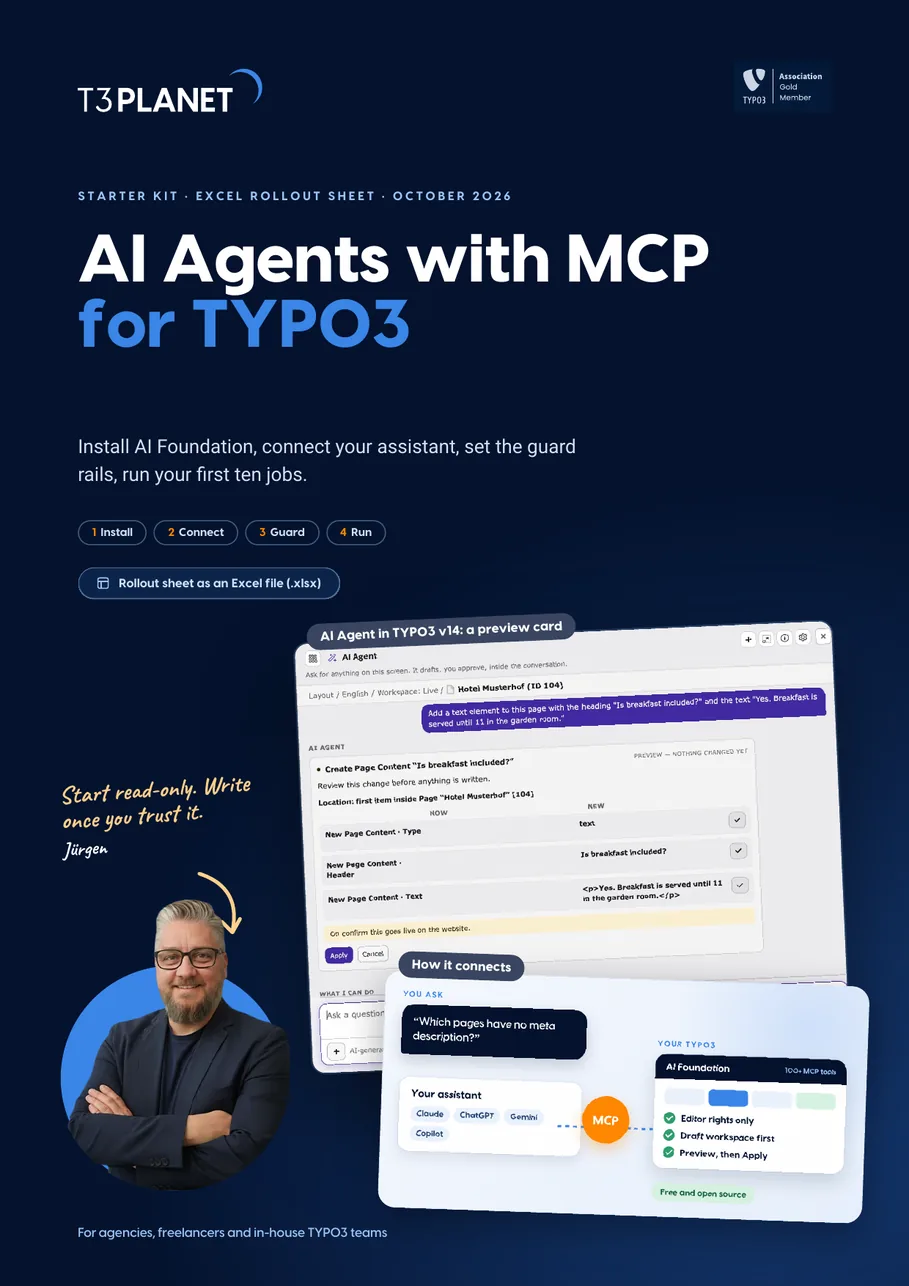
A 15-page guide plus an Excel rollout sheet. It walks you through installing AI Foundation, connecting your assistant, setting guard rails and running ten first jobs, each with a check and a way back. With real TYPO3 v14 screens.
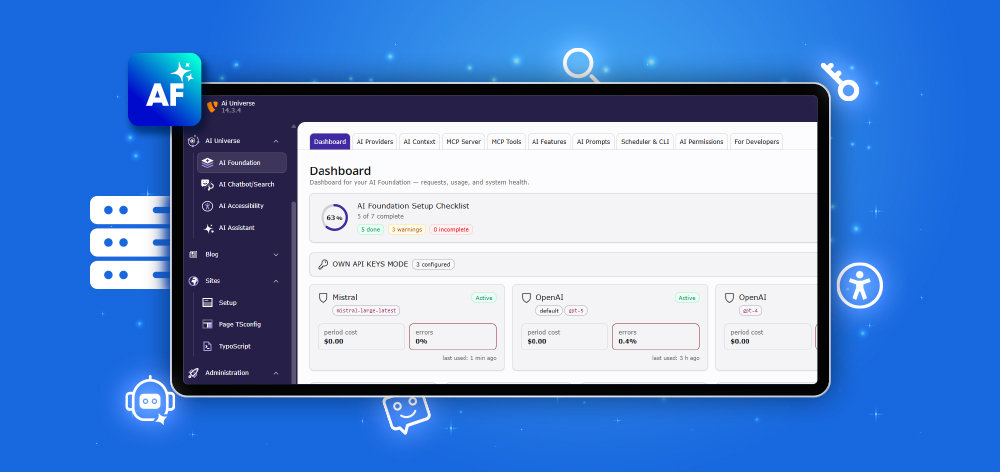
Sovereign TYPO3 AI

T3AFFree and open source. Switch on the MCP server and let your assistant work on your T3Karma site.
MCP specification: modelcontextprotocol.io. TYPO3 workspaces: docs.typo3.org. AI Foundation facts: T3Planet product page and the AI Foundation MCP Server screen.
TYPO3 MCP connects an AI assistant to a TYPO3 website through the Model Context Protocol. The assistant can then read and write pages, content elements and files through named tools, with the rights of a backend user.
No special T3Karma version is needed. AI Foundation works on the TYPO3 records that T3Karma uses. Use T3Karma 14.0.2 with AI Foundation 2.x on TYPO3 14.3 or newer.
Yes. AI Foundation is free and open source under GPL-2.0-or-later, with no price, no licence key and no domain limit. You pay your AI provider for what the assistant uses, or you use the optional AI Credits balance.
Any assistant that can connect to a remote MCP server. The MCP Server screen has setup guides for Claude Desktop, Cursor, VS Code, Windsurf, Continue, JetBrains and other clients.
Only if you let it. Build new pages hidden, check them, and publish them yourself. Use a draft workspace if you want a review step before Live. Files and redirects are not held back by a workspace, so check them right away.
Use the batch ID to undo the whole batch with one call. Undo works as long as nothing changed after the batch.
AI Foundation is self-hosted and runs on your server with your own API keys, so T3Planet is not in the data path. Your assistant and your AI provider do receive the text you send them, so check their terms for client data.
Installing AI Foundation with Composer is a one-time job for a developer or administrator. After that, editors work in plain language in their assistant, with a backend user and editor rights.
With AI Assistant (T3AI) added, translation tools are available through MCP. Read the site languages first, then translate one page and check it before you run a batch.
Jürgen Pietschmann
AI Consultant for TYPO3Jürgen Pietschmann is a T3Planet Product Consultant at T3Planet Shop. He specialises in integrating AI into editorial workflows – from intelligent content creation and automated SEO to AI-powered search and chatbot solutions for TYPO3 sites. As a technical consultant for T3Planet AI Universe, he works closely with agencies and editorial teams on practical TYPO3 implementations. Jürgen has been writing the This Month in TYPO3 series since December 2025 and has spoken at T3CON25 and TYPO3 Developer Days 2026 (T3DD26), where he co-presented Content Editing Unlocked.
More From Author