
TYPO3 _assets: How to Migrate typo3conf/ext Assets in Composer
Development


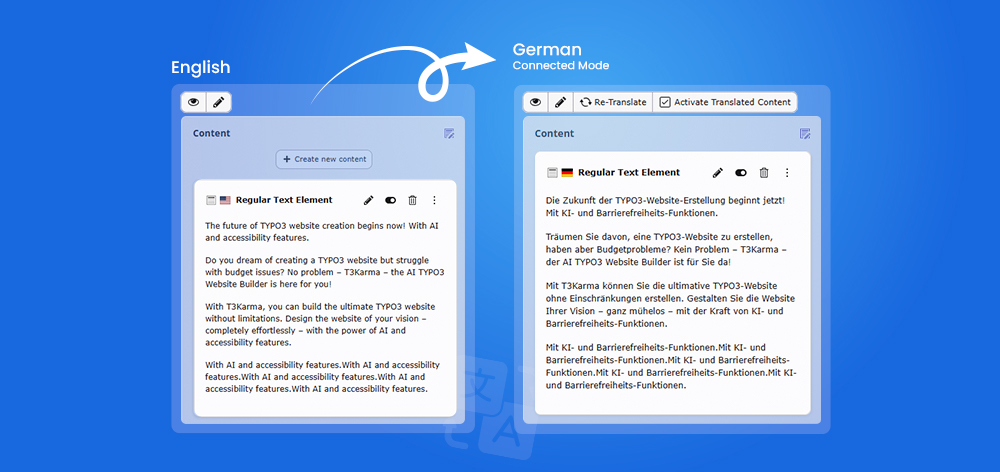
TYPO3 makes it possible to manage multiple language versions within the same page hierarchy. Translated pages usually follow the structure of the original-language page, helping editors maintain consistency across multilingual websites without creating separate page trees for every language.
Editors can create and manage translations directly from the TYPO3 page or content module. However, translating the page itself and translating its content elements are two separate tasks. Page translation covers properties such as the title, URL slug and metadata, while content translation includes text, images, links, buttons and other content elements.
This guide explains how to translate pages and content elements in TYPO3, choose between connected, free and mixed translation modes, review translated content and publish it correctly. It also covers multilingual SEO and key workflow differences across TYPO3 12, TYPO3 13 and TYPO3 14.
Page translation and content translation are closely connected in TYPO3, but they handle different parts of a multilingual page. Understanding this distinction helps editors avoid missing important fields during the translation process.
Page translation covers the settings and information attached to the page itself. This usually includes the page title, navigation title, URL slug, SEO title, meta description, social metadata and other page-level settings.
These fields control how the translated page appears in menus, search results, social media previews and the browser address bar. Translating only the visible content while leaving these fields unchanged can result in mixed-language URLs, metadata and navigation labels.
Content-element translation covers the actual information displayed within the page. This may include headings, body text, images, alternative text, buttons, links, downloads, tables and embedded media.
Each content element must be reviewed separately to ensure that both visible and supporting information are translated. For example, translating an image caption without updating its alt text can leave part of the page inaccessible or inconsistent.
Translation focuses on converting content from one language into another. Localisation goes further by adapting the page for a specific country, region or audience.
This may involve adjusting terminology, currencies, date formats, regional offers, images, legal information and calls to action. A technically accurate translation may still feel unnatural if these local details are not adapted for the target audience.

Before creating a translated page, confirm that the language setup, source page and editor permissions are ready.
Make sure the target language:
Before creating a translation:
The editor should be able to:

TYPO3 lets editors view content either by page columns or by language. Choosing the correct view makes it easier to manage page structure and compare translated content.
The Columns view displays content elements according to the page layout, such as:
Use this view when editing the layout or managing content in a single language.
The Languages view displays content by language rather than page column. It helps editors:
Open the page in the TYPO3 page or content module and switch the view from Columns to Languages.
Depending on the TYPO3 version and backend configuration, the module name, menu position or switch button may appear differently. In some installations, editors can display:
Use Columns view for layout editing and Languages view for translation work.
Start by opening the source page in the default language. TYPO3 creates the translated version within the same page hierarchy.
Open the required page in the TYPO3 Page or Content module and switch to the Languages view.

Click Create a new translation of this page below the page title.
This option appears only when:
If the option is missing, check the existing translations, editor permissions and site-language configuration.

Choose the required language from the available options. Only languages configured by an administrator and assigned to the editor will appear.

After selecting the language, TYPO3 opens the translated page properties. Source-language values may be copied or displayed for reference while you enter the translated information.
Review and translate:
Create a clear, language-specific URL slug for the translated page.
Check for:
Update the translated page’s search and social metadata:
TYPO3 can generate canonical and hreflang elements through its SEO configuration, but each translated page should still be reviewed individually.
Check:
Save and close the page properties. The Languages view should now display:

Before translating content elements, choose whether the target-language content should remain connected to the source or work independently.
The Translate option creates connected translation records.
Connected translations:
Changes made to the source do not automatically rewrite the translated text. Editors must review and update the translation manually.
The Copy option creates independent content records in free mode.
Use Copy when:
| Requirement | Translate | Copy |
| Keep source and target connected | Yes | No |
| Track source changes | Yes | No |
| Use an independent element order | Limited | Yes |
| Add different regional content | Limited | Yes |
| Maintain a strict translation workflow | Recommended | Not ideal |
| Build flexible market-specific pages | Not ideal | Recommended |

TYPO3 supports different ways of managing relationships between source-language and translated content. The selected mode affects structure, content order and source-change tracking.
In connected mode, each translated content element remains linked to its source element.
This means:
Connected mode is suitable for:
In free mode, target-language content records work independently from the source-language records.
This means:
Free mode is suitable for:
Mixed mode combines connected translated elements with independent content records on the same page.
It is mainly relevant to older or existing TYPO3 installations that already contain both record types. TYPO3 14 guides editors towards either connected Translate mode or independent Copy mode to reduce inconsistent translation setups.
Mixed-mode pages may contain:
Mixed mode can lead to:
Editors can manually connect or disconnect translated content elements.
Use unique headings to identify the correct source element.
Set the source-record value to [0] in the Language tab and save.
Important: Test changes in staging or create a backup first. Field names may vary by TYPO3 version and backend configuration.
Connected mode keeps translated elements linked to their source records.
Source-language values appear beneath or beside the translation fields for reference.
Translate:
The Languages view should show the source-language and target-language columns.
Click Translate in the target-language column.
Select Translate, click Next, review the options and click Next again. TYPO3 14 uses a modernised translation wizard.
Exclude elements that are:
Finish the wizard. The translated elements will appear in the target-language column and remain connected to their source records.
Replace all copied source content before publishing.
Review:
Make sure links lead to the correct language version.
Check:
Confirm that each translated element is linked to the correct source element.
Translated records may initially be hidden. Review them before enabling.
Preview:
If new content elements are added to the source-language page, they must be translated separately.
To exclude an element from a language, deselect it in the translation wizard.
Connected translations may be marked as outdated when the original content changes. TYPO3 shows the previous and updated source values, but editors must still update the translation manually.
The completed translation should include:
Preview the target-language page before publishing to confirm that the correct version is displayed.
Make sure it:
Check both:
Clear the TYPO3 cache where required by the website’s publishing workflow.
TYPO3 uses language fallback settings to decide what appears when target-language content is unavailable.
Common causes include:
| Approach | Behaviour |
| Strict translation | Missing translated content is not displayed |
| Fallback | Content from another configured language is shown |
| Mixed configuration | Behaviour varies by record or extension |
Editors may need administrator support for site languages, fallback chains, locale settings, routing or extension configuration.
Every language version should be optimised as a separate search page.
Avoid translating keywords word for word. Search behaviour, terminology and user intent often differ by country and language.
Translating a page does not automatically translate every record displayed on it.
News articles, categories and tags may require separate translations within their own records.
Review and translate:
Translation support depends on how the extension and its database fields are configured.
XLIFF files translate interface labels and extension text, not normal page content. For new TYPO3 14 projects, use the supported XLIFF 2.x format where applicable.
The right translation method depends on content volume, risk and available review resources.
Best for:
Useful when projects require:
Translation extensions may connect TYPO3 with services such as DeepL or AI providers.
They can support:
All automated translations should be reviewed before publication.
| Requirement | Recommended approach |
| Low content volume | Manual translation |
| Many languages | Automated or professional workflow |
| Limited budget | Manual or AI-assisted |
| High accuracy required | Professional translation |
| Legal or regulated content | Professional review |
| Frequent publishing | Automated or AI-assisted |
| Limited review resources | Professional translation service |

Check:
Check whether the language has been configured for the site and assigned to the editor.
Check:
Check the visibility setting of both the page and individual elements.
Check:
Explain that the connected source record has changed.
Explain connected-mode restrictions and when free mode is required.
Check:
Check:
Check:
Translating pages and content in TYPO3 helps businesses manage structured, multilingual websites from one backend. TYPO3 supports page translations, content-element localisation, connected workflows, independent language versions and source-change tracking.
For a complete translation, update both the page properties and its content elements. Before publishing, review the URL slug, SEO metadata, links, images, language switcher and visibility settings to ensure the correct language version is complete and accessible.
For related guidance, explore TYPO3 site-language configuration, multilingual SEO, language fallback and automated translation workflows.
Thank you for your time. See you in the next series. Until then, happy TYPO3 reading!
Open the source page in Languages view, select Create a new translation of this page, choose the target language, translate the page properties and then localise its content elements.
Open the translated page, click Translate, select the required source content elements and complete the translation wizard. Then edit, review and enable each translated element.
Translate creates connected records that track source changes. Copy creates independent content that can use a different structure, order or regional message.
Connected mode links each translated element to its source record. TYPO3 can then flag the translation as outdated when the original content changes.
Yes. Use Copy or free mode when a language version needs unique content, a different element order, regional offers or a separate page layout.
The page or content element may still be hidden, untranslated or restricted. Also check language configuration, fallback settings, publication dates and frontend access.

Wolfgang Weber
Brand & Communication LeadWolfgang Weber shapes TYPO3 with passion and expertise. As a TYPO3 enthusiast at T3Planet Shop, he has contributed to TYPO3 projects that make websites faster and more secure. Outside of TYPO3, you’ll probably find him exploring local cafés and enjoying football.
More From Author