

TYPO3 _assets: How to Migrate typo3conf/ext Assets in Composer
Development


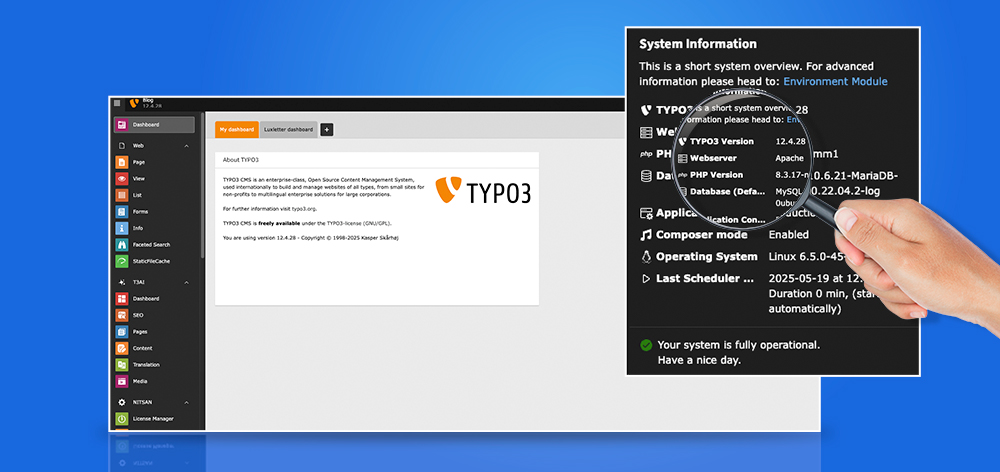
To check your TYPO3 version, log in to the backend and check the version shown in the backend interface, or run ./vendor/bin/typo3 --version from the project root. For TYPO3 v13 and v14, the recommended PHP approach is the Typo3Version class through GeneralUtility::makeInstance(Typo3Version::class).
This guide covers the practical ways to check TYPO3 version, confirm Composer mode, and locate the TYPO3 site root in modern TYPO3 projects. It is updated for TYPO3 v13.4 LTS and TYPO3 v14.3 LTS, with legacy notes for v12, v11, and older installations.
TYPO3 v14.3.0 was released on April 21, 2026 as the first LTS version of TYPO3 v14, and the current TYPO3 download page lists TYPO3 14 LTS as recommended for new projects.
Use the method that matches your access level. Backend access is fastest for administrators, CLI is best for developers, PHP code is best inside extensions, and Composer files are useful for repository or server audits.
If you only have the public URL, use a fingerprinting tool for a major-version estimate.
| Method | Backend access needed? | Works with v13/v14? | Output type | Best for |
| TYPO3 backend | Yes | Yes | Visible version in backend | Admins, editors, maintainers |
| CLI command | No | Yes | Exact installed version | Developers with SSH, DDEV, or Docker access |
PHP Typo3Version class | No | Yes | Exact version, major version, branch | Extension developers |
composer.json / composer.lock | No | Yes | Installed package constraints or locked package version | Server audits, repository checks |
| t3versions.com | No | Partial, major-version estimate | Public fingerprint result | Client-site checks with only a URL |
The fastest way for most developers is CLI:
./vendor/bin/typo3 --version
In DDEV:
ddev exec ./vendor/bin/typo3 --version
In Docker:
docker exec -it my_php_container ./vendor/bin/typo3 --versionAfter you check TYPO3 version, confirm whether that version still receives free security updates.
In 2026, TYPO3 v14 LTS is the recommended version for new projects, TYPO3 v13 LTS remains supported for existing sites, and TYPO3 v12.4 LTS has moved into ELTS-only status after free support ended on April 30, 2026.
| TYPO3 Version | 2026 Status | Free Support Until | ELTS Until | Recommended Action |
| TYPO3 v14.3 LTS | Active flagship LTS | June 30, 2029 | June 30, 2032 | Recommended for new projects |
| TYPO3 v13.4 LTS | Active LTS | December 31, 2027 | December 31, 2030 | Safe for existing projects |
| TYPO3 v12.4 LTS | EOL / ELTS only | April 30, 2026 | April 30, 2030 | Plan upgrade or buy ELTS |
| TYPO3 v11.5 LTS | ELTS only | October 31, 2024 | October 31, 2028 | Upgrade strongly recommended |
| TYPO3 v10.4 LTS | ELTS only | April 30, 2023 | April 30, 2027 | Upgrade urgently |
The official TYPO3 download page lists TYPO3 14 LTS with free support until June 30, 2029 and ELTS until June 30, 2032. It also lists TYPO3 13 LTS with free support until December 31, 2027, TYPO3 12 ELTS with free support ended April 30, 2026, TYPO3 11 ELTS with free support ended October 31, 2024, and TYPO3 10 ELTS with free support ended April 30, 2023.
ELTS means Extended Long Term Support. It is paid vendor support for expired TYPO3 LTS versions. ELTS can be useful when a business-critical site cannot be upgraded immediately, but it should usually be treated as a temporary bridge, not a long-term upgrade strategy.
TYPO3 v12.4 LTS reached the end of free community support on April 30, 2026. If your site is still on v12, you should either move to ELTS or plan an upgrade to v13 or v14. This matters because free security updates are no longer available for v12 after that date.
A TYPO3 version refers to the specific release number of the TYPO3 CMS you’re using. Each version comes with its own set of features, performance improvements, security updates, and compatibility requirements.
TYPO3 uses a versioning format like v12 LTS or v13.1, where:
Your TYPO3 version affects security updates, PHP compatibility, extension compatibility, upgrade planning, and developer tooling.
In 2026, version checking is especially important because TYPO3 v14 LTS is now the flagship version, TYPO3 v13 remains actively supported, and TYPO3 v12 has moved into ELTS-only status.
A TYPO3 version number usually follows this pattern:
13.4.30
Here:
13 = major version
4 = minor / LTS branch
30 = patch version
For audits, the patch version matters because security and maintenance releases are delivered as patch updates. For upgrade planning, the major and LTS branch matter most.
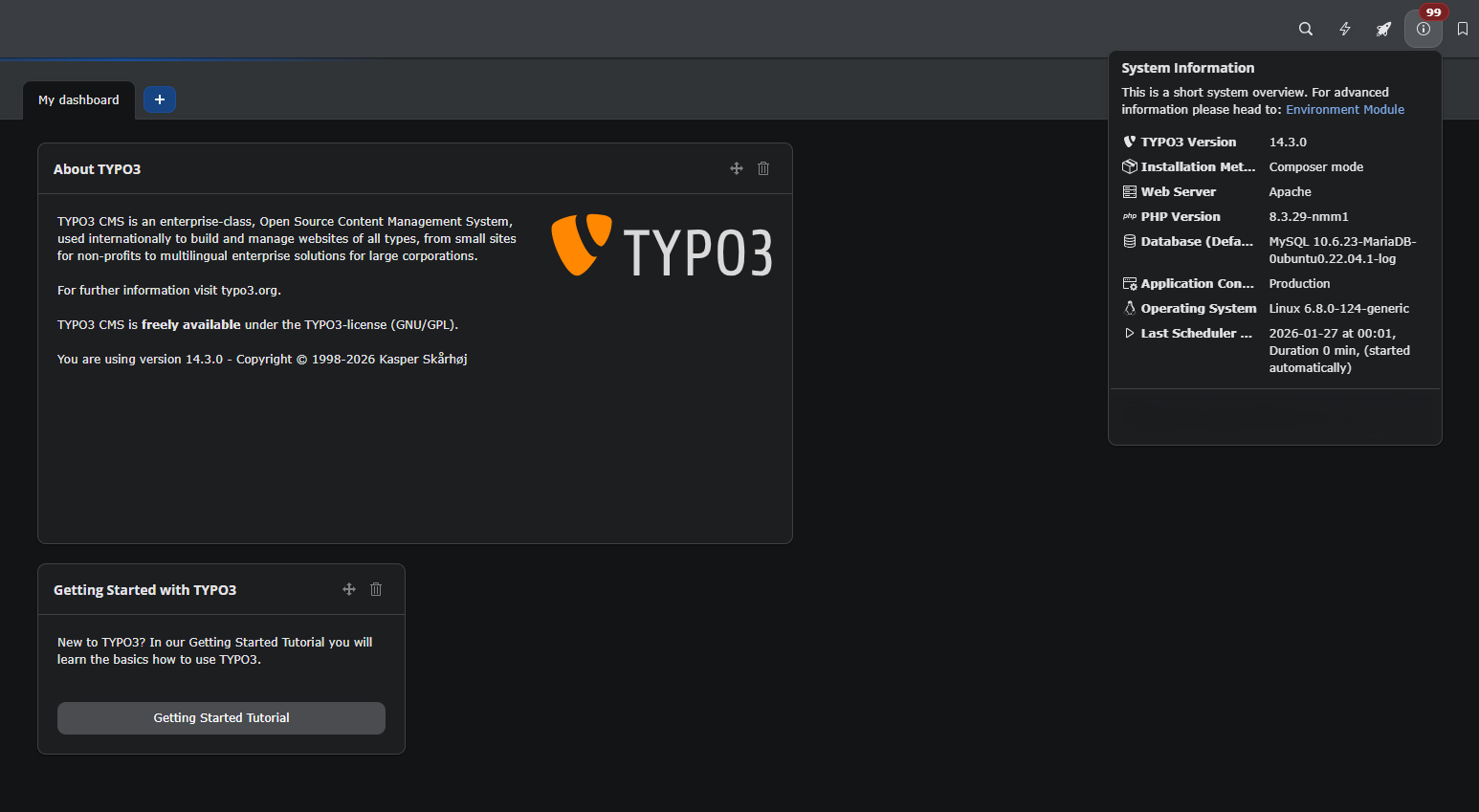
If you have backend access, the TYPO3 backend is usually the fastest way to check TYPO3 version. Log in to /typo3/ and check the backend interface, system information area, or system reports.
This method is best for admins, editors, and maintainers who do not need CLI or server access.
Log in to your TYPO3 backend:
https: //example.com/typo3/
Then check the backend footer, system information area, or system reports depending on the TYPO3 version and backend configuration.
In TYPO3 v14, the backend interface is visually different from v12 and v13 because the v14 LTS release includes a modernized backend UI. The TYPO3 v14 LTS release announcement highlights a redesigned backend, a default frontend theme, QR code and short URL modules, and the Context Panel.
In TYPO3 v13, backend version checks look familiar to most existing TYPO3 administrators. In TYPO3 v14.3 LTS, the backend has changed significantly, so do not rely on older screenshots alone. If you are preparing this article for publication, add fresh v14.3 backend screenshots near this section.
You can check TYPO3 version without backend access by reviewing Composer files, checking server-side package metadata, using CLI access, or scanning the public site with a fingerprinting tool.
This is useful during client audits, takeover projects, security reviews, and situations where backend credentials are missing or unavailable.
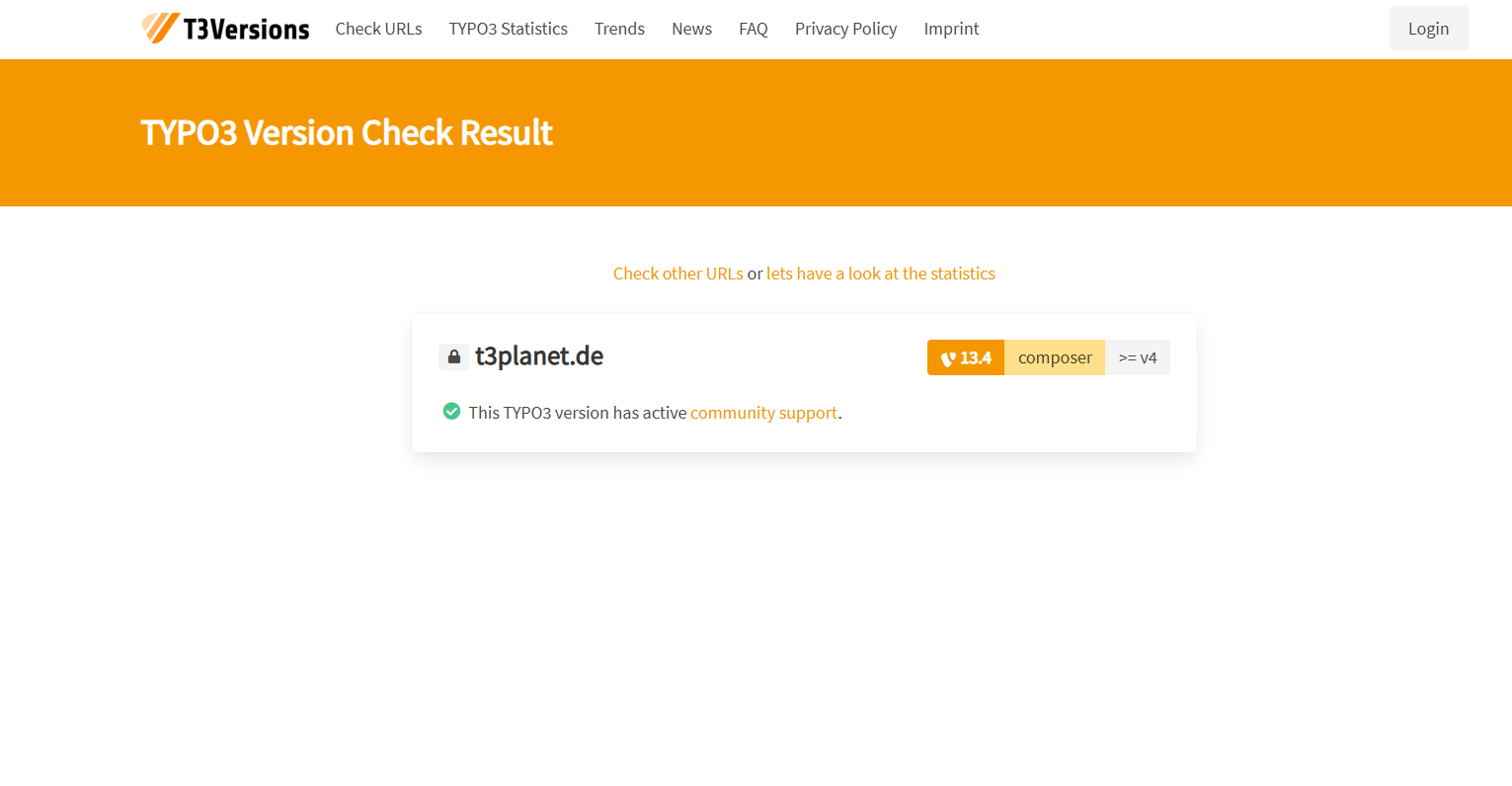
t3versions.com is useful when you only have the public website URL. The tool attempts to determine the TYPO3 major version for one or multiple URLs. Its FAQ says it checks frontend output, backend login if available, and file fingerprints unique to TYPO3 major versions.
Use it as an estimate, not as your only source of truth. Public fingerprinting can be blocked by security settings, custom deployments, reverse proxies, CDN rules, or hardened file access.
In Composer-based TYPO3 installations, check the project root for:
composer.jsoncomposer.lockvendor/public/config/var/
Open composer.json and look for TYPO3 package constraints:
{"require": {"typo3/cms-core": "^14.3"}}For the exact installed version, check composer.lock:{"name": "typo3/cms-core","version": "14.3.2"}
composer.json tells you the allowed version range. composer.lock tells you the installed package version after dependency resolution.
If you have server access but cannot use the backend, inspect the TYPO3 core package under:
vendor/typo3/cms-core/
In a Composer installation, the installed package metadata and lock file are usually more reliable than guessing from frontend assets.
Do not expose exact TYPO3 patch versions publicly unless there is a clear reason. A public major-version estimate can help with audits, but exact patch-level disclosure may give attackers unnecessary detail about outdated installations.
Use the Typo3Version class to detect TYPO3 version programmatically in TYPO3 v11 and newer. It returns the exact version, major version, and branch without relying on deprecated global constants.
This is the recommended method for extensions, site packages, compatibility checks, and conditional code paths in v13 and v14.
<?phpuse TYPO3\CMS\Core\Information\Typo3Version;use TYPO3\CMS\Core\Utility\GeneralUtility;$typo3Version = GeneralUtility::makeInstance(Typo3Version::class);echo $typo3Version->getVersion(); // Example: 14.3.2echo $typo3Version->getMajorVersion(); // Example: 14echo $typo3Version->getBranch(); // Example: 14.3
Use this when you need conditional code paths:
<?phpuse TYPO3\CMS\Core\Information\Typo3Version;use TYPO3\CMS\Core\Utility\GeneralUtility;$typo3Version = GeneralUtility::makeInstance(Typo3Version::class);if ($typo3Version->getMajorVersion() >= 14) {// TYPO3 v14+ logic}
TYPO3 deprecated the global constants TYPO3_version and TYPO3_branch and introduced \TYPO3\CMS\Core\Information\Typo3Version as the replacement API for the same information.
Use TYPO3_version and TYPO3_branch only for legacy compatibility. These constants are deprecated, and modern TYPO3 code should use the Typo3Version class instead.
Keep constant-based checks only where old extensions or legacy installations still require them, especially in older v8, v9, or transitional projects.
<?phpecho TYPO3_version;echo TYPO3_branch;
For legacy checks:
<?phpif (version_compare(TYPO3_version, '12.4.0', '>=')) {// TYPO3 v12.4+ logic}
In modern TYPO3 development, use Typo3Version instead:
<?php$version = GeneralUtility::makeInstance(Typo3Version::class)->getVersion();
The constants were marked deprecated in TYPO3 v10.3, and TYPO3’s changelog points developers to the Typo3Version class instead.
CLI is the most reliable method when you have project, SSH, DDEV, or Docker access. Run ./vendor/bin/typo3 --version from the TYPO3 project root, or execute the same command inside the active DDEV or Docker container.
This confirms the version from the real runtime environment.
From the TYPO3 project root:
./vendor/bin/typo3 --version
If the binary is not executable:
php vendor/bin/typo3 --version
TYPO3’s official console command documentation explains that the vendor/bin/typo3 entry point is used for Composer-based installations and that commands may need to run inside the correct local, Docker, or server environment.
For DDEV projects, run:
ddev exec ./vendor/bin/typo3 --version
You can also try:
ddev typo3 --version
TYPO3’s Getting Started documentation uses DDEV and Composer for local TYPO3 installation and shows DDEV-based TYPO3 CLI commands during setup.
If TYPO3 runs inside a Docker PHP container, execute the command inside the container:
docker exec -it my_php_container bashcd /var/www/html./vendor/bin/typo3 --version
Or run it directly:
docker exec -it my_php_container ./vendor/bin/typo3 --version
TYPO3’s CLI documentation notes that, when using Docker directly, TYPO3 commands usually need to be executed inside the PHP/TYPO3 container.
For older Classic-mode installations, the CLI path may look like this:
typo3/sysext/core/bin/typo3 --version
Use this only for legacy systems. For TYPO3 v13 and v14, expect Composer-first project structures.
Use Environment::isComposerMode() to detect Composer mode in TYPO3 v9 and newer. In Composer-based projects, it returns true; in Classic-mode installations, it returns false. You can also check for composer.json, composer.lock, and vendor/, but the PHP API is more reliable inside TYPO3.
A Composer-based TYPO3 project usually contains:
composer.jsoncomposer.lockvendor/public/config/var/
A legacy Classic-mode installation may contain structures such as:
typo3/
typo3conf/
typo3temp/
fileadmin/
This file check is useful during audits, but PHP code is more reliable inside TYPO3.
Use the TYPO3 Environment API:
<?phpuse TYPO3\CMS\Core\Core\Environment;if (Environment::isComposerMode()) {echo 'Composer mode';} else {echo 'Classic mode';}
TYPO3 introduced the Environment class with methods including Environment::isComposerMode(), Environment::getProjectPath(), and Environment::getPublicPath(). The changelog also recommends using the Environment class instead of older path constants.
For old TYPO3 v8 projects:
<?phpuse TYPO3\CMS\Core\Core\Bootstrap;if (Bootstrap::usesComposerClassLoading()) {echo 'Composer mode';}
Keep this only for legacy maintenance. It is not the preferred approach for current TYPO3 versions.
Composer mode matters because TYPO3 v14 has moved even more strongly toward Composer-first extension metadata and dependency handling. The TYPO3 documentation states that ext_emconf.php is deprecated, and version/dependency metadata should now be defined in an extension’s composer.json.
A Classic-to-Composer migration usually involves:
For TYPO3 v13 and v14 projects, Composer should be the default for new builds and serious long-term maintenance.
Use Environment::getPublicPath() and Environment::getProjectPath() to locate TYPO3 paths in modern installations.
In Composer-based projects, the public web root is often public/, while the project root contains composer.json, vendor/, config/, and var/. This distinction is important for deployments, containers, and extension code.
Use the Environment API:
<?phpuse TYPO3\CMS\Core\Core\Environment;$publicPath = Environment::getPublicPath();$projectPath = Environment::getProjectPath();echo $publicPath;echo $projectPath;
Typical Composer structure:
/project-rootcomposer.jsoncomposer.lockvendor/config/var/public/index.phptypo3/
Environment::getProjectPath() return the root-level project path, while Environment::getPublicPath() returns the publicly accessible folder previously known as PATH_site.
Legacy TYPO3 installations may use:
<?phpecho PATH_site;
Use this only where legacy compatibility is needed. In modern code, prefer Environment::getPublicPath().
<?phpif (class_exists(\TYPO3\CMS\Core\Core\Environment::class)) {$publicPath = \TYPO3\CMS\Core\Core\Environment::getPublicPath();$projectPath = \TYPO3\CMS\Core\Core\Environment::getProjectPath();} else {$publicPath = defined('PATH_site') ? PATH_site : null;$projectPath = $publicPath;}echo 'Public path: ' . $publicPath . PHP_EOL;echo 'Project path: ' . $projectPath . PHP_EOL;
In Docker, the project path inside the container may differ from the host path. For example, the host project may be in:
~/Projects/my-typo3-site
But inside the container it may be mounted as:
/var/www/html
Run path checks inside the PHP container when debugging Composer mode, CLI output, or runtime paths.
TYPO3 v14.3 LTS is the current flagship line for new TYPO3 projects in 2026. It supports PHP 8.2 through PHP 8.5, uses Composer-first extension metadata, modernizes the backend, and receives security support until June 30, 2029.
New projects should normally target v14 unless project constraints require v13.
TYPO3 14 LTS is listed as recommended for new projects, supports PHP 8.2, 8.3, 8.4, and 8.5, and receives free support until June 30, 2029.
<?phpuse TYPO3\CMS\Core\Information\Typo3Version;use TYPO3\CMS\Core\Utility\GeneralUtility;$version = GeneralUtility::makeInstance(Typo3Version::class);if ($version->getMajorVersion() === 14) {echo 'TYPO3 v14 project';}
TYPO3 v14 includes major developer-facing changes such as Fluid 5.0, Symfony Translation Component integration, System Resource API for file access and public URI generation, XLIFF 2.x translation support, default theme Camino, and Extbase-related improvements including validation attributes and rate limiting for Extbase actions.
For version and environment checks, the key takeaway is simple: use modern APIs, avoid deprecated constants, and assume Composer-first project structures.
Extension developers should not rely on ext_emconf.php as the primary metadata source in TYPO3 v14. The official documentation says ext_emconf.php is deprecated and that version and dependency metadata should be defined in composer.json.
Example extension requirement:
{"require": {"typo3/cms-core": "^13.4 || ^14.3"},"extra": {"typo3/cms": {"extension-key": "my_extension"}}}
TYPO3 14 LTS supports PHP 8.2, 8.3, 8.4, and 8.5. This is important when planning hosting, CI pipelines, Docker images, and future upgrades.
TYPO3 v14 LTS receives free security support until June 30, 2029 and ELTS until June 30, 2032. For new projects in 2026, this makes v14 the strongest long-term option.
Use the Environment API for project paths, public paths, application context, and Composer mode checks:
<?phpuse TYPO3\CMS\Core\Core\Environment;Environment::isComposerMode();Environment::getProjectPath();Environment::getPublicPath();Environment::getContext();
TYPO3 v13.4 LTS remains a safe production choice for existing projects in 2026. It continues to receive security updates until December 31, 2027, making it suitable for sites that are stable on v13 but not yet ready for v14.
New builds, however, should usually evaluate TYPO3 v14 LTS first. Use the same modern version-checking APIs:
<?phpuse TYPO3\CMS\Core\Information\Typo3Version;use TYPO3\CMS\Core\Utility\GeneralUtility;$typo3Version = GeneralUtility::makeInstance(Typo3Version::class);if ($typo3Version->getBranch() === '13.4') {echo 'TYPO3 v13.4 LTS';}
TYPO3 13 LTS is listed for existing projects and receives free support until December 31, 2027.
TYPO3 v12.4 LTS is no longer free-supported after April 30, 2026. Sites still running v12 should either buy ELTS coverage or plan an upgrade to v13 or v14. TYPO3’s ELTS page lists support options up to April 30, 2030, with the fourth year reserved for TYPO3 Partners.
If you maintain a v12 project, keep existing code examples working, but add upgrade urgency to the technical documentation:
<?phpuse TYPO3\CMS\Core\Core\Environment;if (method_exists(Environment::class, 'isRunningInContainer')) {$runningInContainer = Environment::isRunningInContainer();}
You can also check application context:
<?phpuse TYPO3\CMS\Core\Core\Environment;$context = Environment::getContext();echo (string)$context;
For v12 sites, the next practical step is not only to check TYPO3 version, but to decide whether the site moves to ELTS temporarily or upgrades to v13/v14.
TYPO3 v11 is a legacy version in 2026 and should be treated as ELTS-only. Keep v11 guidance only for maintenance, audits, or staged upgrade planning.
If a site still runs v11, review PHP compatibility, Composer status, extensions, templates, and deployment workflows before planning a controlled upgrade path.
For v11, use Typo3Version where possible:
<?phpuse TYPO3\CMS\Core\Information\Typo3Version;use TYPO3\CMS\Core\Utility\GeneralUtility;$version = GeneralUtility::makeInstance(Typo3Version::class);echo $version->getVersion();
If a site still runs TYPO3 v11 in 2026, plan a staged upgrade. Jumping directly to v14 may require extension audits, PHP upgrades, template checks, Composer migration, and deployment changes.
Check Extbase classes with class_exists(), interface_exists(), dependency injection, or reflection depending on the use case.
In TYPO3 v14, Extbase compatibility checks should also account for newer framework features, including Symfony-based validators and the security attributes #[Authorize] and #[RateLimit].
These features affect how modern Extbase controllers, actions, and validation logic are structured, so older reflection or class-existence checks should be combined with API-level compatibility review.
<?phpif (class_exists(\Vendor\Extension\Domain\Model\Example::class)) {echo 'Class exists';}
<?phpif (interface_exists(\TYPO3\CMS\Extbase\DomainObject\DomainObjectInterface::class)) {echo 'Extbase domain object interface available';}
<?php$reflection = new \ReflectionClass(\Vendor\Extension\Domain\Model\Example::class);echo $reflection->getName();
In TYPO3 v14, Extbase gains additional modern features such as validation attributes and rate limiting support for Extbase actions, so old compatibility checks should be reviewed before assuming v14 readiness.
The safest approach in 2026 is to use modern TYPO3 APIs, avoid deprecated constants, check Composer mode correctly, and run CLI commands inside the actual runtime environment.
Do not treat v12 as free-supported, do not confuse public path with project path, and do not hardcode compatibility only around older TYPO3 versions.
Typo3Version for programmatic version checks:Environment for Composer mode and path detection:Environment::isComposerMode();Environment::getProjectPath();Environment::getPublicPath();composer.json and composer.lock. The first tells you allowed constraints; the second tells you the exact installed package version.TYPO3_version or TYPO3_branch in new v13/v14 code. These constants are deprecated; use Typo3Version instead.PATH_site means the project root in Composer mode. In modern projects, the public path and project path are different.The correct method for checking the TYPO3 version depends on the available access. After checking, you should also verify whether the AI Foundation for TYPO3, along with connected providers, tools, and workflows, is compatible with the TYPO3 version currently in use or planned. Backend access is fastest for administrators, CLI is best for developers, Composer files help with server or repository audits, nd Typo3Version is the preferred PHP API for extension code.
After you check TYPO3 version, act on what you find. TYPO3 v14.3 LTS is the best target for new projects, TYPO3 v13.4 LTS is still safe for existing supported sites, and TYPO3 v12.4 LTS should now be treated as ELTS-only.
For a legacy site, the next step is not just identifying the version, it is planning the upgrade path, checking Composer mode, reviewing extensions, and confirming the real project root before making changes.
As of June 8, 2026, TYPO3 14 LTS is the current flagship LTS line for new projects. The current version listed on the official download page is TYPO3 14.3.2, released on May 26, 2026.
Use composer.lock, composer.json, server-side vendor/ files, CLI access, or a public fingerprinting tool such as t3versions.com. For exact patch-level information, Composer or CLI is more reliable than public frontend fingerprinting.
TYPO3 v12 is not free-supported after April 30, 2026. It is available through ELTS until April 30, 2030. If your site runs v12, plan an upgrade to v13 or v14, or arrange ELTS coverage.
TYPO3 14 LTS supports PHP 8.2, 8.3, 8.4, and 8.5. For new projects, use a supported PHP version that also fits your hosting, CI, Docker, and extension requirements.
Use Environment::isComposerMode() in PHP, or check for composer.json, composer.lock, and vendor/ in the project root. In modern TYPO3 projects, Composer mode is the expected setup for professional development and deployment.
LTS is the regular Long Term Support phase with free community security updates. ELTS is paid Extended Long Term Support for expired LTS versions. ELTS is useful when immediate upgrading is not possible, but it should not replace long-term upgrade planning.
Run the TYPO3 CLI command inside DDEV:
ddev exec ./vendor/bin/typo3 --version
If your DDEV setup supports the shortcut, this may also work:
ddev typo3 --version
TYPO3’s official installation guide uses DDEV and Composer for local TYPO3 v14 setup.
Use the Typo3Version class:
$version = GeneralUtility::makeInstance(Typo3Version::class);
echo $version->getVersion();
This is the preferred programmatic method for TYPO3 v11 and newer.
TYPO3_version and TYPO3_branch were deprecated. Use \TYPO3\CMS\Core\Information\Typo3Version instead. This avoids relying on runtime-generated global constants and keeps code aligned with modern TYPO3 APIs.
TYPO3 14 LTS receives free security updates until June 30, 2029 and ELTS until June 30, 2032. That makes it the best long-term target for new TYPO3 projects in 2026.
Wolfgang Weber
Brand & Communication LeadWolfgang Weber shapes TYPO3 with passion and expertise. As a TYPO3 enthusiast at T3Planet Shop, he has contributed to TYPO3 projects that make websites faster and more secure. Outside of TYPO3, you’ll probably find him exploring local cafés and enjoying football.
More From Author