


How to Add Schema Structured Data in TYPO3: 3 Best Methods
Performance


TYPO3 troubleshooting starts with three questions: which context, what the log says, what changed last. Then the 20 most common errors, with causes and fixes.
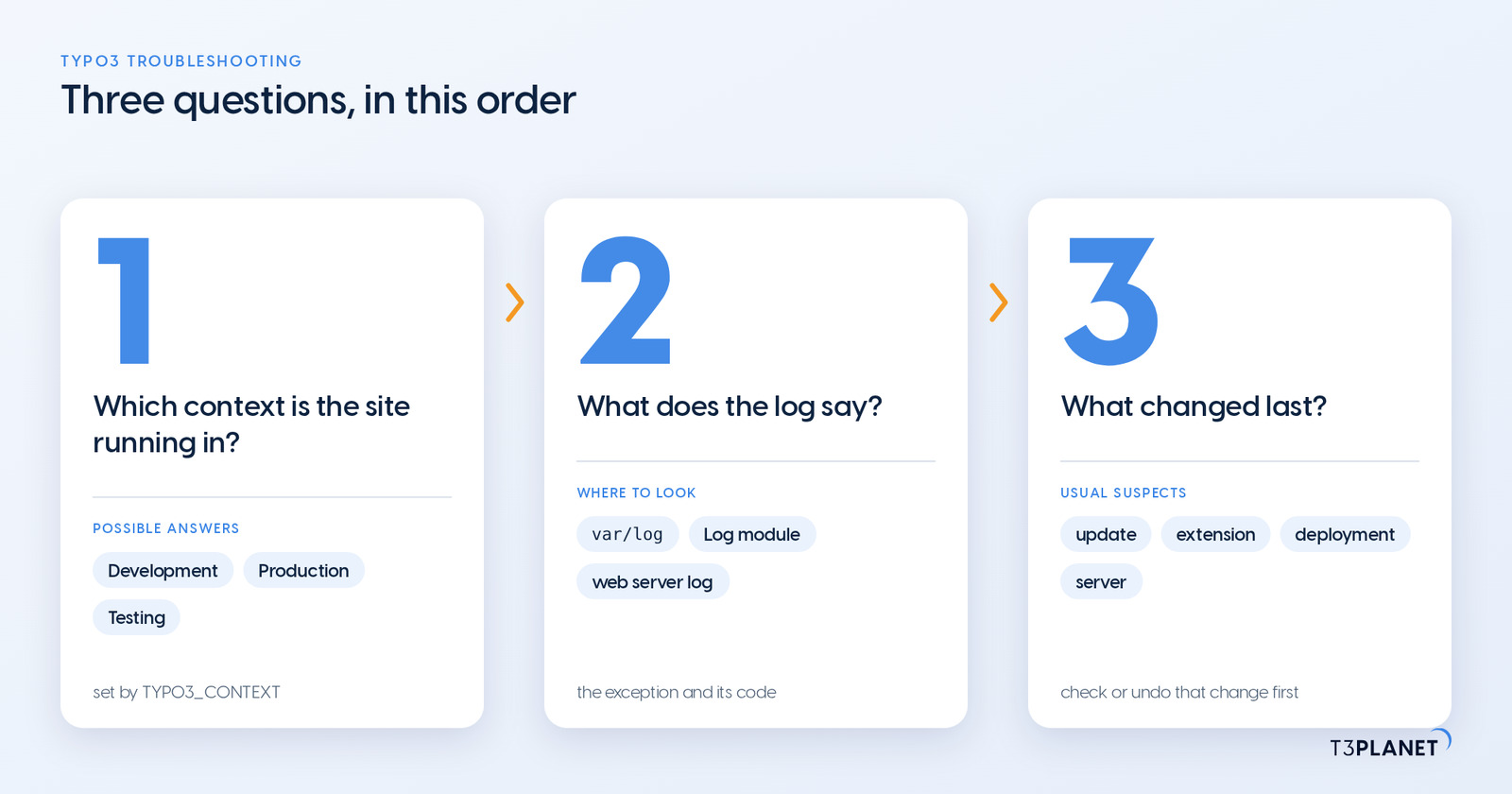
TYPO3 troubleshooting starts with three questions: which context is the site running in, what does the log say, and what changed last? Answer those first, and most of the 20 errors below narrow down to a single cause. Each one is listed with the message you see, the usual causes and the fix, for TYPO3 v13 and v14 in Composer and classic installations. The guide comes from NITSAN Technologies, the TYPO3 Association Gold Member behind T3Planet. It collects the errors we meet most often in projects and support work.
TYPO3 troubleshooting means finding the real error behind a symptom before you change anything. TYPO3 hides technical details from visitors on purpose, so the message on screen is rarely the cause. The cause is almost always in a log, and it is usually tied to the last change.
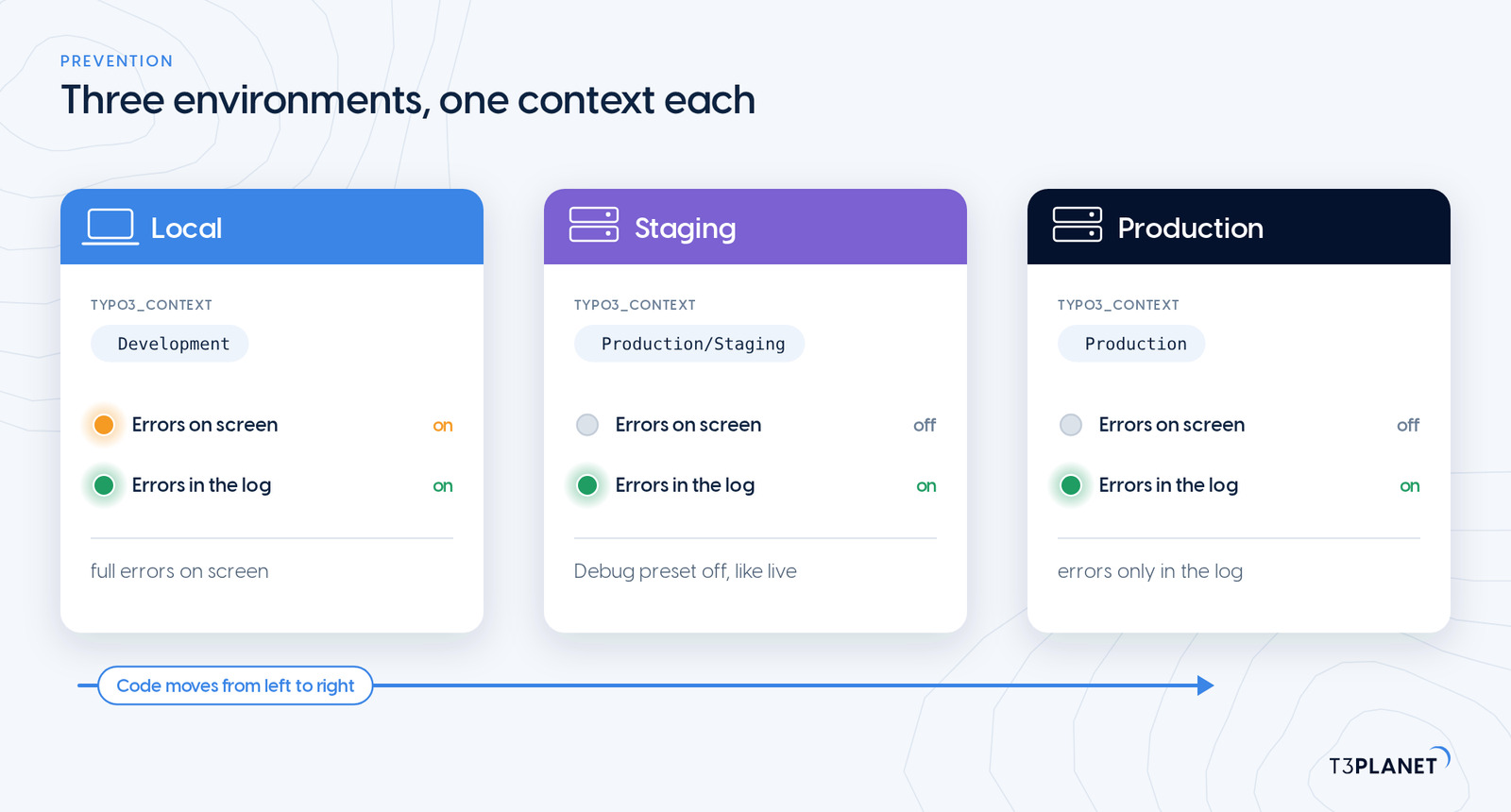
Production, TYPO3 shows a short message instead of the error. In Development, content element errors are no longer hidden, and with the debug settings below TYPO3 shows the full exception. The context comes from the TYPO3_CONTEXT environment variable.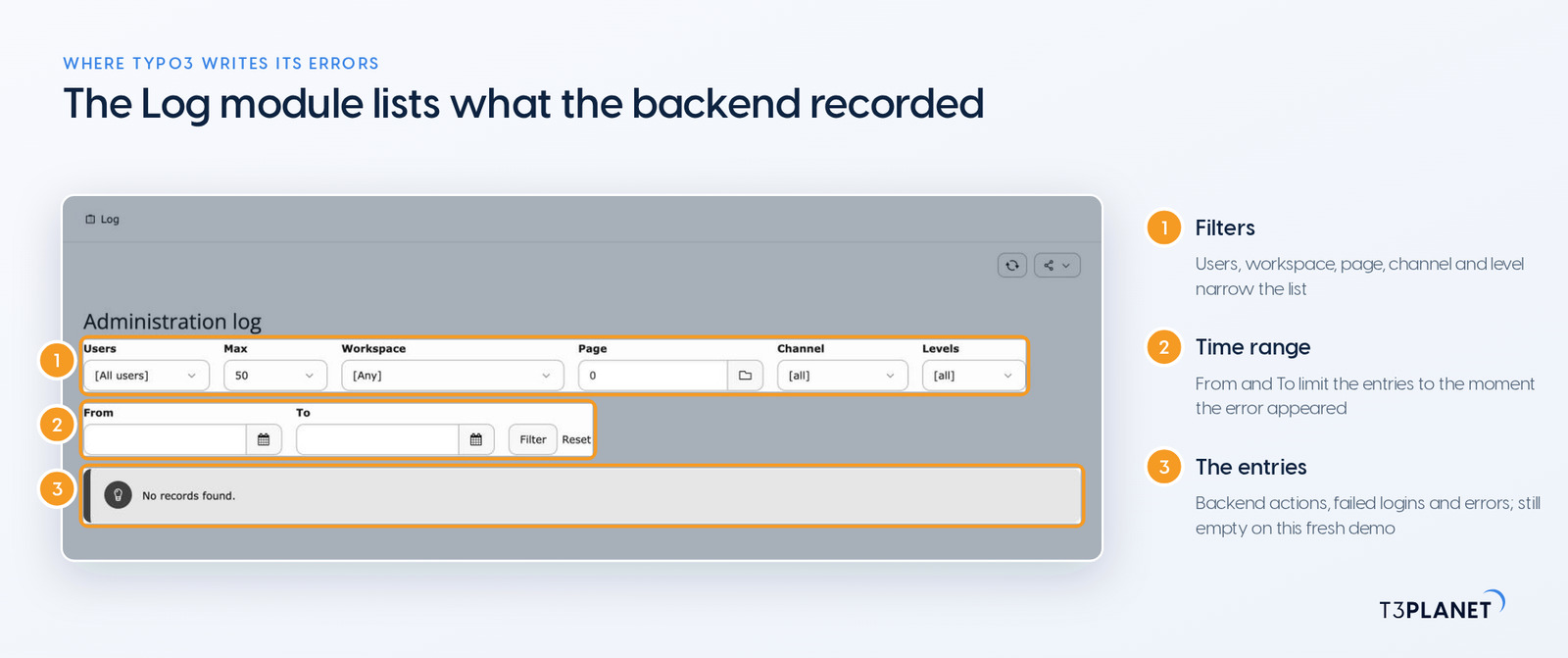
| Where | What you find there | How to open it |
| Log file | warnings and errors with the full exception, by default from WARNING upwards | var/log/typo3_*.log (Composer) or typo3temp/var/log/typo3_*.log (classic) |
| Log module | backend actions, failed logins and errors recorded by the backend | System > Log |
| Web server and PHP error log | fatal PHP errors, 500 errors, timeouts | depends on the host, for example /var/log/apache2/error.log or the PHP-FPM log |
| Browser console | JavaScript errors and blocked scripts | developer tools of the browser, tab Console |
| Exceptions reference | what a numeric exception code means and how others solved it | TYPO3 Exceptions on docs.typo3.org |
Backend paths in this guide use the TYPO3 v13 module names. In TYPO3 v14, Web is called Content, File is called Media, Site Management is called Sites, Admin Tools is called System, and the former System group (Log, Scheduler, Backend Users) is called Administration.
No entries in the log? By default TYPO3 writes WARNING and higher to the log file in every context. If the file stays empty, check that the web server user can write to var/log/ (classic: typo3temp/var/log/), and that no custom writerConfiguration in config/system/additional.php has replaced the default file writer.
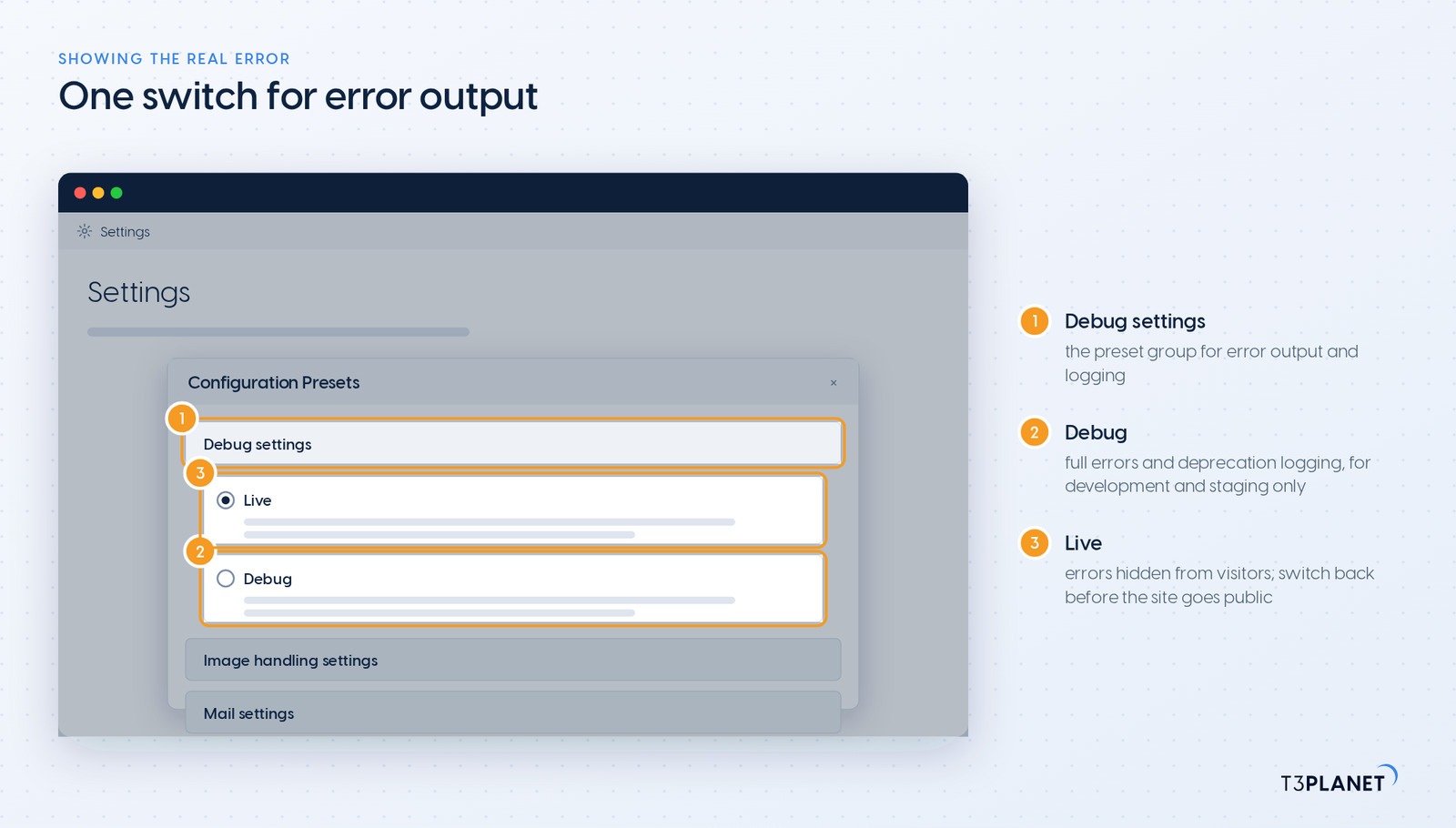
On a development or staging copy, let TYPO3 show the full error:
SetEnv TYPO3_CONTEXT DevelopmentThen change only the settings you need in config/system/additional.php (classic: typo3conf/system/additional.php). Change single keys, never a whole array such as ['SYS']: replacing it removes the trusted hosts pattern, the encryption key and every other system setting.
<?php
use TYPO3\CMS\Core\Core\Environment;

if (Environment::getContext()->isDevelopment()) {
    $GLOBALS['TYPO3_CONF_VARS']['SYS']['displayErrors'] = 1;
    $GLOBALS['TYPO3_CONF_VARS']['SYS']['devIPmask'] = '*';
    $GLOBALS['TYPO3_CONF_VARS']['FE']['debug'] = true;
    $GLOBALS['TYPO3_CONF_VARS']['BE']['debug'] = true;
}Never enable displayErrors = 1 on a live site. On production, keep the default and read the log, or use displayErrors = -1 with your own IP address in devIPmask to see errors only from your connection.
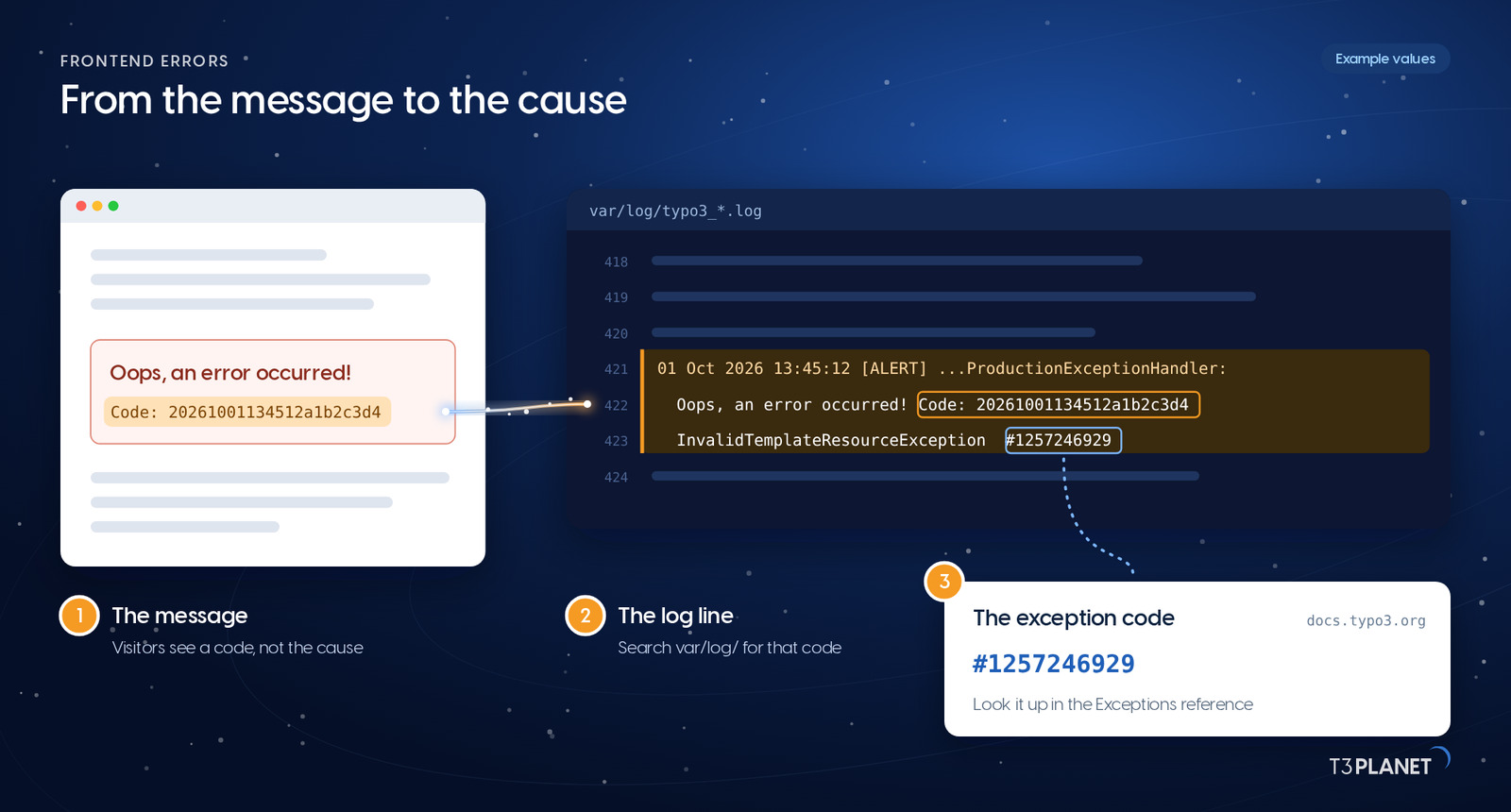
TYPO3 shows this message, followed by a code, when one content element fails to render and the context is Production. The rest of the page still works, because the content object exception handler catches the error for that one element.
config.contentObjectExceptionHandler = 0To change the visitor message instead, set one line, for example config.contentObjectExceptionHandler.errorMessage = Sorry, this part of the page could not be loaded. Code: %s.
The web server could not finish the request. TYPO3 often never got the chance to log anything, so start with the web server and PHP error log.
mod_rewrite must be active and public/.htaccess must be the one TYPO3 ships. In a subdirectory, set RewriteBase to that path. On nginx, all requests that are not files must go to index.php.The frontend finds no TypoScript for this site. Current TYPO3 versions show "No TypoScript record found!"; older versions said "No TypoScript template found".
A wrong brace, a missing condition end or a mistyped path makes parts of the page disappear without any error message.
A completely white page usually means a fatal PHP error while error display is off. TYPO3 could not even show its own error page.
config/system/additional.php.Since TYPO3 v9, error pages are set per site in the site configuration, not in a global setting.
Symptoms of a broken setup: the 404 page answers with status 200, shows the wrong language, or ends in a redirect loop. Check the status code in the browser's developer tools. Then check that the 404 page is visible without login, belongs to the same site and is translated into every site language. More on the configuration file itself: TYPO3 site configuration.
Sliders, forms or menus stop working, and the browser console shows red errors.
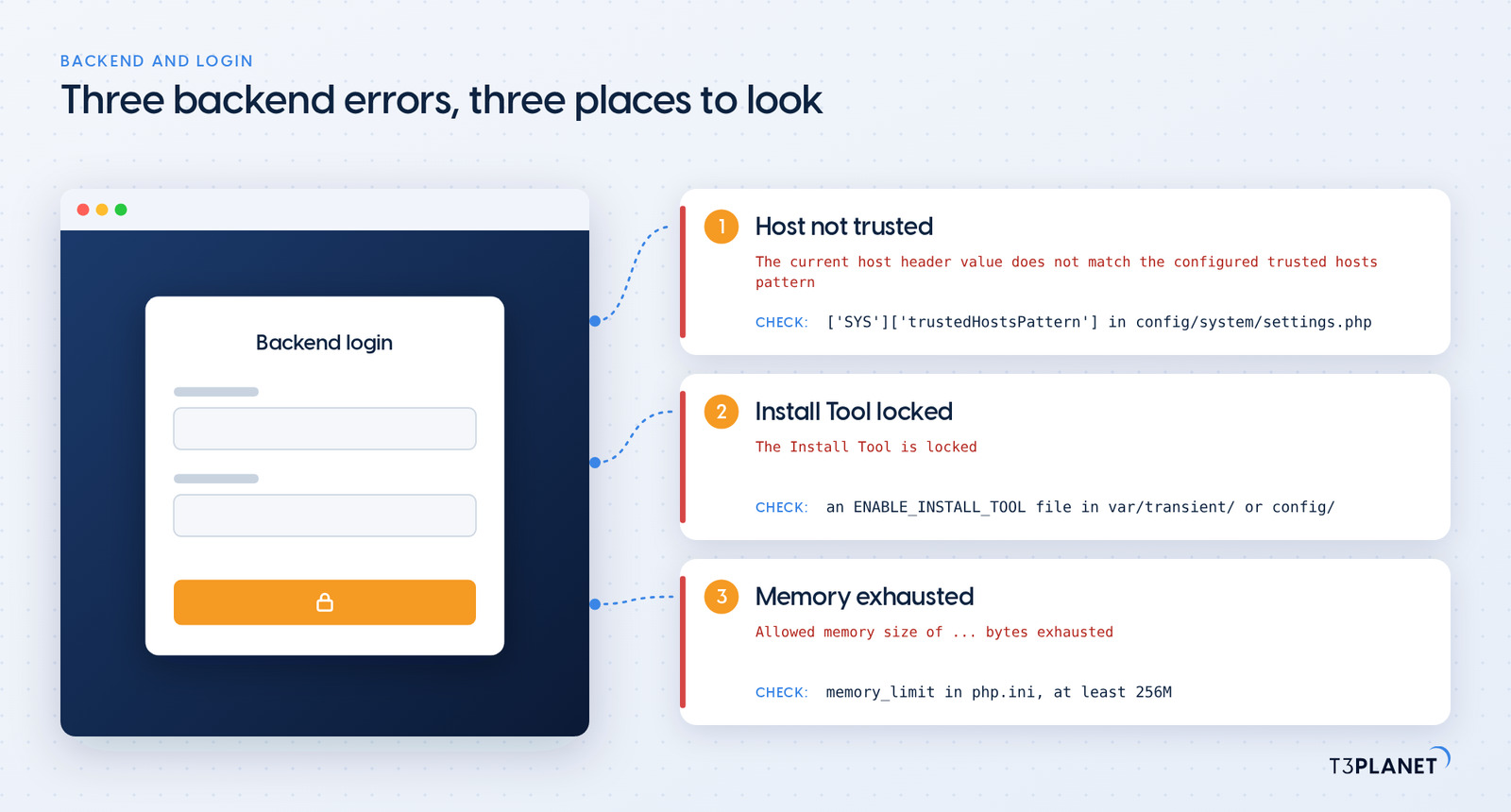
config.concatenateJs or a minifier. Switch concatenation off on a test copy to find the file.security.frontend.enforceContentSecurityPolicy and security.frontend.reportContentSecurityPolicy or a csp.yaml per site. Allow the source in the policy instead of switching the policy off.['SYS']['trustedHostsPattern']. Add it in config/system/settings.php or additional.php. This often appears after a domain change or behind a new proxy.['BE']['lockSSL'], ['BE']['cookieDomain']), then clear the browser cookies for the site.The standalone Install Tool at /typo3/install.php only opens when a flag file exists. Create an empty file named ENABLE_INSTALL_TOOL in var/transient/ or config/ (Composer) or in typo3conf/ (classic), reload the page, and delete the file when you are done.
If you can still log in to the backend as a system maintainer, use the Maintenance, Settings, Upgrade and Environment modules there instead; they need no flag file. Why the lock matters is part of our TYPO3 Security checklist.
PHP stopped because a request needed more memory than allowed. Image processing of very large uploads and long lists in the backend are typical triggers.
; php.ini, or the PHP settings of your hosting panel
memory_limit = 256M
Many errors in this guide start on the server: PHP versions, limits, permissions, mail. Website Builder hosts TYPO3 for you on a server set up for it, with automatic TYPO3 updates and daily backups.
The extension does not support your TYPO3 or PHP version, or it changed something your project relies on. Remove it first, then investigate.
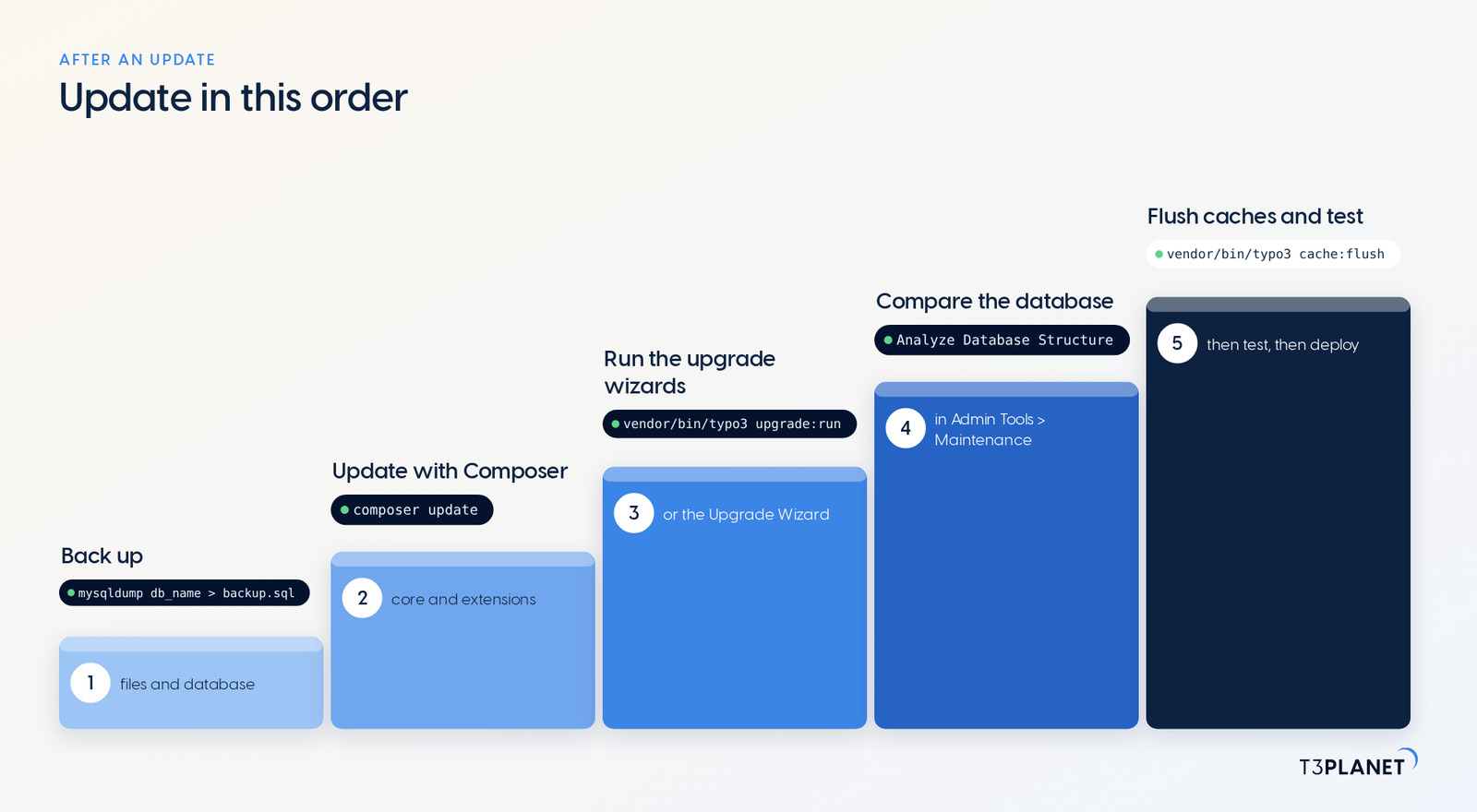
composer remove vendor/package, or require a version that supports your TYPO3 and PHP version, then composer install and vendor/bin/typo3 extension:setup.typo3/sysext/core/bin/typo3 extension:deactivate <extension_key>. If the CLI fails as well, remove the extension's entry from typo3conf/PackageStates.php.vendor/bin/typo3 cache:flush, or delete var/cache/ (classic: typo3temp/var/cache/).After a major upgrade, errors usually come from a step that was skipped, not from the core itself. Work through this list in order:
vendor/bin/typo3 upgrade:run
vendor/bin/typo3 extension:setup
vendor/bin/typo3 cache:flush
vendor/bin/typo3 upgrade:run.Planning the next version jump? TYPO3 update vs upgrade explains which path fits, TYPO3 Rector automates much of the code migration, and the TYPO3 v14 guide covers the current release.
The class loading information is out of date, usually after a deployment or a manual file change.
composer dump-autoload (or composer install on the server), then flush the caches.Deprecation logging is off by default. It is switched on by the Debug preset or by custom logging configuration, and after an upgrade it can write thousands of lines a minute.
config/system/additional.php:$GLOBALS['TYPO3_CONF_VARS']['LOG']['TYPO3']['CMS']['deprecations']['writerConfiguration'][\Psr\Log\LogLevel::NOTICE][\TYPO3\CMS\Core\Log\Writer\FileWriter::class]['disabled'] = true;Read the deprecations before you switch them off: each one is code that will break in the next major version.
Errors such as SQLSTATE[HY000] [2002] Connection refused or Access denied for user mean TYPO3 cannot reach the database.
config/system/settings.php under ['DB']['Connections']['Default'], or in the environment variables your setup reads them from.localhost uses a socket and 127.0.0.1 uses TCP; if one fails, try the other. In Docker, the host is the name of the database service, not localhost.Form mails, password resets or notifications never arrive.
$GLOBALS['TYPO3_CONF_VARS']['MAIL']['transport'] = 'smtp';
$GLOBALS['TYPO3_CONF_VARS']['MAIL']['transport_smtp_server'] = 'smtp.example.com:587';
$GLOBALS['TYPO3_CONF_VARS']['MAIL']['transport_smtp_encrypt'] = false; // true only for SMTPS on port 465
$GLOBALS['TYPO3_CONF_VARS']['MAIL']['transport_smtp_username'] = 'user';
$GLOBALS['TYPO3_CONF_VARS']['MAIL']['transport_smtp_password'] = 'secret';
$GLOBALS['TYPO3_CONF_VARS']['MAIL']['defaultMailFromAddress'] = 'noreply@example.com';transport_smtp_encrypt is a true or false switch: true means SMTPS, usually on port 465. On port 587 leave it false, and STARTTLS is used automatically.Thumbnails are missing, images keep their original size, or the backend shows "image processing is disabled".
$GLOBALS['TYPO3_CONF_VARS']['GFX']['processor'] = 'GraphicsMagick'; // or 'ImageMagick'
$GLOBALS['TYPO3_CONF_VARS']['GFX']['processor_path'] = '/usr/bin/';
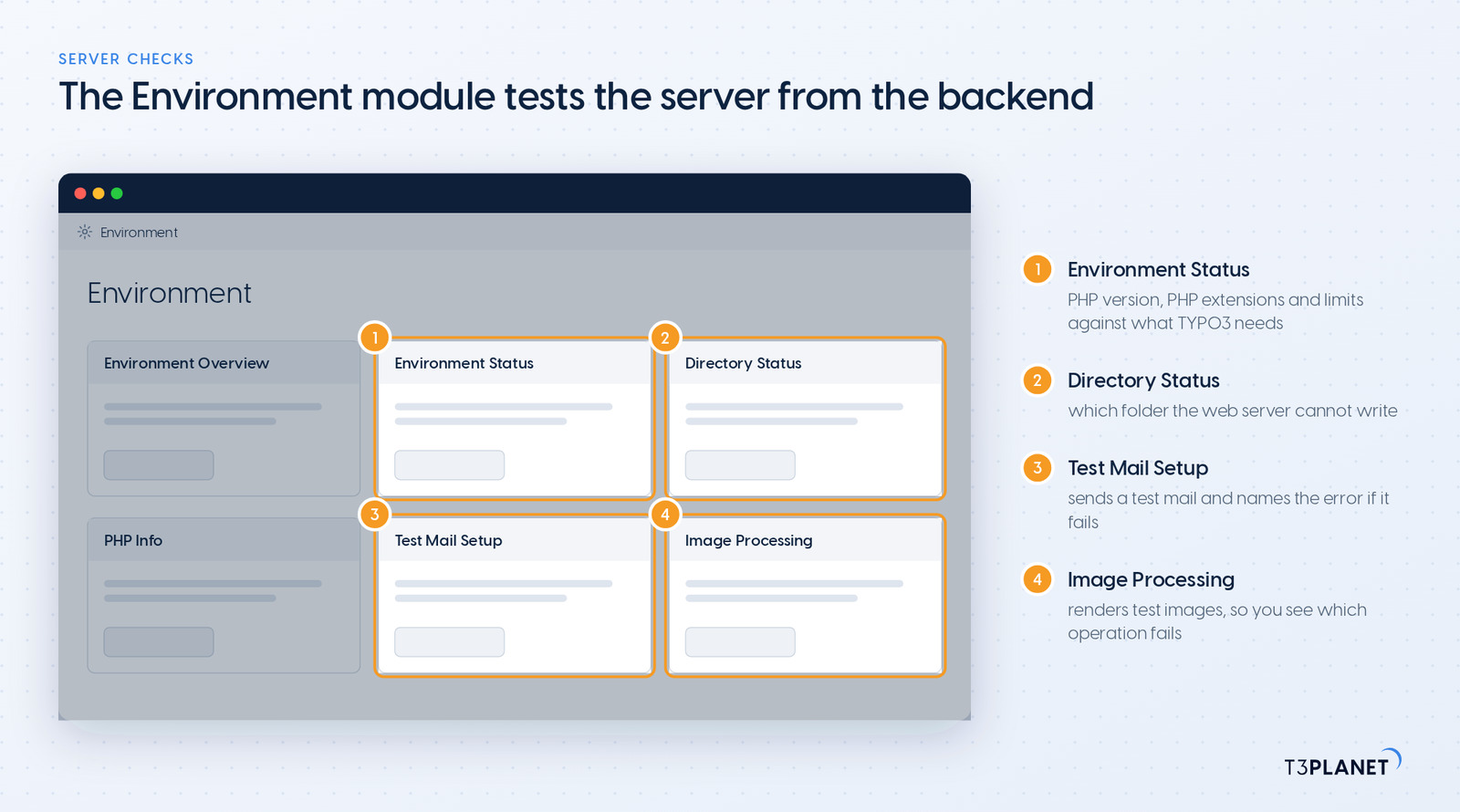
$GLOBALS['TYPO3_CONF_VARS']['GFX']['processor_enabled'] = true;gm version or convert -version) and that the path points to its folder.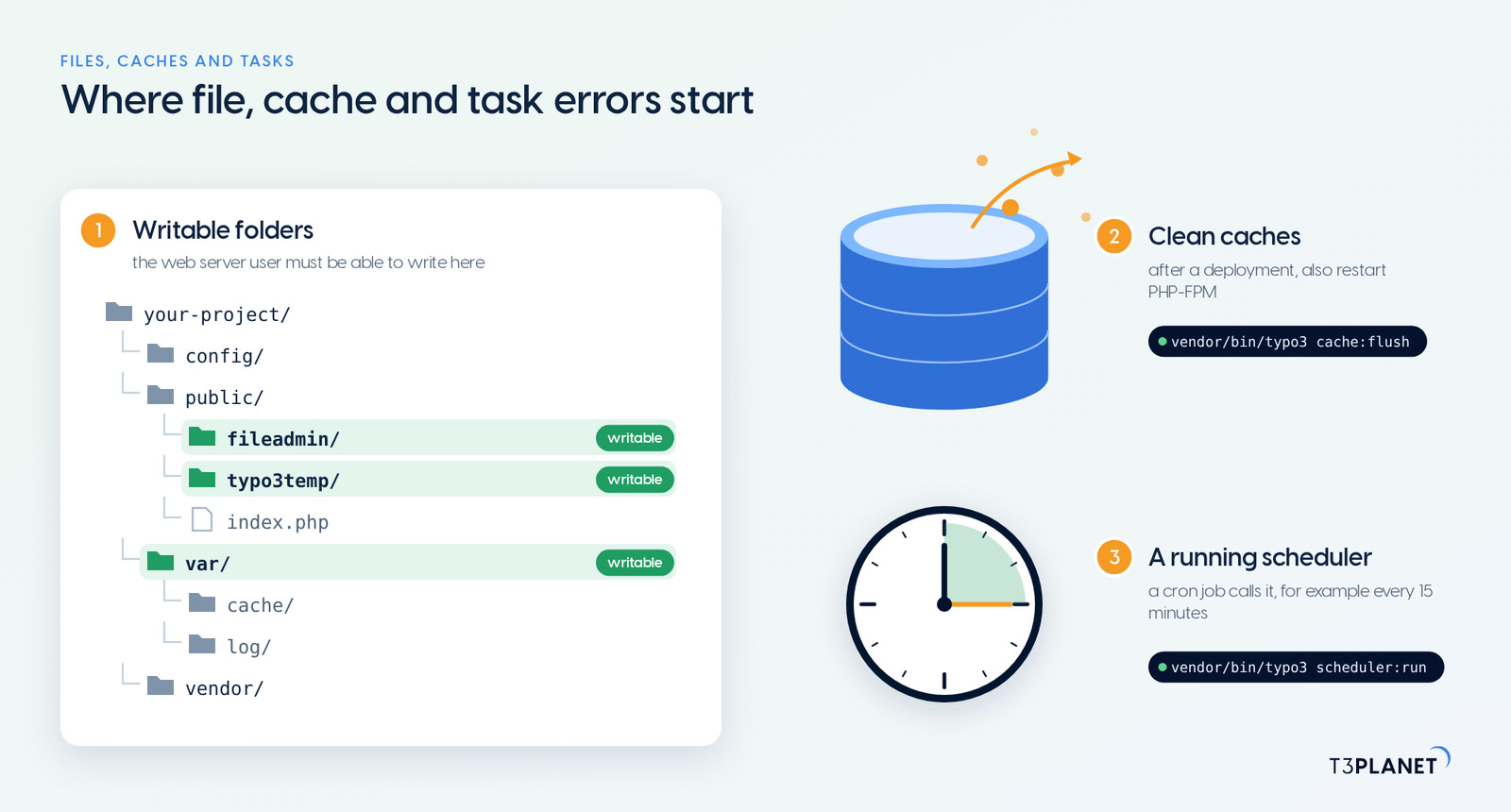
var/, public/typo3temp/ and public/fileadmin/ (classic: typo3temp/, fileadmin/, typo3conf/). Admin Tools > Environment > Directory Status shows which folder fails.chown -R www-data:www-data var public/typo3temp public/fileadmin
find var public/typo3temp public/fileadmin -type d -exec chmod 2775 {} \;
find var public/typo3temp public/fileadmin -type f -exec chmod 664 {} \;Replace www-data with the user your web server runs as. In Docker, the user inside the container must own the mounted folders.
Pages show old content, changes do not appear, or errors disappear after a cache flush and come back.
vendor/bin/typo3 cache:flush.var/cache/ (classic: typo3temp/var/cache/).Every way to clear the cache, from the backend to the command line, is in how to clear the TYPO3 cache.
Tasks do not run, show "never executed", or the command line reports errors the backend does not show.
*/15 * * * * /usr/bin/php /var/www/html/vendor/bin/typo3 scheduler:runIn classic installations the command is typo3/sysext/core/bin/typo3 scheduler:run.
php -v as the cron user and call the right binary with its full path.More on setting this up: cron jobs with the TYPO3 Scheduler.
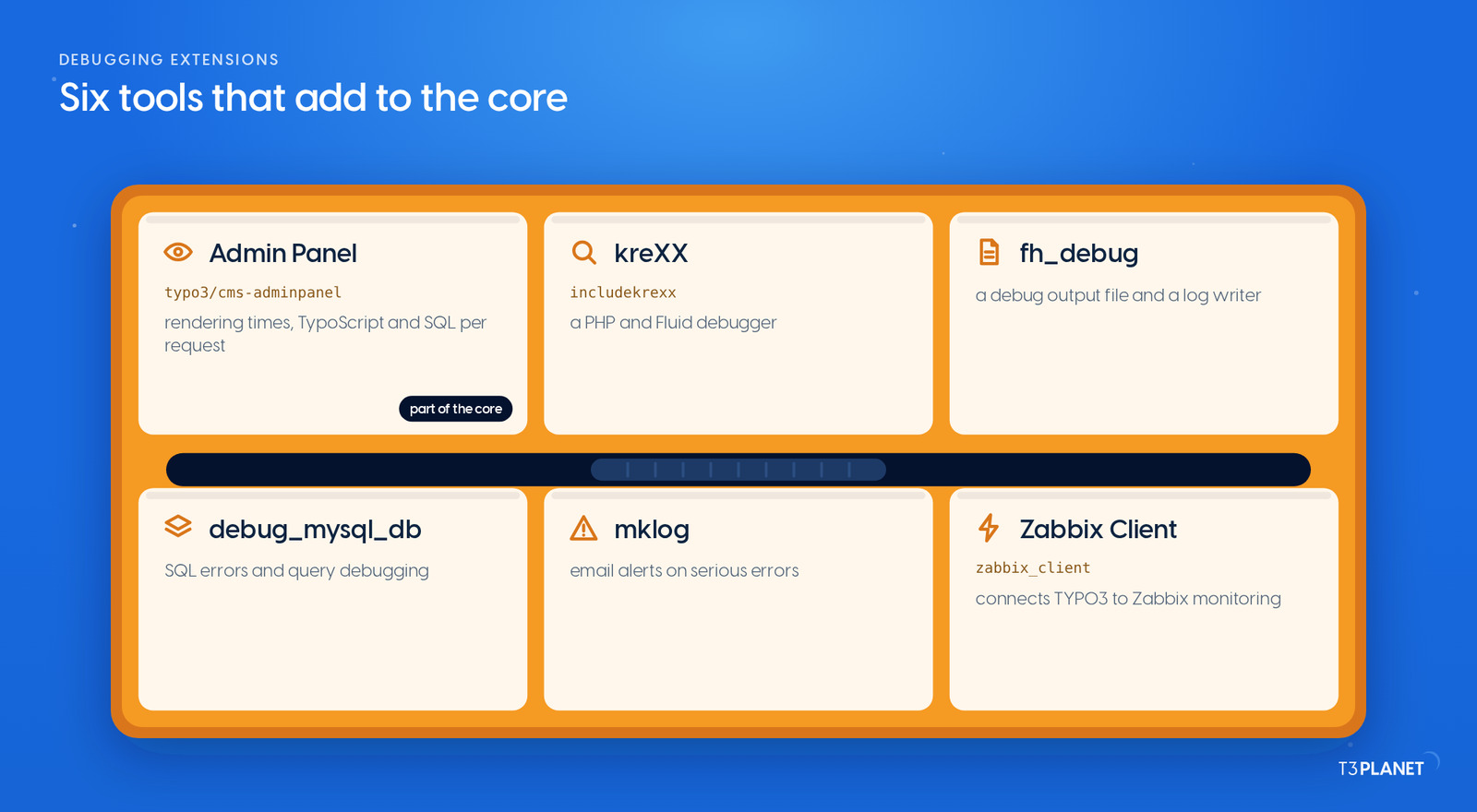
The TYPO3 core covers most error handling. For deeper TYPO3 troubleshooting, these tools add to it. Each third-party extension listed supported TYPO3 v12 or later on extensions.typo3.org or Packagist when NITSAN's TYPO3 team checked this guide in October 2026.
| Tool | What it adds | Supports |
Admin Panel (typo3/cms-adminpanel) | rendering times, TypoScript, SQL queries and logs per frontend request; part of the core, install it with Composer, set config.admPanel = 1 and enable it for editors with the user TSconfig admPanel.enable.all = 1 | part of the TYPO3 core |
kreXX (includekrexx) | a PHP and Fluid debugger with a backend view of its log files | TYPO3 10 to 14 |
| fh_debug | writes a PHP debug output file and adds a file writer to the TYPO3 logging framework | TYPO3 12 to 14 |
| debug_mysql_db | logs SQL errors and lets you debug database queries | TYPO3 13 and 14 |
| mklog | monitors log entries and sends email alerts on serious errors | TYPO3 12 and 13 |
Zabbix Client (zabbix_client) | connects TYPO3 to the Zabbix monitoring tool | TYPO3 13 |
For Fluid templates in particular, the TYPO3 Fluid guide covers debugging with <f:debug>.
Most of the errors above are preventable with four habits:
Development locally, Production (or a sub-context such as Production/Staging) on staging and live, set by the web server or container.
T3Planet is built by NITSAN, a TYPO3 Association Gold Member with certified TYPO3 integrators and developers. If an error keeps returning, or you would rather not chase it yourself, NITSAN's team analyses and fixes it with you. Under a support agreement, we also keep your installation current.
Finding the real error behind a symptom on a TYPO3 site: check the context, read the log, and look at what changed last. The message a visitor sees is rarely the cause; the log file names it.
One content element failed to render in the Production context. TYPO3 hides the details from visitors and writes them to the log. Search the log file for the code shown in the message.
In var/log/ in Composer installations and in typo3temp/var/log/ in classic installations. Backend actions and errors are also listed in System > Log, and fatal PHP errors are in the web server or PHP error log.
Usually a fatal PHP error while error display is off. The PHP error log names the cause, often an extension that does not support your PHP version, or the memory limit.
No. Show errors only on development or staging copies. On a live site, read the log, or limit error output to your own IP address with devIPmask.
Skipped upgrade wizards, an extension that does not support the new version, a database that was not compared, and a PHP version that does not match. Work through error 12 in order.
Run vendor/bin/typo3 cache:flush, or delete var/cache/ (classic: typo3temp/var/cache/). Restart PHP-FPM afterwards to reset OPcache.


Anna Scholz
Extension Support SpecialistAnna knows TYPO3 extensions inside out. With hands-on experience supporting both core and custom solutions at T3Planet Shop, she delivers answers that are not only correct but smart. Her priority: helping users unlock the full power of TYPO3 without the guesswork.
More From Author