



TYPO3 Tops Google’s Core Web Vitals: The Fastest CMS in 2026
Performance


Schema Structured Data implementation in TYPO3 supports three different methods which include manual JSON-LD insertion and extension-based automation and TypoScript/Fluid custom implementation.
Among these options JSON-LD serves as the preferred format because it offers easy management and flexible usage and search engines prefer it. The guide explains the implementation methodologies of schema in TYPO3 projects and shows the correct methods of implementation for each technique.
The guide serves TYPO3 editors developers and site owners who want to increase search visibility and enable rich results while structuring their content without making assumptions.
You should execute manual schema for fast configuration while using extensions to automate processes and you should create custom code to gain complete control of your system while using JSON-LD to achieve optimal outcomes.
If you just want a fast decision, use this
| Method | Best For | Skill Level | Pros | Cons |
| Manual HTML (JSON-LD) | Small sites, quick fixes | Beginner | Easy to add, no setup needed | Static, manual updates required |
| brotkrueml/schema | Most TYPO3 projects | Intermediate | Dynamic, auto-updates, TYPO3-integrated | Needs extension setup |
| Custom TypoScript / Fluid | Complex / enterprise sites | Advanced | Full control, flexible, scalable | Requires development effort |
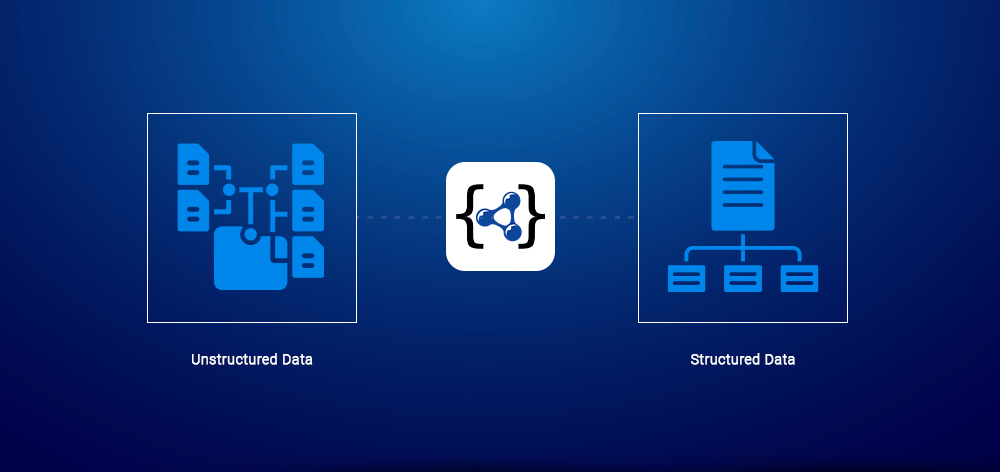
Schema Structured Data enables TYPO3 pages to show machine-readable information which helps search engines identify the content type of your material (article product event). The system operates according to the Schema.org standard which all major search engines recognize.
Recommended format:
The use of JSON-LD (JavaScript Object Notation for Linked Data) should be implemented. The system uses a
When adding schema in TYPO3, choosing the right format matters for maintenance, scalability, and SEO compatibility.
| Format | How It Works | Best For | Pros | Cons |
| JSON-LD (Recommended) | Added inside <script> tag | All TYPO3 projects | Clean, easy to manage, preferred by Google | Not directly tied to HTML elements |
| Microdata | Embedded within HTML tags | Small/static pages | Directly linked to content | Messy, harder to maintain |
| RDFa | Uses HTML attributes like Microdata | Legacy/semantic-heavy projects | Flexible vocabulary support | Complex, rarely used in TYPO3 |
page.headerData)<f:asset.script>)Brotkrueml/schema extensionThis is the reason JSON-LD is the preferred format for most TYPO3 developers.
JSON-LD
Microdata
RDFa
Quick Summary
Structured Schema Data allows the search engine to understand the content of your TYPO3 site in the proper context, making your page eligible for rich snippets such as FAQ, rating, product, or event pages.
Rich snippets usually lead to better presentation in search results, resulting in higher click-through rates than non-enriched pages.
The search engine uses structured data guidelines by Schema.org and Google Search Central to create rich snippets based on the structured data provided on your website.
Once you have introduced schema data into your page, measure its performance in Google Search Console:
Not all schema types lead to rich results. Below is a priority-based structure to help you focus on what actually matters for TYPO3 SEO and implementation.
{"@context": "https://schema.org","@type": "Organization","name": "T3Planet","url": "https://t3planet.de","logo": "https://t3planet.de/logo.svg"}
{"@context": "https://schema.org","@type": "BreadcrumbList","itemListElement": [{"@type": "ListItem","position": 1,"name": "Home","item": "https://example.com/"}]}
{"@context": "https://schema.org","@type": "Article","headline": "TYPO3 Schema Guide","author": { "@type": "Person", "name": "Author Name" }}
{"@context": "https://schema.org","@type": "Product","name": "TYPO3 Extension","offers": {"@type": "Offer","price": "49.00","priceCurrency": "EUR"}}
{"@context": "https://schema.org","@type": "Event","name": "TYPO3 Meetup","startDate": "2025-03-18T18:00:00"}
{"@context": "https://schema.org","@type": "FAQPage","mainEntity": [{"@type": "Question","name": "What is TYPO3 Schema?","acceptedAnswer": {"@type": "Answer","text": "It helps search engines understand your content."}}]}
Here's a fast guide for prioritizing schema according to the types of sites you run:
Priority: Article + Breadcrumb + Organization
Reasons:
TYPO3 Tip: Map Article fields automatically using Fluid or schemas extension
Priority: Organization + Breadcrumb + Service / Local Markup
Reasons:
TYPO3 Tip: Add Organization globally, if necessary apply additional Service / Local schema
Priority: Product + Breadcrumb + Organization
Reasons:
TYPO3 Tip: Make sure product information (price, stock) is updated automatically
Priority: Event + Organization + Breadcrumb
Reasons:
TYPO3 Tip: Check that all events' dates are up-to-date, otherwise, schema will become invalid
Almost all TYPO3 websites have to have Organization + Breadcrumb first
Then add:
Start with a quick comparison, then choose the method that fits your project’s complexity and workflow.
| Method | Skill Level | Maintenance Effort | Best Use Cases | Common Pitfalls |
| Manual HTML (JSON-LD) | Beginner | High, manual updates | One-off pages, prototypes, quick fixes | Content drift, duplication, forgotten updates |
| Extension (brotkrueml/schema) | Intermediate | Low–Medium, automated | Most TYPO3 sites, scalable setups | Misconfiguration, overlapping schema from multiple extensions |
| Custom TypoScript / Fluid | Advanced | Medium–High | Complex logic, multilingual, multi-domain | Higher dev effort, testing overhead |
This method is suitable for limited and static use cases (single page or quick experiments).
Use Cases:
How it Works:
Although implementing this option works for a limited number of pages, it does not provide the ability to scale.
Risk of Content Drift:
This method is recommended for the majority of TYPO3 projects, since they are already using this method, and it is the recommended option to integrate schema dynamically.
How it Works:
The TYPO3 Schema Extension (brotkrueml/schema) dynamically creates the schema on your website. The TYPO3 Schema Extension directly accesses the database fields in TYPO3, allowing the schema to always remain in sync with the accompanying content.
This extension also supports numerous schema types and extensions.
Configuration Options:
Can be configured via:
Example (TypoScript)
page = PAGEpage.10 = SCHEMApage.10 {type = WebSiteproperties {name.field = seo_titledescription.field = description}}
Example (Fluid)
<schema:type.organizationname="T3Planet"url="https://t3planet.de"logo="https://t3planet.de/logo.svg" />
schema_autoschema_bibschema_healtIncorrect field mappingUseful for domain-specific structured data
Best for: Advanced, custom, or enterprise TYPO3 projects
page.headerData {100 = TEXT100.value (<script type="application/ld+json">{"@context": "https://schema.org","@type": "Organization","name": "T3Planet","url": "https://t3planet.de"}</script>)}
<f:asset.script type="application/ld+json">{"@context": "https://schema.org","@type": "Article","headline": "{newsItem.title}","datePublished": "{newsItem.date -> f:format.date(format: 'Y-m-d')}"}</f:asset.script>
If you already use Yoast SEO for TYPO3, it provides built-in structured data features.
There are three things to keep in mind when using schema.
These are:
Also, keep in mind that not every rich snippet will be displayed by Google. There will be exceptions, for example, FAQs will be limited.
The bottom line is to use schema correctly and follow Google's guidelines as to whether your structured content can be displayed. Also, do not count on seeing a rich snippet based on your structured content.
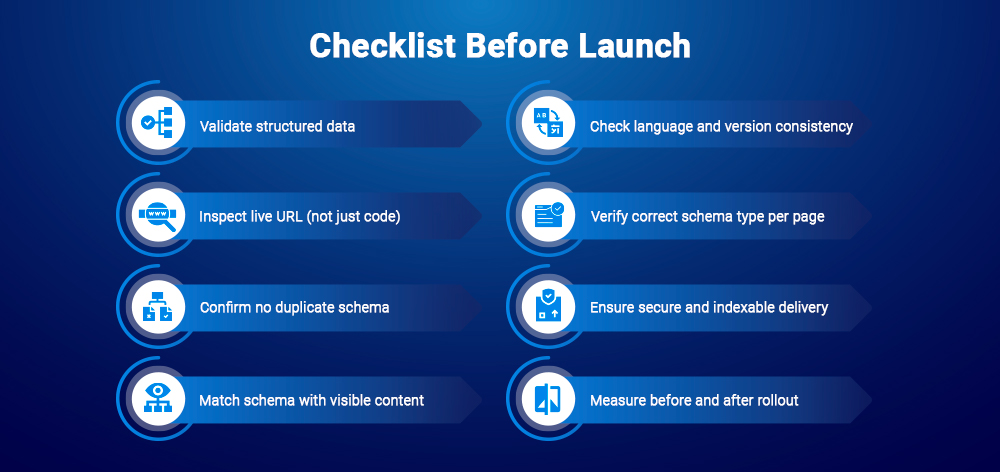
To confirm that your Schema in TYPO3 is functional, correct, and ready for search engines, complete the following pre-launch workflow:
Do not incorrectly identify schema as this could lower eligibility for structured data to be shown.
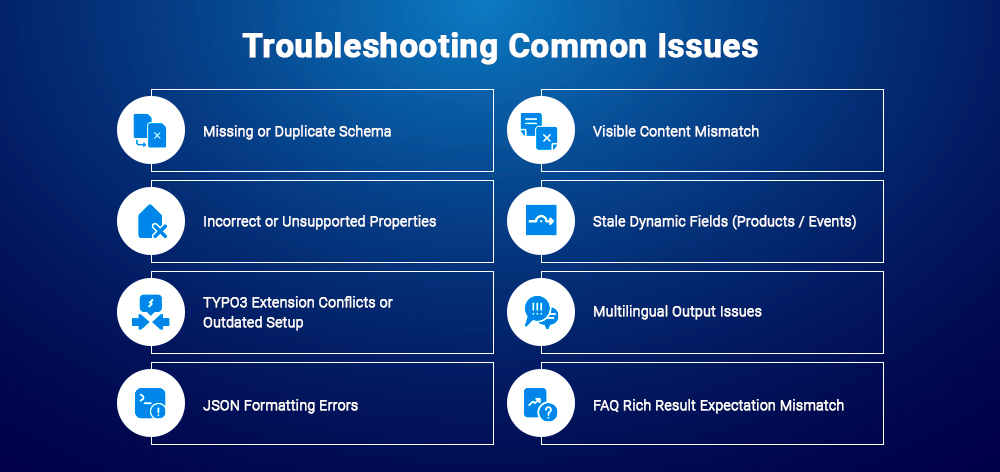
Even with proper setup, schema issues can occur, especially in TYPO3 environments with multiple extensions and dynamic content. Use these targeted fixes:
Follow these to keep your structured data stable, accurate, and scalable:
These examples show how schema is actually applied in TYPO3 projects, aligned with real use cases.
Typical schema:
Implementation approach:
Example (Fluid):
<f:asset.script type="application/ld+json">{"@context": "https://schema.org","@type": "Article","headline": "{newsItem.title}","datePublished": "{newsItem.date}","author": {"@type": "Person","name": "{newsItem.author}"}}</f:asset.script>
Typical schema:
Implementation approach:
Example (TypoScript):
page.headerData {100 = TEXT100.value (<script type="application/ld+json">{"@context": "https://schema.org","@type": "Organization","name": "Company Name","url": "https://example.com"}</script>)}
Typical schema:
Implementation approach:
Example:
{"@context": "https://schema.org","@type": "Product","name": "{product.title}","offers": {"@type": "Offer","price": "{product.price}","priceCurrency": "EUR","availability": "https://schema.org/InStock"}}
Key requirement:
Typical schema:
Implementation approach:
Example:
{"@context": "https://schema.org","@type": "Event","name": "{event.title}","startDate": "{event.startDate}","endDate": "{event.endDate}"}
Key requirement:
Below are simplified, implementation-focused examples showing how schema is actually used in TYPO3 using different methods.
Use case: Blog posts or documentation pages with Q&A sections
Method: TYPO3 Extension or Fluid (dynamic content mapping)
<f:asset.script type="application/ld+json">{"@context": "https://schema.org","@type": "FAQPage","mainEntity": [{"@type": "Question","name": "{faq.question}","acceptedAnswer": {"@type": "Answer","text": "{faq.answer}"}}]}</f:asset.script>
Use case: All TYPO3 pages with page hierarchy
Method: TypoScript (global site structure)
page.headerData {200 = TEXT200.value (<script type="application/ld+json">{"@context": "https://schema.org","@type": "BreadcrumbList","itemListElement": [{"@type": "ListItem","position": 1,"name": "Home","item": "https://example.com/"}]}</script>)}
Use case: Product detail pages in TYPO3 shops
Method: TYPO3 Schema Extension (dynamic mapping)
{"@context": "https://schema.org","@type": "Product","name": "{product.title}","offers": {"@type": "Offer","price": "{product.price}","priceCurrency": "EUR"}}
Why extension here:
Keeps product data (price, stock, availability) automatically in sync with TYPO3 content.
Use case: Every TYPO3 website (header/footer/global identity)
Method: TypoScript or extension
page.headerData {100 = TEXT100.value (<script type="application/ld+json">{"@context": "https://schema.org","@type": "Organization","name": "Company Name","url": "https://example.com"}</script>)}
Use case: Meetups, webinars, conferences
Method: Extension or Fluid (dynamic event records)
<f:asset.script type="application/ld+json">{"@context": "https://schema.org","@type": "Event","name": "{event.title}","startDate": "{event.startDate}","endDate": "{event.endDate}","location": {"@type": "Place","name": "{event.location}"}}</f:asset.script>
Schema in TYPO3 should be reviewed and validated regularly and adjusted whenever the content changes. The AI Foundation for TYPO3 can also support controlled AI workflows that analyze structured content or assist in creating appropriate Schema data.
This ensures your structured data stays accurate, indexable, and aligned with TYPO3 content changes over time.
The best method for adding schema is by using a TYPO3 schema extension like brotkrueml/schema, as this allows for dynamic (and therefore maintainable) data. Only use manual JSON-LD if you have small, fixed sets of data that you want to add to your website.
Yes! JSON-LD is the recommended format because it is very easy to manage and update over time; it also works separately from HTML; and search engines like Google prefer to use JSON-LD.
No. Out of the box TYPO3 does not provide any native/controlled schema support. You would require TypoScript or Fluid or both, or an extension that supports schema to add this functionality.
The most common way/type people are adding schema to their site is using an extension called brotkrueml/schema which creates dynamic schema and seamlessly worms into TYPO3 workflows.
Implementing schema through TypoScript is very easy to do because TypoScript allows you to inject JSON-LD into headerData. Things like “Organization” or “Breadcrumbs”, which are global schema, can be injected on every page.
The Fluid template engine can be used to dynamically generate JSON-LD via . This is particularly useful when generating schema associated with content such as Articles or Events.
While the FAQ schema can help improve the structure of content, the likelihood of displaying FAQ rich results is very low. Therefore, the primary purpose of using the FAQ schema is to clarify information rather than increase its visibility.
The best way to test schema in TYPO3 is by using the following: Google Search Central - Rich Results Testing Tool; Schema Validation Tools, and by validating the rendered live URL as opposed to validating the code in the TYPO3 templates.
Some of the common reasons for duplicate structured data in TYPO3 are: Several extensions providing schema data, schema through manual entry, schema created through the extension and schema injected to a template through themes or SEO plug-ins.
The first three schema types that you should implement on your eCommerce site are: Product (the core product information); Breadcrumb (provides navigation visibility); Organization (gives identity to the brand). These three schema types will help to provide the most consistent structural benefits for your eCommerce site.
No, schema does not directly affect rankings; however, when schema is correctly implemented, it allows search engines to better understand the content on your website, increase your likelihood of showing up in rich results, and improve the click-thru rate for your website.

Anna Scholz
Extension Support SpecialistAnna knows TYPO3 extensions inside out. With hands-on experience supporting both core and custom solutions at T3Planet Shop, she delivers answers that are not only correct but smart. Her priority: helping users unlock the full power of TYPO3 without the guesswork.
More From Author