


TYPO3 Tops Google’s Core Web Vitals: The Fastest CMS in 2026
Performance


No matter, either you are a beginner or experienced TYPO3 developer, It’s always good to improve your TYPO3 error and debugging handling skills to get quality and productive work. Here are some tips, tricks, and tools to handle TYPO3 errors.

Whether you’re new to TYPO3 or managing complex enterprise projects, knowing how to identify and fix errors quickly is essential for maintaining stable, high-performing websites.
TYPO3 offers powerful error handling and debugging tools, but without the right approach, even small issues can bring a site to a halt. From the familiar “Oops, an error occurred” message to server, configuration, or extension-related failures, TYPO3 errors can be tricky to trace.
With a clear understanding of how TYPO3 handles errors and logs issues, most problems can be diagnosed and resolved efficiently. TYPO3 is a secure and flexible CMS, but like any software, it’s built by humans, and errors are inevitable.
This guide walks you through the most common TYPO3 errors and shows you how to fix them the right way.
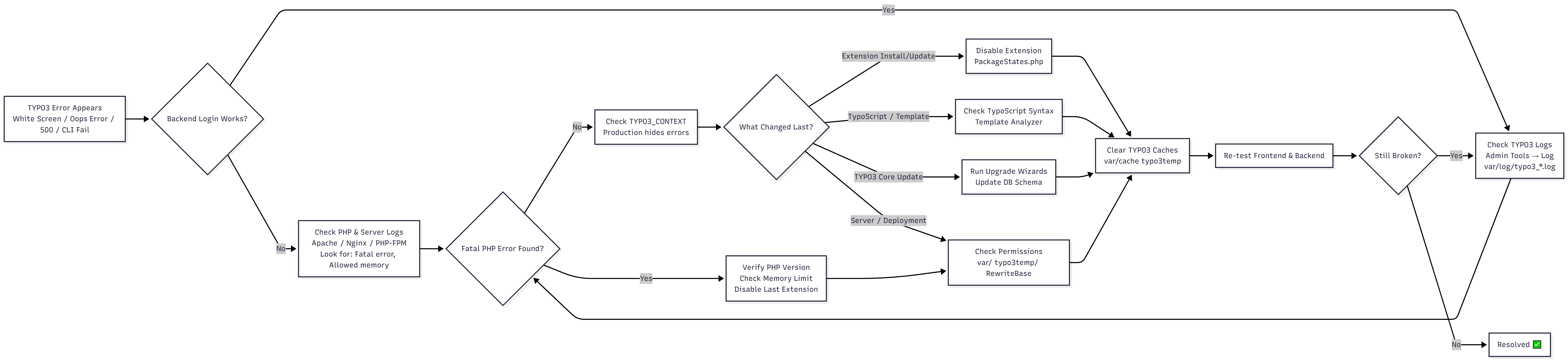
Before troubleshooting specific errors, it’s important to understand how TYPO3 handles errors and why they don’t always show up the way you expect.
TYPO3 processes errors through a combination of:
Depending on the configuration, errors may be displayed in the frontend, logged silently, or handled by custom exception handlers.
TYPO3 uses TYPO3_CONTEXT to determine how errors should be handled in different environments during TYPO3 development:
This allows the same codebase to behave differently across local, staging, and live systems.
Frontend and backend requests are handled differently in TYPO3:
As a result, a frontend error may appear vague while detailed information exists in the logs or backend.
Never display detailed error messages or stack traces on a live TYPO3 website. Exposing errors in production can reveal sensitive system information and create security risks. Always rely on logging and controlled debugging environments instead.
Understanding TYPO3’s context-based error handling prevents guesswork and helps you debug issues faster, without compromising security.
When developing with TYPO3, enabling error display helps you quickly identify configuration, extension, or code-level issues. However, error visibility must always depend on the environment.
You can control TYPO3 error output via the LocalConfiguration.php file:
// typo3conf/LocalConfiguration.php// Do not display any PHP error messages$TYPO3_CONF_VARS['SYS']['displayErrors'] = '0';// Display error messages using the registered TYPO3 error handler$TYPO3_CONF_VARS['SYS']['displayErrors'] = '1';// Default behavior: depends on devIPmask$TYPO3_CONF_VARS['SYS']['displayErrors'] = '-1';
Important: Never enable displayErrors = 1 on a live production site. Use it only in development or controlled staging environments.
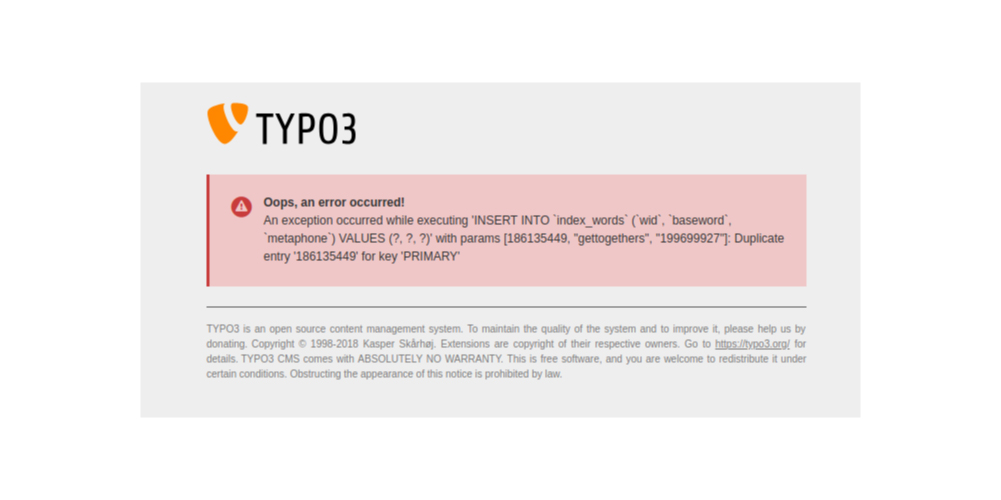
The message “Oops, an error occurred!” appears when TYPO3 encounters an exception while rendering frontend content. This behavior is intentional and is controlled by TYPO3’s Application Context and Content Object Exception Handler.
In Production mode, TYPO3 suppresses detailed error output to prevent sensitive system information from being exposed to visitors. Instead of showing stack traces or PHP errors, TYPO3 displays this generic message and logs the real error internally.
ContentObjectExceptionHandler is enabledThis applies to all modern TYPO3 versions, including TYPO3 9.5+.
The fastest and safest way to debug this error is by checking the log files and searching for the error code shown in the message.
Log locations:
Older TYPO3 versions:
typo3temp/logs/typo3_[hash].logNewer TYPO3 versions:
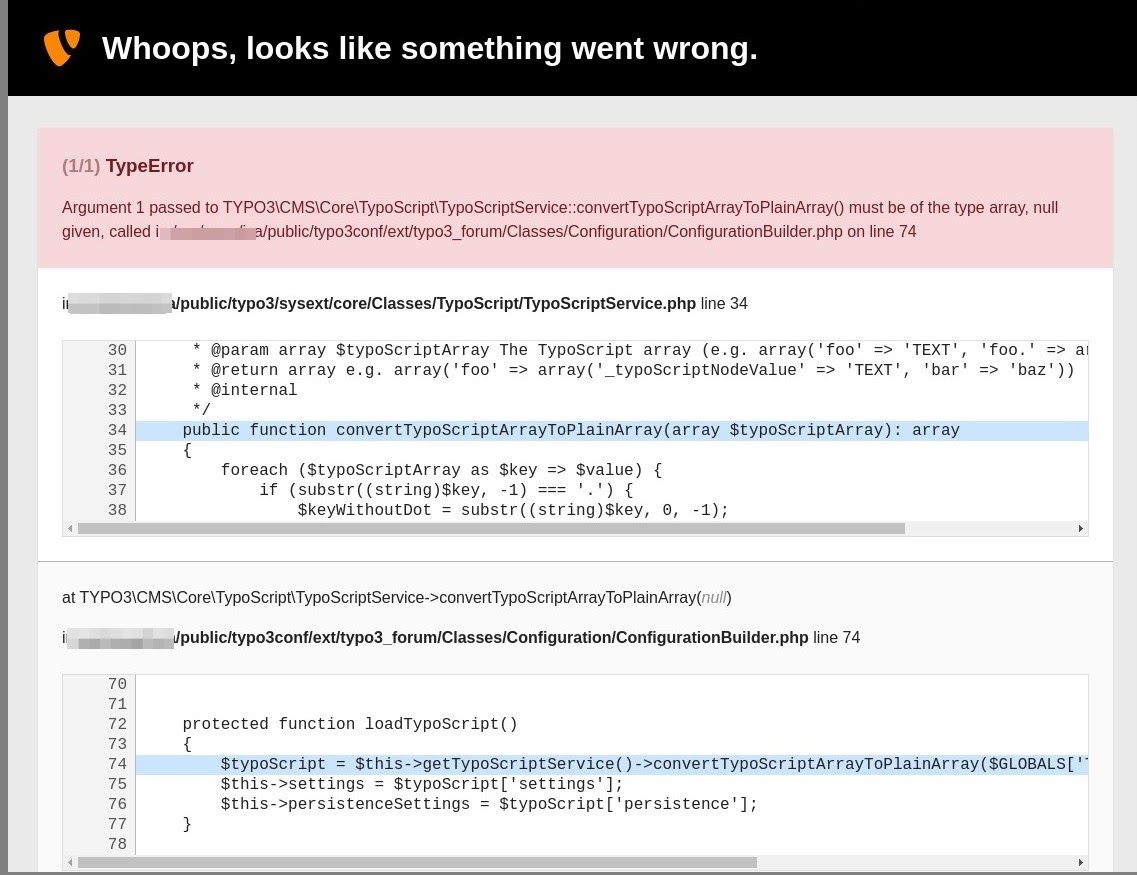
typo3temp/var/log/typo3_[hash].logThe log entry will contain the full exception message and stack trace.
For local or staging environments, you can disable the exception handler to display detailed errors in the frontend.
# TypoScript setup (development only)config.contentObjectExceptionHandler = 0
This allows TYPO3 to show detailed error messages instead of the generic “Oops” message.
Warning: Never disable the exception handler on a live production site.
You can customize the frontend error message while keeping the exception handler enabled:
config.contentObjectExceptionHandler = 1config.contentObjectExceptionHandler.errorMessage = Something wentwrong. Please contact the site administrator. %s
This preserves security while improving user experience.
TYPO3 allows you to register custom error and exception handlers if you need additional control over how errors are processed or logged. This is usually done via a custom TYPO3 extension and is recommended only for advanced use cases.
Add the following to your extension’s ext_localconf.php:
$GLOBALS['TYPO3_CONF_VARS']['SYS']['errorHandler'] =\Vendor\Ext\Error\MyOwnErrorHandler::class;$GLOBALS['TYPO3_CONF_VARS']['SYS']['debugExceptionHandler'] =\Vendor\Ext\Error\MyOwnDebugExceptionHandler::class;$GLOBALS['TYPO3_CONF_VARS']['SYS']['productionExceptionHandler'] =\Vendor\Ext\Error\MyOwnProductionExceptionHandler::class;
TYPO3 will automatically use the appropriate handler based on the application context.
Minimal Example
namespace Vendor\Ext\Error;use TYPO3\CMS\Core\Error\DebugExceptionHandler;use Throwable;class CustomExceptionHandler extends DebugExceptionHandler{public function echoExceptionWeb(Throwable $exception): void{// Custom logic (logging, alerts, integrations)parent::echoExceptionWeb($exception);}}
Key Note
Use custom error handlers only when TYPO3’s default logging is not sufficient. Always avoid exposing detailed error output in production.
A 500 Internal Server Error in TYPO3 usually indicates a server-side problem. While it can be caused by several factors, a common frontend cause is an incorrect or missing mod_rewrite configuration.
Common Causes
.htaccess configurationmod_rewrite not enabledRewriteBase (especially when TYPO3 is installed in a subdirectory)Ensure mod_rewrite is enabled and properly configured in your .htaccess file:
# Enable mod_rewriteRewriteEngine On# IMPORTANT:# Use "/" if TYPO3 is installed in the web rootRewriteBase /# Use this instead if TYPO3 is installed in a subdirectory# RewriteBase /yourfolder
After updating .htaccess, clear TYPO3 caches and reload the site.
Key Takeaway
A 500 error is rarely caused by TYPO3 alone. Always check server configuration and logs first before changing TYPO3 settings.
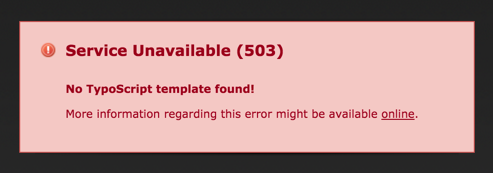
The message “No TypoScript Template Found” is not a system error. It simply means that no TypoScript template is assigned to the current root page.
This often happens in new installations or when templates are accidentally removed.
page = PAGE

page.10 = TEXT

page.10.value = Hello TYPO3!
Key Takeaway
This message indicates a missing configuration, not a broken system. Once a TypoScript template is assigned to the root page, the site will render normally.
If the TYPO3 backend login page does not load, shows a blank screen, or returns a 500 error, it usually indicates a fatal PHP error or misconfiguration. This issue often occurs after updates, extension changes, or server environment changes.
PackageStates.php fileStep 1: Check TYPO3 and PHP Logs
typo3temp/var/log/Errors here usually reveal the exact cause.
Step 2: Disable Recently Installed Extensions
If the backend is completely inaccessible:
typo3conf/PackageStates.phpinactivetypo3temp/)Step 3: Verify PHP Version & Memory
Step 4: Check File Permissions
typo3temp/, var/ public/ directoriesWhen the TYPO3 backend login page fails, always assume a server-side or extension-related issue first. Logs will almost always point to the root cause.
A white screen (blank page) in TYPO3 usually indicates a fatal PHP error that is being suppressed, most commonly in production mode. This can affect the frontend, backend, or both.
typo3temp/var/log/Temporarily enable error display (development only)
config.contentObjectExceptionHandler = 0typo3conf/PackageStates.phpinactiveIncrease memory limit (if needed)
$TYPO3_CONF_VARS['SYS']['setMemoryLimit'] = '256M';
A blank page is almost never “nothing happening.” It’s TYPO3 protecting the system by hiding a fatal error. Logs + debug mode will always reveal the root cause.
A fatal error after installing or updating a TYPO3 extension usually means the extension is incompatible with your TYPO3 or PHP version, or it introduced a breaking change. This can make the frontend, backend, or both inaccessible.
typo3conf/PackageStates.phpinactivetypo3temp/var/cache/This immediately restores access in most cases.
TYPO3 ≤ 4.7
typo3conf/localconf.phpRemove the extension key from:
$TYPO3_CONF_VARS['EXT']['extList']typo3conf/TYPO3 6.0
typo3conf/LocalConfiguration.phpRemove the extension from:‘extListArray’
typo3temp/CacheIf TYPO3 breaks right after an extension install or update, disable the extension first. Version incompatibility is far more common than core issues.
In TYPO3 (and any PHP-based system), you may occasionally encounter a memory exhaustion error like:
Fatal error: Allowed memory size of 278347977 bytes exhausted(tried to allocate 95 bytes)in /typo3/sysext/core/Classes/Database/DatabaseConnection.php
This error indicates that PHP has reached its configured memory limit while TYPO3 was processing a request. It can affect both the frontend and backend, and in some cases completely block access to the TYPO3 backend.
Try the following steps in order:
/typo3temp/ directory manuallyIf the issue persists, apply these temporary configuration adjustments:
// typo3conf/LocalConfiguration.php$TYPO3_CONF_VARS['SYS']['lockingMode'] = 'disable';$TYPO3_CONF_VARS['SYS']['setMemoryLimit'] = '256M';
These settings help stabilize the system but do not replace proper server-side memory configuration.
php.ini, .htaccess, or hosting panelMemory exhaustion errors are usually symptoms, not root causes. While TYPO3 offers quick recovery options, long-term stability depends on proper server configuration, optimized extensions, and clean caches.
Errors after a TYPO3 update or major upgrade are very common and usually caused by version mismatches, deprecated APIs, or incomplete upgrade steps. These issues can affect the frontend, backend, or even block TYPO3 entirely.
/typo3temp/ if neededtypo3conf/PackageStates.phpSet problematic extensions to:'active' => false
Make sure your PHP version matches the TYPO3 core requirements.
Common mistake:
Upgrading TYPO3 but keeping an old PHP version (or upgrading PHP too early).
Always verify against the official TYPO3 system requirements for your version.
Temporarily enable debugging only in Development context:
// typo3conf/LocalConfiguration.php$TYPO3_CONF_VARS['SYS']['displayErrors'] = 1;
Also check logs:
typo3temp/var/log/After upgrades, deprecation logs often spike. This usually means:
Fixing these early prevents future fatal errors in the next TYPO3 release.
A TYPO3 upgrade is not just a core update, it’s a system-wide change. Most post-upgrade errors come from extensions, PHP versions, or skipped cleanup steps, not TYPO3 itself.
Upgrade methodically: core → extensions → database → caches → testing.
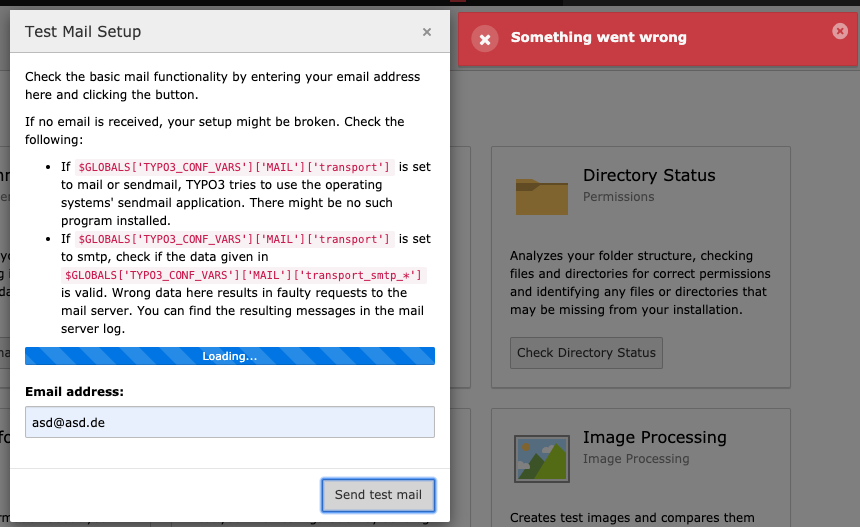
SMTP errors in TYPO3 usually appear when system emails fail, password resets, form submissions, notifications, or scheduler mails simply don’t arrive.
Check and update your SMTP settings in:
typo3conf/LocalConfiguration.php
'MAIL' => ['transport' => 'smtp','transport_smtp_server' => 'your.smtp.provider:PORT','transport_smtp_encrypt' => 'tls', // or ssl'transport_smtp_username' => 'username@example.com','transport_smtp_password' => 'PASSWORD','defaultMailFromAddress' => 'username@example.com','defaultMailFromName' => 'Your Site Name',],
SMTP errors in TYPO3 are configuration issues 90% of the time. Once the correct host, port, encryption, and credentials are set, mail delivery becomes stable.
TYPO3 relies on ImageMagick or GraphicsMagick for image processing (resizing, cropping, previews). Errors usually occur when TYPO3 can’t find the binary or the tool is misconfigured on the server.
Check and adjust the ImageMagick settings in:
typo3conf/LocalConfiguration.php
$TYPO3_CONF_VARS['GFX'] = ['gdlib_2' => '1','im_path' => '/usr/bin/','im_path_lzw' => '/usr/bin/','im_version_5' => 'gm', // use 'im' for ImageMagick, 'gm' for GraphicsMagick'png_truecolor' => '1','gif_compress' => '1','imagefile_ext' => 'gif,jpg,jpeg,png,pdf,webp',];
Ensure the path matches where ImageMagick or GraphicsMagick is actually installed on your server.
which convert or which gm on the serverim_version_5 correctly (im vs gm)Image-related TYPO3 errors are almost always server-level issues, not TYPO3 bugs. Once the correct binary and path are configured, image handling becomes stable.
TYPO3 deprecation logs help identify outdated APIs and configurations that will break in future versions. However, in TYPO3 9+, misconfigured deprecation logging can flood log files, impact performance, and consume disk space, especially on production systems.
Core: Deprecation messages
$GLOBALS['TYPO3_CONF_VARS']['SYS']['enableDeprecationLog'] = '1';
Deprecation logging is disabled by default in TYPO3 9+ and controlled via the Logging Framework.
To disable deprecation log flooding:
$GLOBALS['TYPO3_CONF_VARS']['LOG'] = ['TYPO3' => ['CMS' => ['deprecations' => ['writerConfiguration' => [\TYPO3\CMS\Core\Log\LogLevel::NOTICE => [\TYPO3\CMS\Core\Log\Writer\FileWriter::class=> ['disabled' => true,],],],],],],];
You can temporarily enable deprecation logs via:
Install Tool → Configuration Presets → Development
Deprecation logs are upgrade tools, not runtime logs. If your logs are flooding in TYPO3 9+, it’s a configuration issue, not a TYPO3 bug.
TypoScript errors don’t always throw clear PHP-style exceptions. A single syntax issue, overwritten constant, or wrong condition can silently break rendering, especially in the frontend.
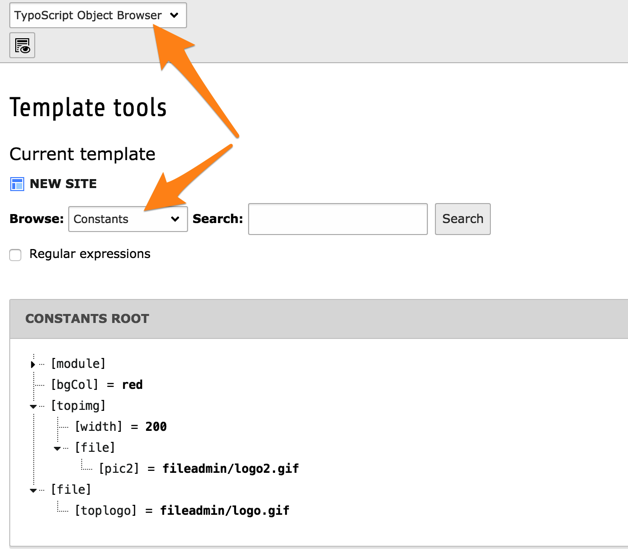
Use this to verify resolved values and spot unexpected overrides.
Steps:
TYPO3 can highlight basic syntax issues in setup.
Steps:
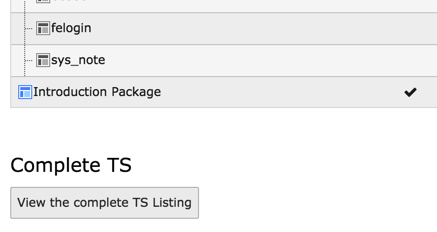
This is the fastest way to trace where TypoScript breaks.
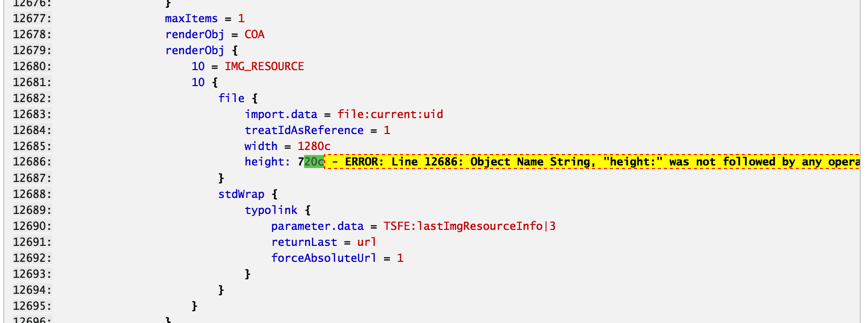
Steps:
Useful when issues only appear on specific pages.
config.admPanel = 1
Database connection issues usually prevent both frontend and backend from loading and often show errors like:
typo3conf/LocalConfiguration.phphostdbnameuserpasswordport / unix_sockettypo3temp/var/cache/*TYPO3_CONTEXT=Production|Development.evn or environment variable setupCache corruption is one of the most common reasons a TYPO3 site suddenly breaks after:
Typical symptoms:
typo3temp/typo3temp/var/cache/typo3temp/var/cache/ (case-sensitive systems)typo3temp/typo3temp/var/Incorrect file or folder permissions can cause TYPO3 to fail silently or behave unpredictably, especially on shared hosting, Docker, or CI/CD deployments.
Ensure the web server user can read & write to:
var/typo3temp/public/fileadmin/config/ (read access at minimum)
# Set correct ownership (example)chown -R www-data:www-data var typo3temp public/fileadmin# Set directory permissionsfind var typo3temp public/fileadmin -type d -exec chmod 775 {} \;# Set file permissionsfind var typo3temp public/fileadmin -type f -exec chmod 664 {} \;
(Adjust www-data based on your server setup.)
Common causes:
Fixes:
var/ and typo3temp/ as read-onlyvar/blog/)root in production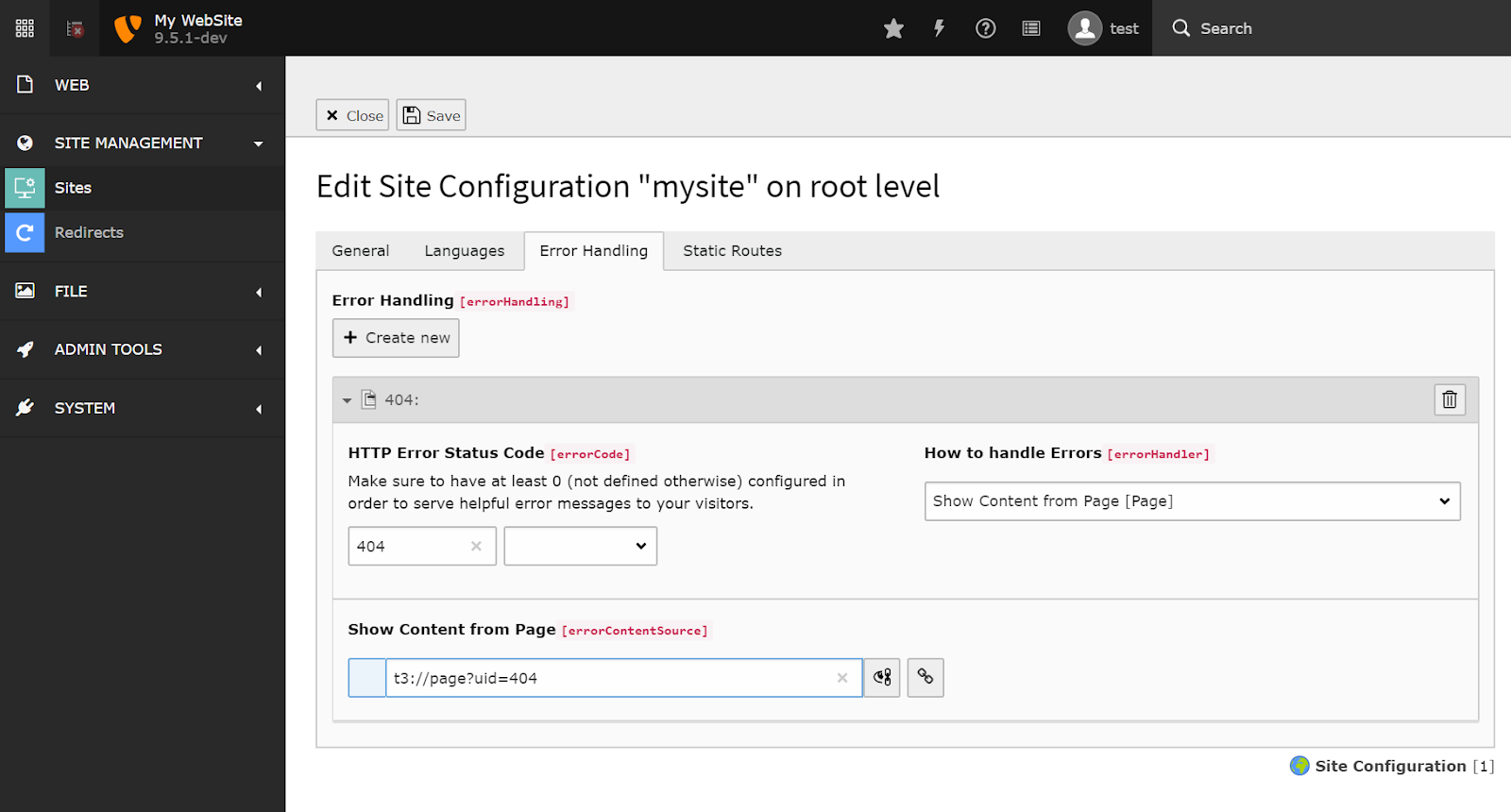
This issue is already covered in the blog and can be handled in three ways, depending on your TYPO3 version and setup.
Configure a static 404 page directly:
$TYPO3_CONF_VARS['FE']['pageNotFound_handling'] = '/index.php?id=12';$TYPO3_CONF_VARS['FE']['pageNotFound_handling_statheader'] = 'HTTP/1.1 404 Not Found';
Configure 404 handling per site and language:
This ensures correct status codes and multilingual handling.
Use this when you need logic-based handling (e.g. redirects, environment checks):
errorHandler=PHP in config.yamlPageErrorHandlerInterface in a custom classThis setup covers basic, modern, and advanced 404 handling correctly in TYPO3.
A PHP version or extension mismatch is a common reason why TYPO3 suddenly breaks after an update, upgrade, or server change. TYPO3 is strict about its PHP requirements, and even a minor mismatch can cause fatal errors or a blank page.
intl, mbstring, pdo_mysql, zip, gd/imagick, and openssl are enabled.php -v (CLI) matches the PHP version used by Apache or PHP-FPM.If TYPO3 fails immediately after an update or server move, always check PHP compatibility first, this issue is often mistaken for a TYPO3 core or extension bug.
When TYPO3 logging is not working, errors silently fail, making debugging slow and frustrating. This usually happens due to misconfiguration, missing write permissions, or disabled log writers.
typo3temp/var/log/typo3temp/var/log/ exists and is writable by the web server user.LocalConfiguration.php:If TYPO3 appears “silent,” always check file permissions first, logging failures are often caused by the server, not TYPO3 itself.
JavaScript errors can completely break TYPO3 frontend functionality, menus stop working, content doesn’t load, or pages appear partially rendered.
Tip: One JavaScript error can stop all scripts below it from executing, always fix errors top-down.
CLI and Scheduler errors affect background jobs like indexing, cache cleanup, imports, and maintenance tasks, often without visible frontend errors. Regular monitoring and TYPO3 support & maintenance help ensure these processes run smoothly and prevent unexpected website issues.
Run TYPO3 CLI manually to see real errors:./vendor/bin/typo3
Tip: Many “random” TYPO3 issues trace back to failing Scheduler tasks, always check CLI health after upgrades.
TYPO3 core is already enough to find TYPO3 errors and debugging, Apart from there, I’ve researched some of the popular TYPO3 extensions for error and debugging as below, I hope it will help you.
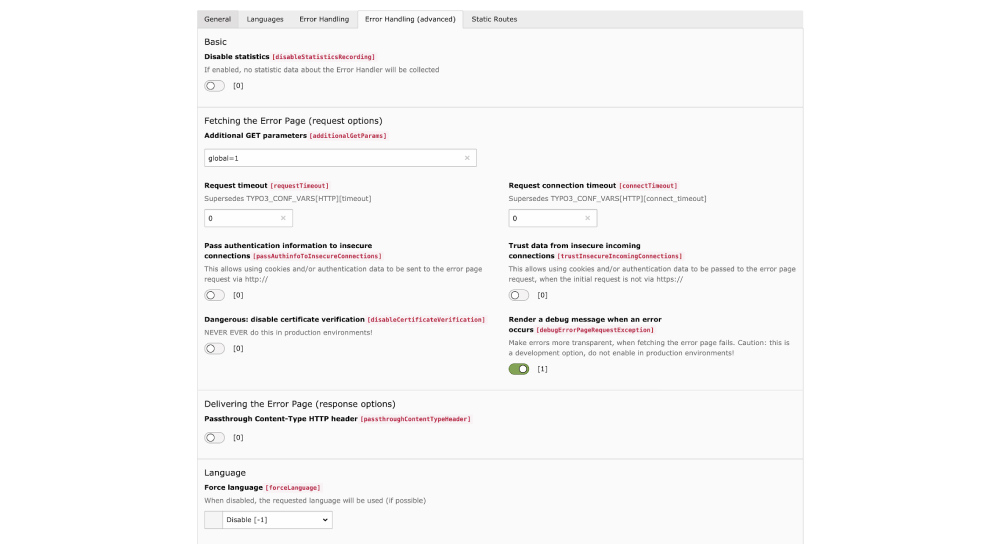
Since TYPO3 v9, TYPO3 Core already provides a good error-handling using the Site Management backend module.
Team Agentur am Wasser developed a cool TYPO3 solution to manage advanced-level error handling. This extension implements a versatile Error Handler for the TYPO3 CMS Site Handling.
Features
Helhum the TYPO3 man developed one “TYPO3 Config Handling” tool to improve site management and error handling.
One of the main goals is to configure multiple config.yaml based on your every TYPO3_CONTEXT environment.
Features
// Default layout
{
    "extra": {
        "helhum/typo3-config-handling": {
            "settings": "config/settings.yaml",
            "dev-settings": "config/dev.settings.yaml",
            "override-settings": "config/override.settings.yaml",
            "install-steps": "config/setup/install.steps.yaml"
        }
    }
}

// Another Example to match the Symfony framework
{
    "extra": {
        "helhum/typo3-config-handling": {
            "settings": "config/config_prod.yaml",
            "dev-settings": "config/config_dev.yaml"
        }
    }
}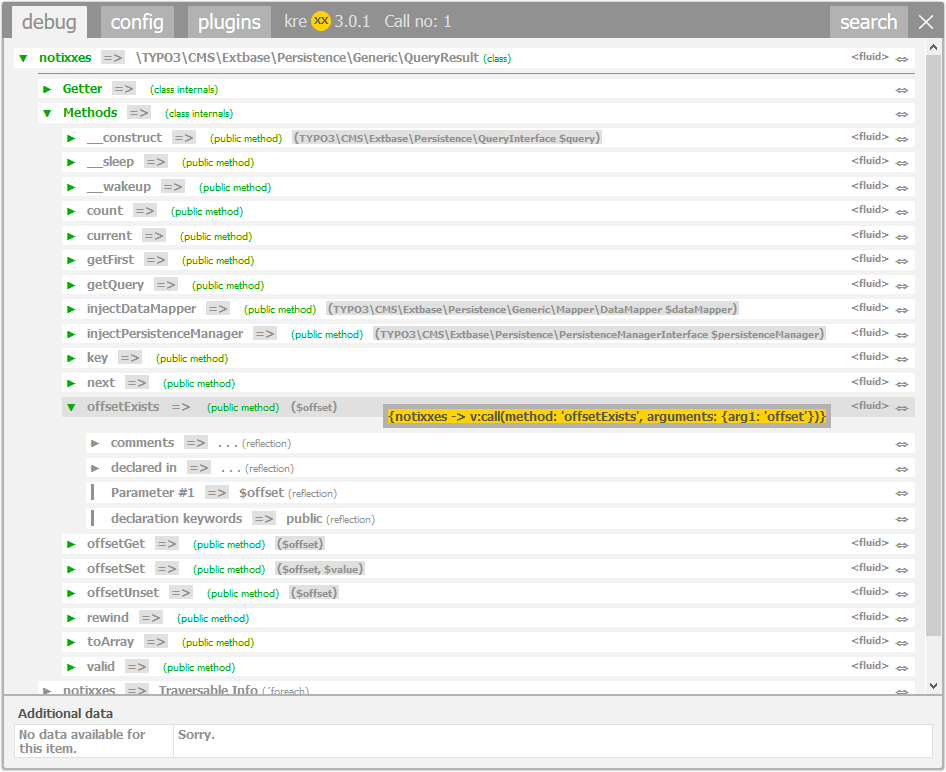
If you want to try different Debugger rather then TYPO3’s default also an interesting thing to debug TYPO3 Fluid Template, Team Brainworxx created kreXX is an element rich PHP debugger, highlighting backend access to log files, code building to arrive at the showed qualities, and significantly more.
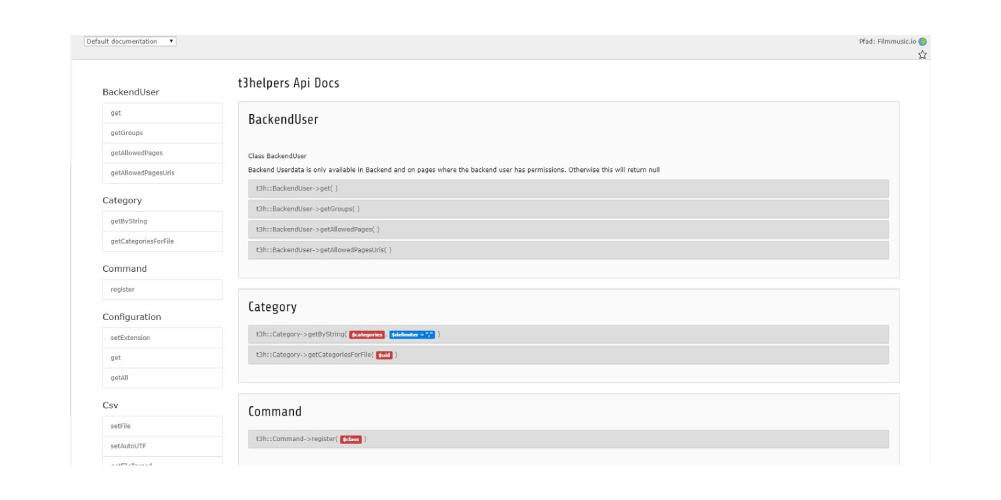
Partners for Extbase: Simple and simple features that make your TYPO3 existence with extbase and extension development simpler. Kindly let me know whether you have any thoughts or on the off chance that you discover any mistakes, I will fix this right away.
Speed up error page takes care of and opens up PHP workers by stacking local page content without giving an outside HTTP request.
Monitors developer logs. Gives programmed email alerts about significant errors.
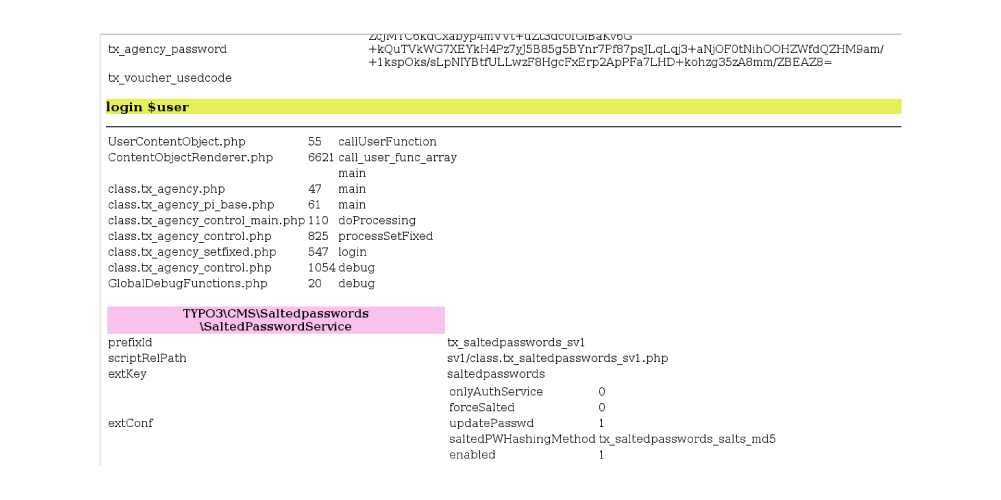
This creates a PHP debug output document. What's more, this is a sys_log and devLog data logger.
Extends \TYPO3\CMS\Core\Database\DatabaseConnection (former t3lib_db) and \TYPO3\CMS\Core\Database\Connection to show Errors and Debug-Messages. Useful for viewing and debugging of SQL-queries. Shows error messages if they occur.
This extension basically logs any javascript mistakes experienced in your frontend by means of ajax to the TYPO3 backend. It does this by utilizing the PSR\Log\LoggerInterface, so error logs are consequently sent to the Logger that is arranged in your TYPO3 instance. (like FileWriter or SysLogWriter)
In addition to the TYPO3 error and debugging extensions mentioned, consider integrating the T3AI TYPO3 AI extension to take your TYPO3 error tracking to the next level. T3AI offers a specialized feature to display custom AI logs and error logs, keeping track of all your AI-related records efficiently. Whether you're managing simple errors or complex AI tasks, T3AI ensures you stay on top of your TYPO3 environment.
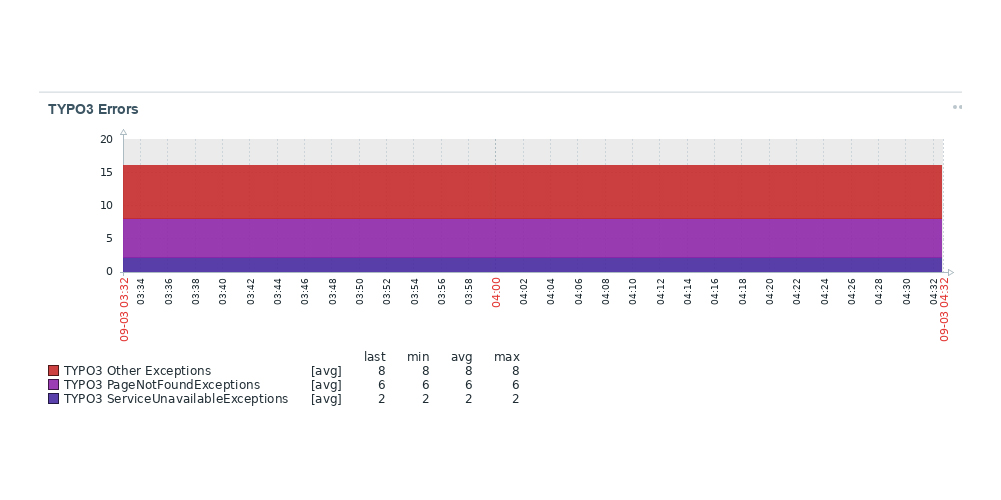
Zabbix is an open-source monitoring programming tool for assorted IT elements, including systems, servers, virtual machines, and cloud administrations. Customer for the Zabbix monitoring tool. Secure up your TYPO3 Systems and recognize errors and performance degraders.
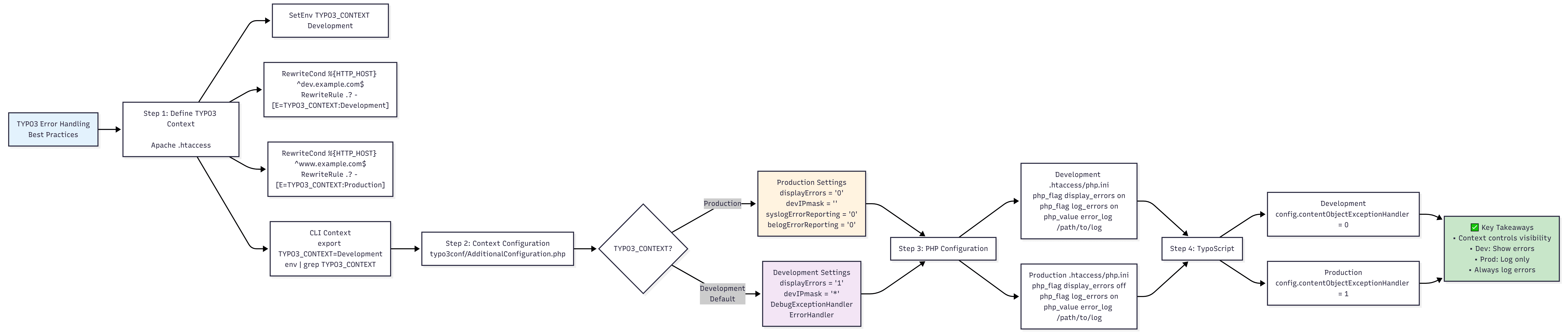
Modern TYPO3 projects typically follow a CI/CD-based workflow with multiple environments such as:
Each environment should have its own error handling configuration.
Set the TYPO3 context using a server environment variable:
SetEnv TYPO3_CONTEXT Development
# Set context based on hostnameRewriteCond %{HTTP_HOST} ^dev\.example\.com$RewriteRule .? - [E=TYPO3_CONTEXT:Development]RewriteCond %{HTTP_HOST} ^www\.example\.com$RewriteRule .? - [E=TYPO3_CONTEXT:Production]
For CLI-based TYPO3 commands, you can define the context like this:
export TYPO3_CONTEXT=Developmentenv | grep TYPO3_CONTEXT
Create or update the following file:
// typo3conf/AdditionalConfiguration.phpuse TYPO3\CMS\Core\Utility\GeneralUtility;switch (GeneralUtility::getApplicationContext()) {// Production or staging environmentcase 'Production':$GLOBALS['TYPO3_CONF_VARS']['SYS'] = ['displayErrors' => '0','devIPmask' => '','syslogErrorReporting' => '0','belogErrorReporting' => '0',];Break;// Local development environmentDefault:$GLOBALS['TYPO3_CONF_VARS']['SYS'] = ['displayErrors' => '1','devIPmask' => '*','errorHandler' =>TYPO3\CMS\Core\Error\ErrorHandler::class,'debugExceptionHandler' => TYPO3\CMS\Core\Error\DebugExceptionHandler::class,'productionExceptionHandler' => TYPO3\CMS\Core\Error\DebugExceptionHandler::class,];Break;}
# php.ini or .htaccessphp_flag display_errors onphp_flag log_errors onphp_value error_log /path/to/php_error.log# TypoScript setupconfig.contentObjectExceptionHandler = 0
# php.ini or .htaccessphp_flag display_errors offphp_flag log_errors onphp_value error_log /path/to/php_error.log# TypoScript setupconfig.contentObjectExceptionHandler = 1
Most TYPO3 Errors aren’t random, they’re traceable. With the right setup, clear logs, and a structured debugging approach, you can diagnose and fix issues quickly without panic. Focus on context, logs, and recent changes.
Combine automated checks with manual validation, and always test updates, extensions, and server changes carefully. For teams introducing governed AI workflows, the AI Foundation for TYPO3 also provides central usage tracking, permissions, and AI activity logs within the TYPO3 backend.
Focus on context, logs, and recent changes. Combine automated checks with manual validation, and always test updates, extensions, and server changes carefully.
Master error handling, and TYPO3 becomes stable, predictable, and production-safe.
TYPO3 hides detailed errors in production for security reasons. The real error is always logged in TYPO3 or server logs.
A blank page usually means a fatal PHP error with error display disabled. Check logs and verify PHP version, memory limit, and extensions.
Common locations include:
var/log/ or typo3temp/var/log/
No. Error display should only be enabled in development or staging. Production sites should log errors without showing them publicly.
Incompatible extensions, skipped upgrade wizards, wrong PHP versions, and outdated TypoScript are the most common causes.
Check logs first, disable recent extensions, clear caches, and verify PHP compatibility. Guessing wastes more time than reading logs.

Anna Scholz
Extension Support SpecialistAnna knows TYPO3 extensions inside out. With hands-on experience supporting both core and custom solutions at T3Planet Shop, she delivers answers that are not only correct but smart. Her priority: helping users unlock the full power of TYPO3 without the guesswork.
More From Author