


Template-Based TYPO3 Projects vs Custom Development - T3Karma
Extensions


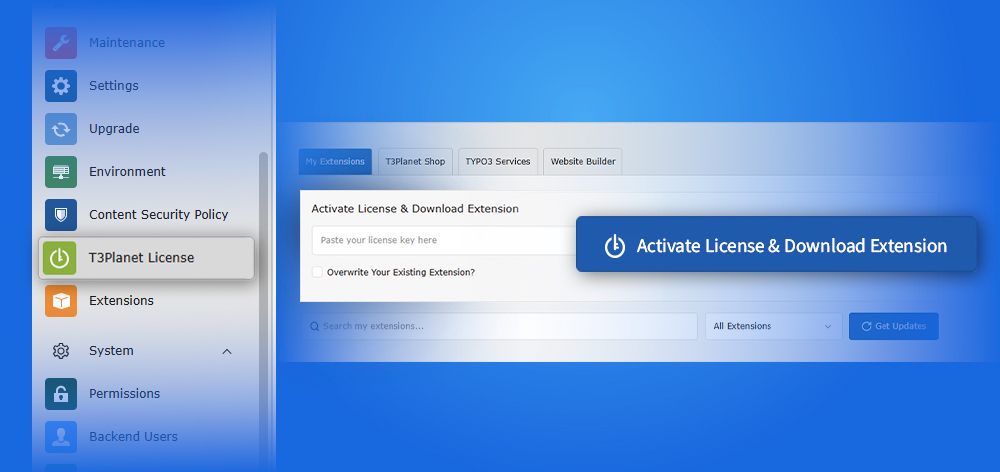
Managing premium TYPO3 extensions across multiple projects often means juggling license emails, manual downloads, domain changes, and update requests, all outside your CMS. For agencies and developers handling more than one TYPO3 instance, this adds up fast.
T3Planet License Manager (EXT:ns_license) consolidates everything into a single backend module inside your TYPO3 instance. Trials, activations, renewals, domain transfers, and updates, all handled without a single support ticket.
This guide covers every step: getting your license key, activating via Extension Manager or Composer, managing domains, extending licenses, and staying up to date across projects.
Who this is for: TYPO3 developers, integrators, and agencies managing one or more T3Planet extensions or templates.
T3Planet License Manager is a TYPO3 backend module (EXT:ns_license) installed directly in your TYPO3 instance. It gives you centralized, self-service control over all T3Planet products, no external dashboards, no support dependency.
Trusted by 3,250+ TYPO3 customers and with 60,000+ EXT:ns_license downloads, T3Planet is one of the leading TYPO3 marketplaces for premium templates, extensions, and AI solutions.
With T3Planet License Manager, you can:
The module supports the full T3Planet ecosystem, including AI Universe Solutions, TYPO3 templates, TYPO3 extensions, and TYPO3 Services.
T3Planet provides two ways to obtain a license key: purchasing a product or starting a free trial. Both follow the same delivery process.
When you purchase a product or initiate a trial, a license key is generated and sent to your email.
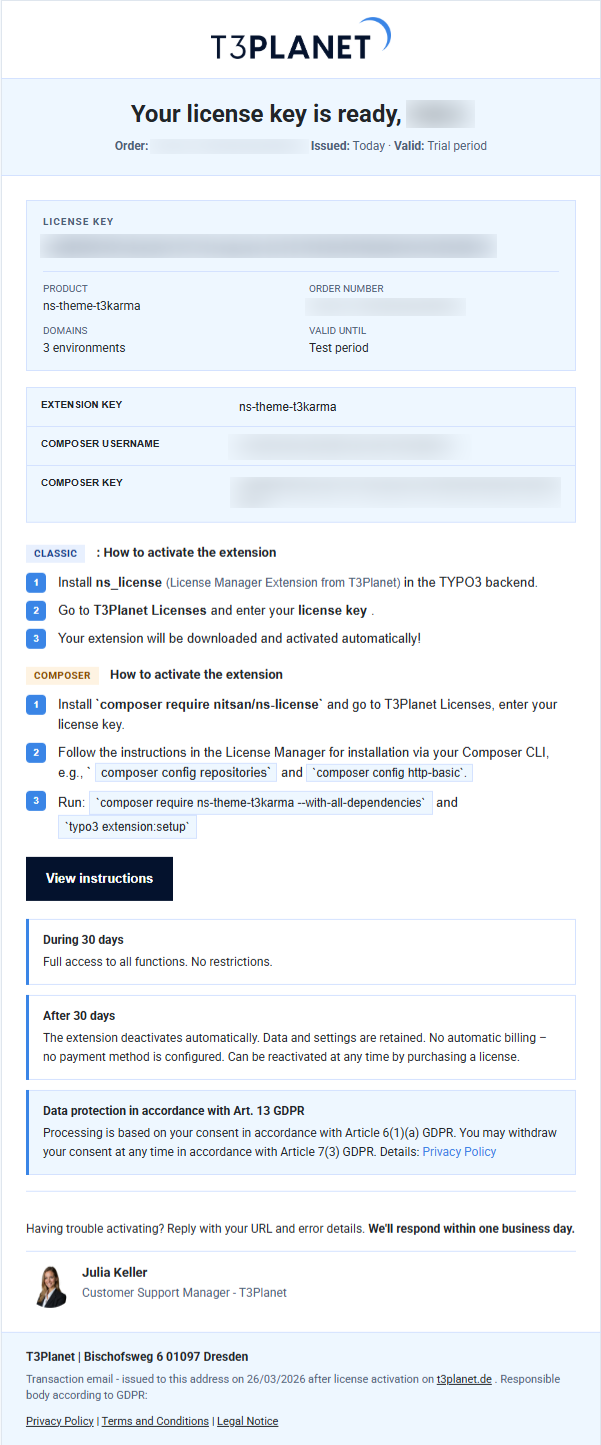
This email includes:
Store this email securely - you will need it to activate and manage the extension in your TYPO3 instance.
If the email does not arrive within a few minutes:
Once you have your license key, activation can be completed using either the Extension Manager or Composer, depending on your TYPO3 setup.
Prerequisites before you begin:
Use this method if your TYPO3 instance is not Composer-based.
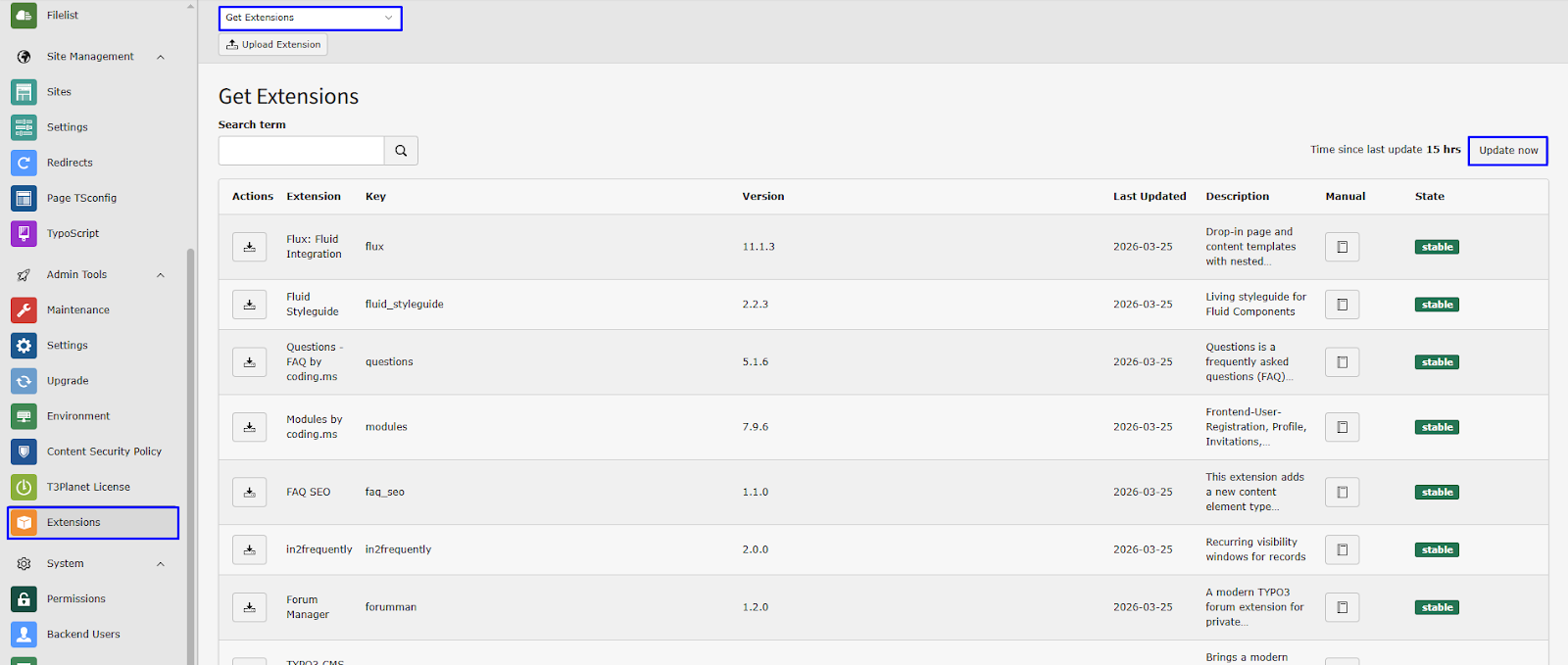
Step 1: Go to the Extension module → select Get Extensions → click Update Now to refresh the repository.
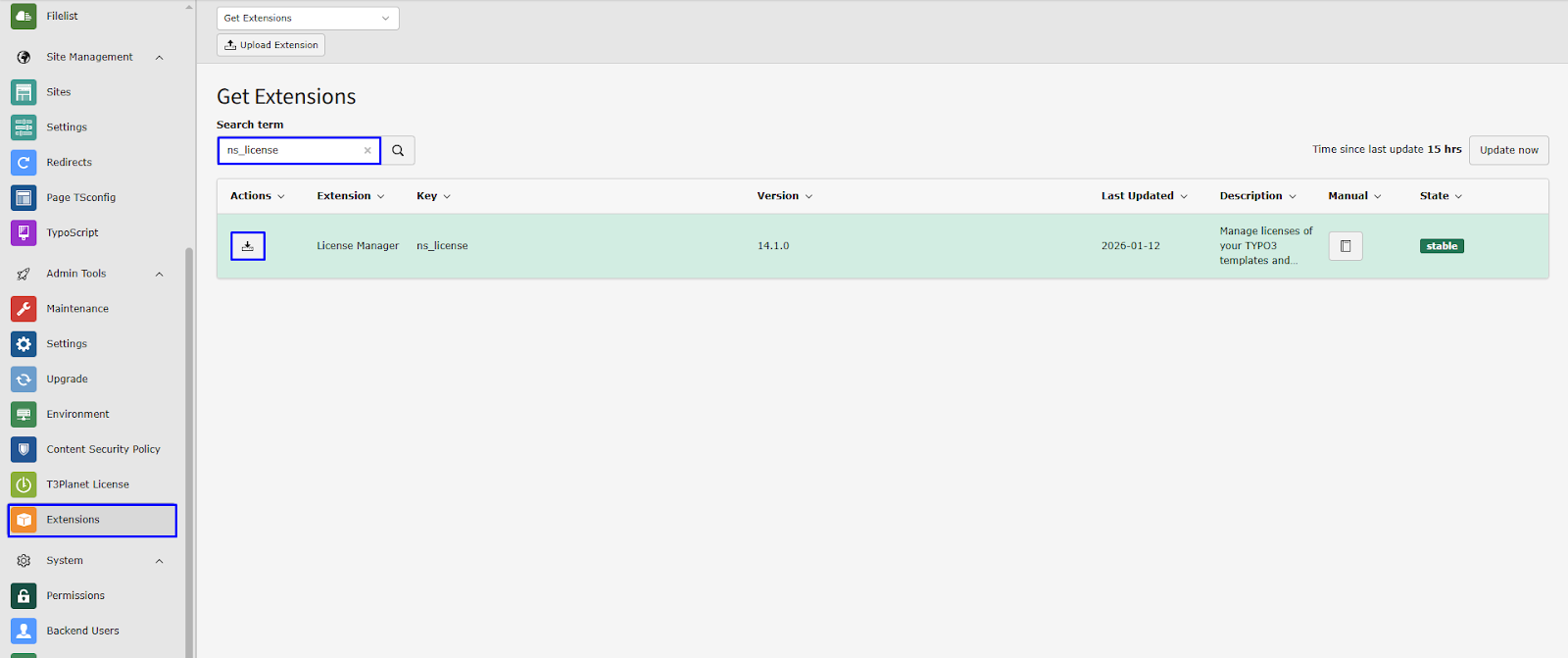
Step 2: Search for ns_license, then install the extension.
Step 3: Navigate to NITSAN > License Management → click Add License Key → paste your license key.
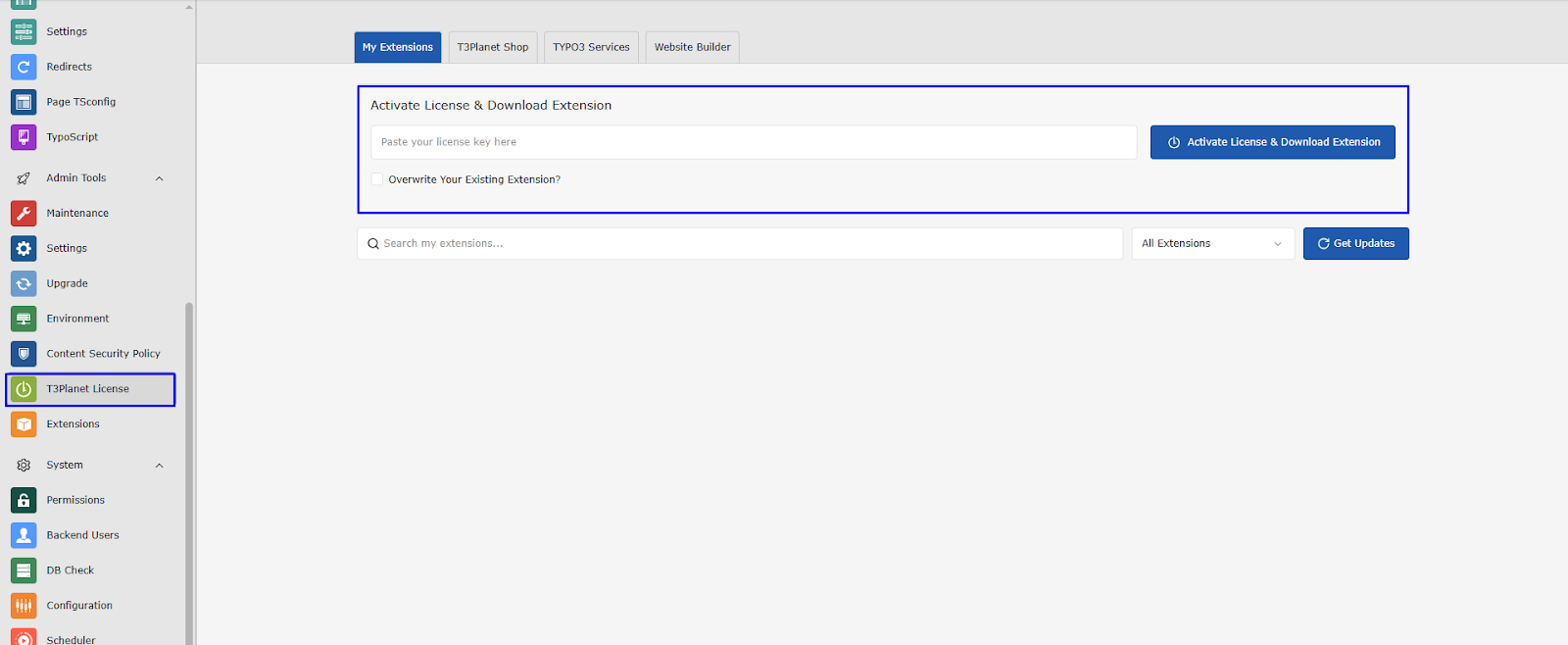
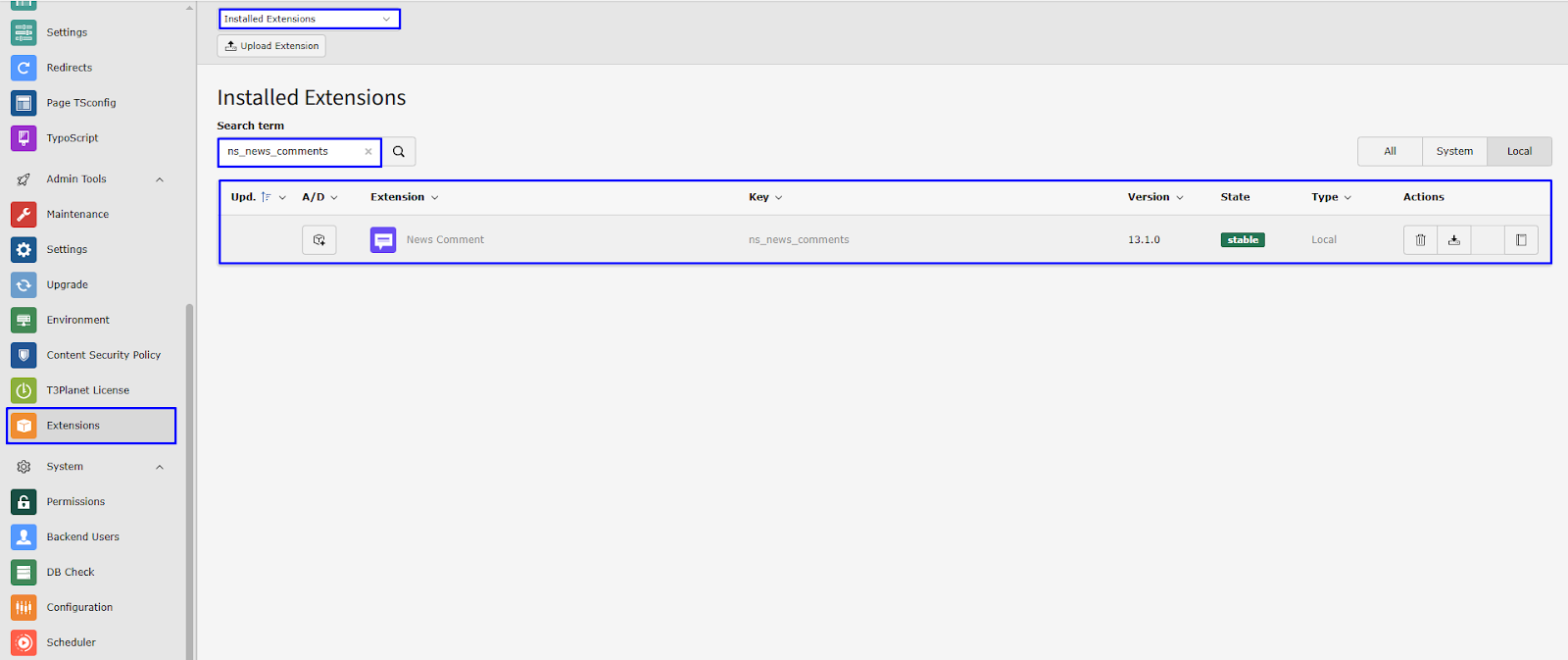
Step 4: Go to Admin Tools > Extensions, locate your extension, and activate it.
Use this method for all Composer-based TYPO3 installations. This approach supports CI/CD pipelines and multi-extension setups.
Step 1: Install License Manager EXT:ns_license
composer require nitsan/ns-licensevendor/bin/typo3 extension:setup
Step 2: Add License Key
Go to TYPO3 backend → License Manager → add your license key.
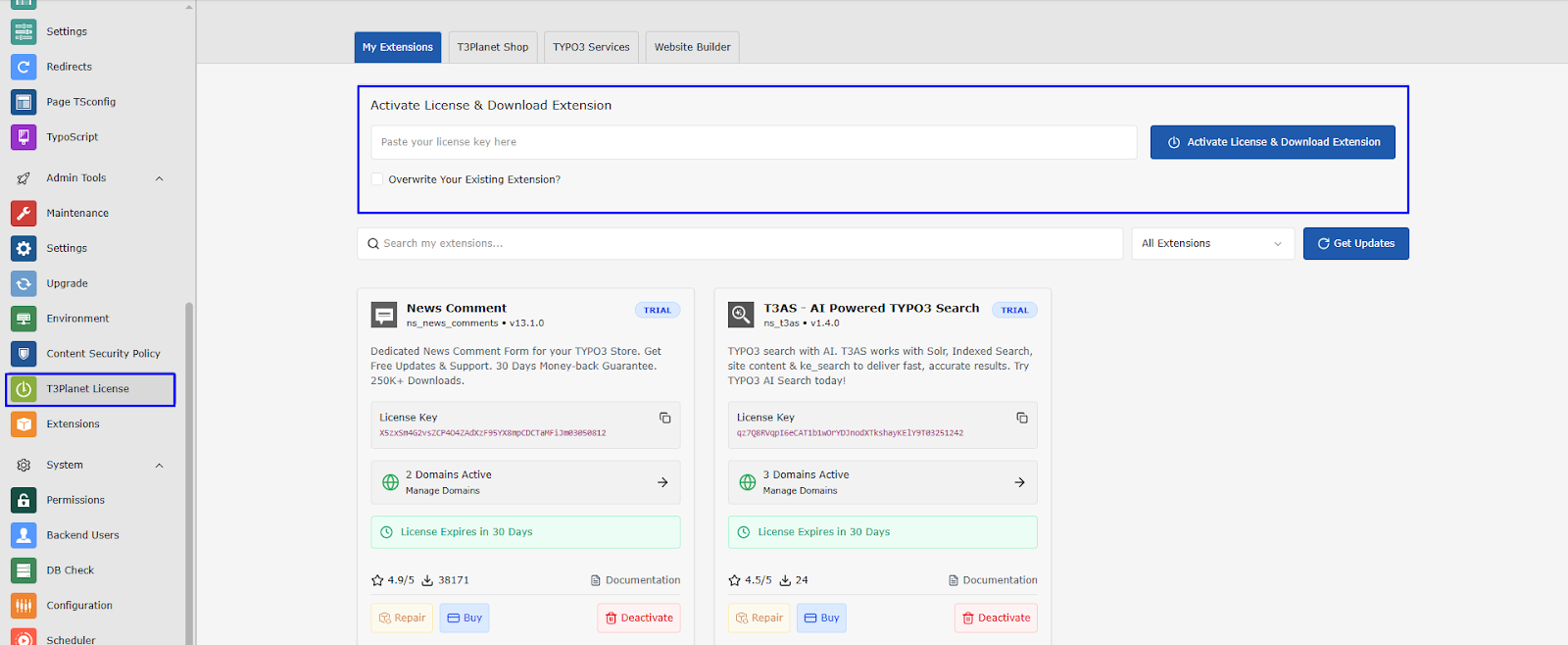
Step 3: Install Extension
composer config repositories.t3planet '{"type": "composer","url": "https://composer.t3planet.cloud","only": ["nitsan/<PACKAGE-NAME>"]}'composer config http-basic.composer.t3planet.cloud <USERNAME> <LICENSE-KEY>composer req nitsan/<PACKAGE-NAME> --with-all-dependenciesvendor/bin/typo3 extension:setup
For advanced Composer configuration (private repository setup, multiple extensions, CI/CD), refer to the dedicated Composer guide.
To install multiple premium extensions in a single TYPO3 instance, T3Planet provides multiple Composer repositories.
composer config repositories.t3planet1 '{"type": "composer","url": "https://composer1.t3planet.cloud","only": ["nitsan/ns-t3ac", "nitsan/ns-t3cs"]}'composer config http-basic.composer1.t3planet.cloud <USERNAME> <LICENSE-KEY>composer req nitsan/<PACKAGE-NAME> --with-all-dependenciesvendor/bin/typo3 extension:setup
Repeat this process for each additional extension, incrementing n by 1 each time (composer2, composer3, and so on).
If you are upgrading from a trial to a paid license, no reinstallation is needed:
Step 1: Go to License Manager
Step 2: Deactivate and remove the trial license key
Step 3: Enter your new premium license key (received via email)
Step 4: Go to Extension Manager and activate the extension again
Important Operational Notes:
When your trial period ends or your license is due for renewal, you can extend it directly from the T3Planet License Manager.
Use this when renewing an active license.
Step 1: Go to NITSAN > License Management in your TYPO3 backend
Step 2: Locate the product and click Extend License
Step 3: Complete the renewal process
The updated license is applied immediately. No reinstallation or configuration changes are required.
Licenses are tied to one active domain but can be reassigned when needed.
This is useful when:
To transfer a license:
Step 1: On the current TYPO3 instance, go to NITSAN > License Management
Step 2: Click Deactivate License for the relevant product
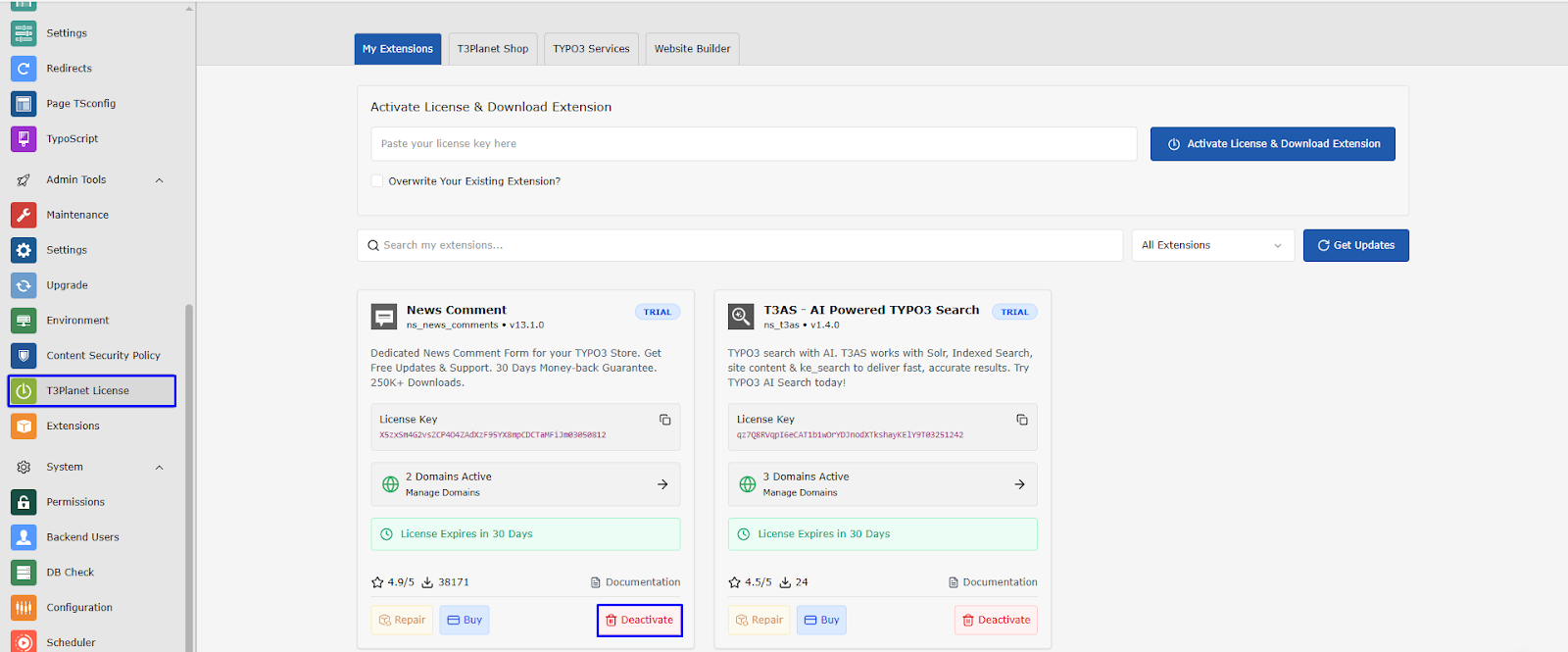
Step 3: Go to Admin Tools > Extensions and deactivate the extension
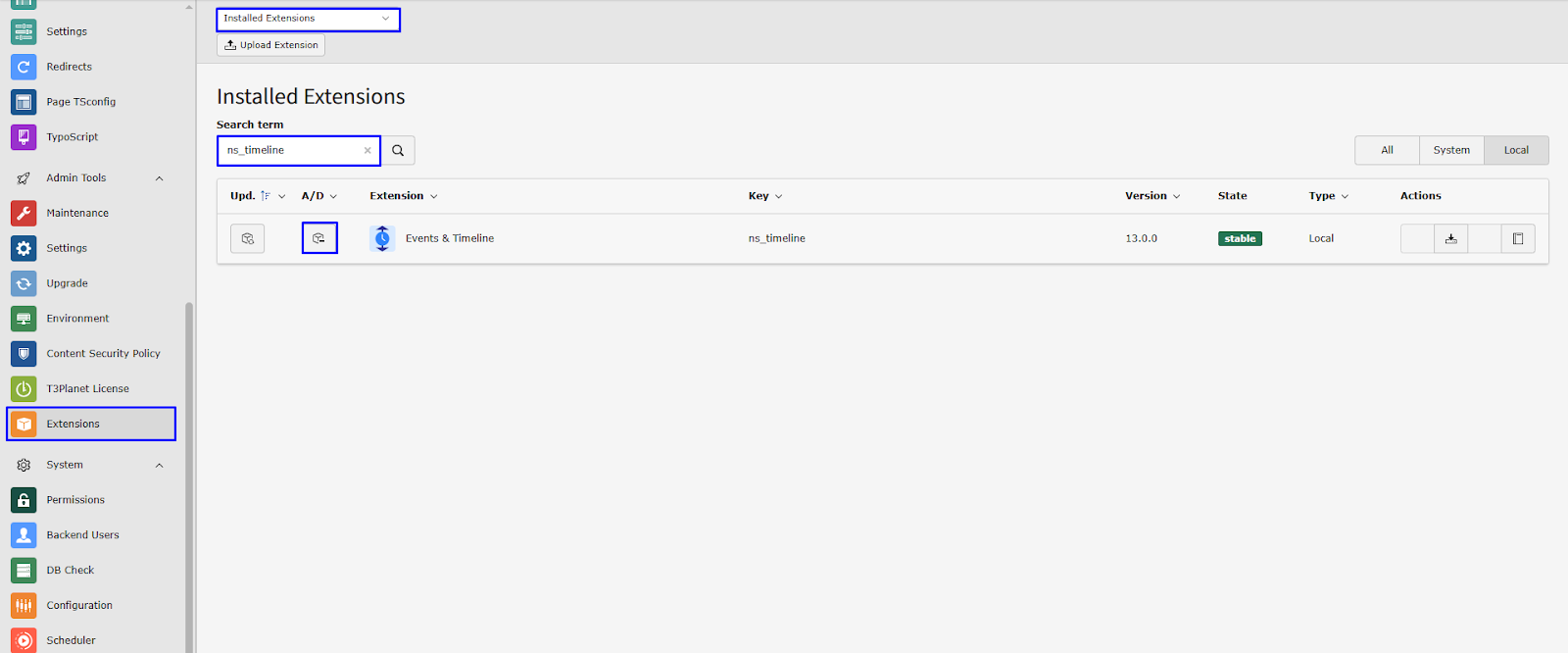
Step 4: On the new TYPO3 instance, install EXT:ns_license, add your license key, and activate the extension
Once completed, the license is active on the new domain. The previous domain is automatically released.
To transfer a license, follow the deactivation and reactivation process described earlier in this guide.
The License Manager includes a Logs view that provides visibility into license activity.
It records:
This is particularly useful for agencies managing multiple TYPO3 instances, you can track exactly where and when each license has been used, making audits and migrations significantly easier.
The T3Planet License Manager is designed to keep your TYPO3 backend clear and transparent, especially when there is an issue with a license. Instead of failing silently, it provides clear visual signals when a license key is unauthorized, expired, or used on a domain outside its permitted scope.
When an extension is running with an invalid or unauthorized license, its functionality is intentionally restricted. This helps ensure proper licensing compliance while making the issue immediately visible to administrators.
You may notice the following changes in your TYPO3 backend:
These are not random errors, but controlled indicators that the license is either expired, misconfigured, or assigned to a different domain.
Important Note:
Once a license expires or becomes unauthorized, the extension will no longer be fully usable.
To restore full functionality, you must renew the license or assign it correctly to the intended domain. Once a valid license is in place, all features are restored instantly without requiring additional configuration.
Step 1 - Verify the assigned domain
Confirm the license is assigned to the correct domain under NITSAN > License Management. A mismatch here is the most common cause.
Step 2 - Use Renew or Repair
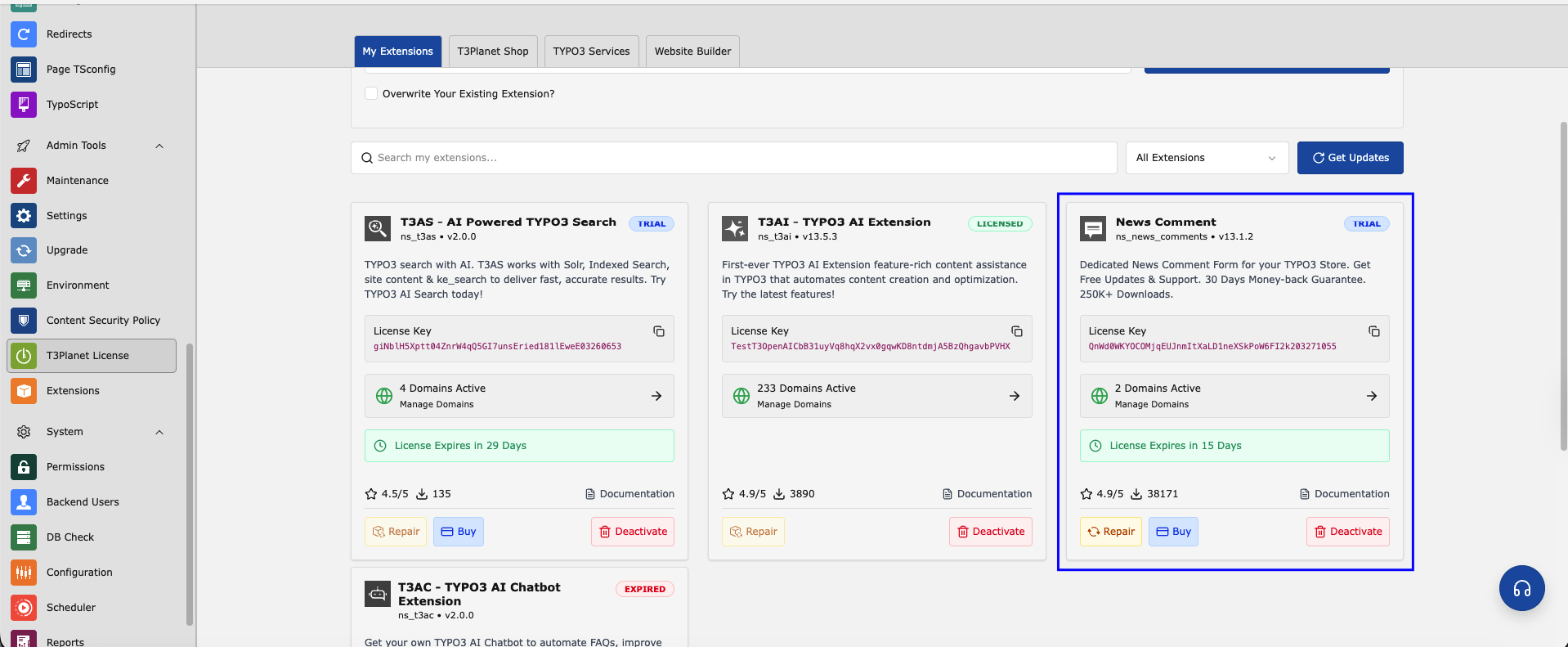
The License Manager provides both a Renew option for expired licenses and a Repair option for misconfigured ones. Both are available directly from the module, no support ticket required.
Note: The Repair option is enabled only when the license key is active, extended, or purchased.
Step 3 - Confirm the license is active
Check that the license status shows as active and that the expiry date is current. If the license has lapsed, renewal applies immediately with no reinstallation required.
If the issue is tied to an expired free trial, a one-time 15-day extension is available directly from the License Manager. This gives you additional time to evaluate the extension before committing to a purchase.
After the extension period, a valid license purchase is required to continue using the product. Purchasing restores full functionality instantly, no configuration changes needed.
Keeping your T3Planet extensions updated ensures compatibility, security, and access to new features.
Before any major update: Take a full backup (code and database), ensure EXT:ns_license is up to date, and verify compatibility with your TYPO3 version. Skipping this step increases rollback risk.
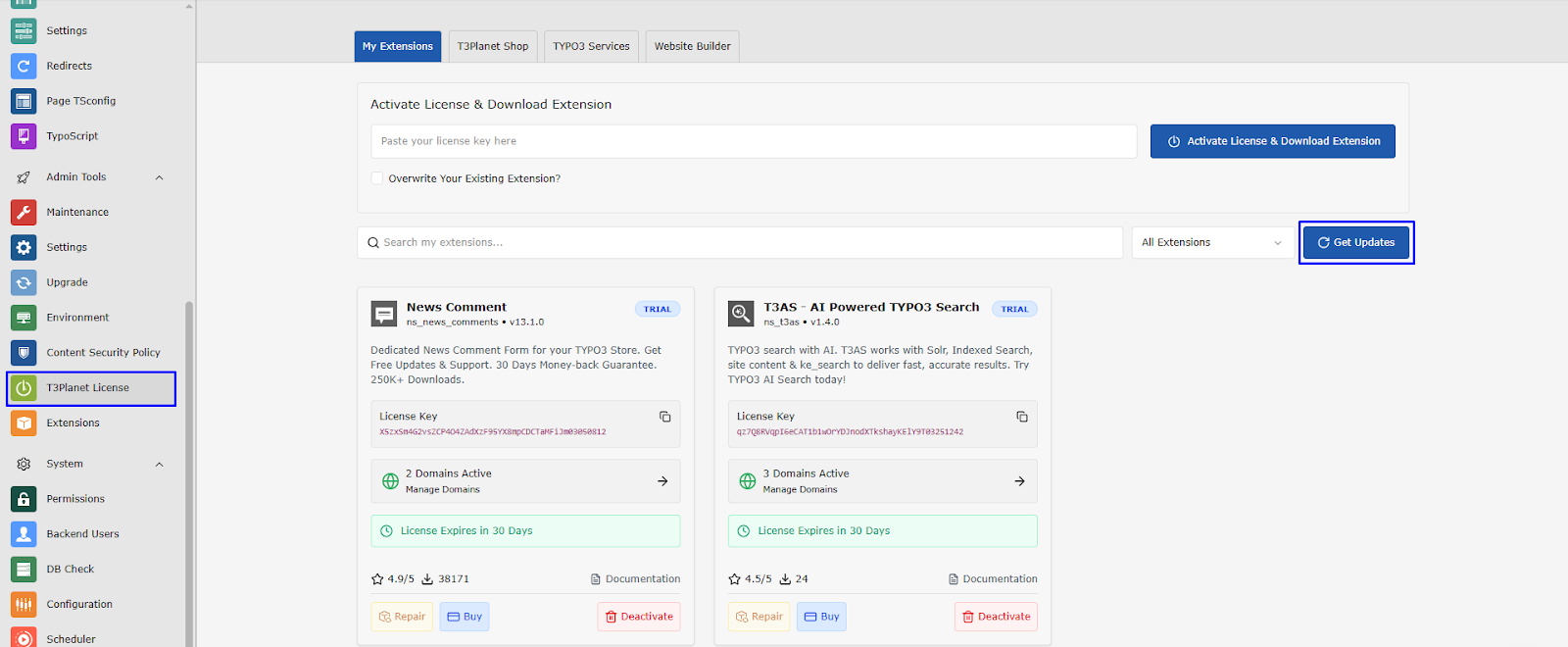
You can manually check for updates directly in TYPO3:
Step 1: Go to NITSAN > License Management
Step 2: Click Get Updates
Step 3: If a new version is available, click Update to x.x.x
T3Planet also sends email notifications when new versions are released - so you never miss an update.
For Composer-based TYPO3 installations, updates are handled through standard Composer workflows:
composer update nitsan/<PACKAGE-NAME>composer dump-autoloadvendor/bin/typo3 cache:flush
This approach integrates with CI/CD pipelines, where updates can be applied during deployment.
Migration guide: Migration To New Composer — T3Planet Docs 1.0 documentation
Refer to the official documentation for exact commands and paths.
Who this section is for: Existing T3Planet customers using older extensions installed before the current license system. If you installed your extensions recently, skip this section, you're already on the licensed system.
If your extensions were installed before the license system was introduced, migration is required to enable license validation, automatic updates, and domain management going forward.
Before You Start
Skipping backup introduces rollback risk if migration fails.
Step 1: Go to Admin Tools > Extensions → deactivate the existing extension
Step 2: Delete the extension from the Extension Manager
Step 3: Reinstall the extension using the License Manager workflow (as covered above)
Step 1: Remove old extension
composer remove nitsan/<EXTENSION-NAME>composer dump-autoloadcomposer clear-cache
Step 2: Remove legacy files
rm -rf typo3conf/ext/<extension_key>
Not sure of the extension key? Check your typo3conf/ext/ directory or the extension's ext_emconf.php file.
Step 3: Reinstall using licensed Composer setup
Follow the Composer installation steps described earlier in this guide. Your license key will be used as the Composer credential for the private T3Planet repository.
Managing premium TYPO3 extensions becomes more predictable when licensing, updates, and domain control are handled within a single system.
T3Planet License Manager provides that structure inside your TYPO3 backend, allowing you to activate, manage, and extend licenses without relying on fragmented processes.
You can begin with a trial and explore the full catalogue and documentation at T3Planet
T3Planet License Manager (EXT:ns_license) is a TYPO3 backend module that allows you to manage licenses for all T3Planet products directly within your TYPO3 instance.
When you purchase a product or start a free trial, a license key is sent to your email with the subject line “[T3Planet] License Access of Your TYPO3 Product(s)”.
A license key is active on one domain at a time. You can deactivate it from one domain and reuse it on another without contacting support.
Deactivate and remove the trial license key, enter your premium license key, and reactivate the extension. No reinstallation is required.
Yes. The license key is used as a credential for T3Planet’s private Composer repository, allowing extensions to be installed and updated through standard Composer workflows.
Multiple extensions can be installed within the same TYPO3 instance. For Composer-based setups, this may require additional repository configuration depending on your setup.


Jürgen Pietschmann
TYPO3 AI ConsultantJürgen is a TYPO3 AI Consultant at AI Universe. He helps businesses make the most of their TYPO3 websites by integrating AI-powered solutions. From smart content creation and automated SEO improvements to seamless chatbot…
More From Author