

TYPO3 _assets: How to Migrate typo3conf/ext Assets in Composer
Development


Are you looking to get knowledge of the TYPO3 scheduler? You landed at the right place; In this blog post, you will find beginner to advanced level skills on typo3 scheduler tasks, Symfony console commands, and TYPO3 cronjobs, etc.
Are you looking to master the TYPO3 Scheduler? This guide covers everything from beginner to advanced, including Scheduler tasks, cron job setup, and Symfony console commands. TYPO3’s built-in scheduler has been a core feature for over 20 years, making task automation straightforward and reliable.
Since TYPO3 v9, Scheduler has become even more powerful with Symfony console integration, enabling developers to automate complex workflows efficiently. Whether you’re an administrator or a developer, this guide will show you step-by-step how to set up, manage, and optimize TYPO3 Scheduler tasks for your site.
That’s one of the great examples, what can be achieved when two giant Open Source frameworks meet & collaborate.
TYPO3 Scheduler is the core system for automating recurring tasks in your TYPO3 site, from clearing caches and logs to sending newsletters.
To ensure tasks run automatically, you link the Scheduler to your server’s cron job:
Linux / Unix:
*/15 * * * * /usr/local/bin/php /path/to/typo3/sysext/core/bin/typo3 scheduler:run
Windows (Task Scheduler):
schtasks /create /sc minute /mo 15 /tn "TYPO3 Scheduler" /tr "C:\path\to\php.exe C:\path\to\typo3\sysext\core\bin\typo3 scheduler:run"
When to use manual CLI runs:
TYPO3 Scheduler is a core TYPO3 Extension that automates and executes recurring tasks on your website. It allows administrators and developers to schedule routine operations, reducing manual work and ensuring site maintenance runs reliably.
Scheduler can handle a wide range of automated tasks, including:
Why It Matters: By automating these repetitive processes, TYPO3 Scheduler keeps your site clean, fast, and optimized, while freeing up administrator time.
TYPO3 Scheduler is designed to centralize task execution and relies on a single cron job to trigger all scheduled tasks. Understanding this architecture ensures you configure your server correctly and avoid missed or duplicate task runs.
| Execution Method | When to Use | How It Works |
| Backend Manual Run | Testing a task or immediate execution | Runs the selected task(s) immediately from the TYPO3 backend interface |
| Cron Job Execution | Regular automated maintenance | Cron triggers the scheduler:run CLI command, which processes all tasks in the queue according to their configured frequency |
Composer-based TYPO3 Setup:
php vendor/bin/typo3 scheduler:run
Without Composer:
php typo3/sysext/core/bin/typo3 scheduler:run
Check PHP CLI Path (Linux/Unix):
which php
/usr/local/bin/php typo3/sysext/core/bin/typo3 scheduler:run

Get Help for Scheduler Command:
vendor/bin/typo3 scheduler:run --help
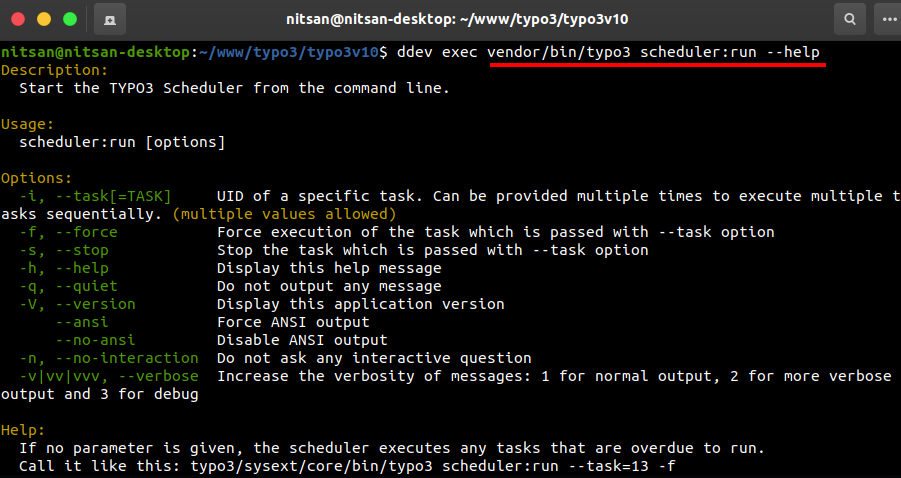
Run Single Task:
vendor/bin/typo3 scheduler:run --task=1
Run Multiple Tasks:
vendor/bin/typo3 scheduler:run --task=1 --task=2
Force Run Task:
vendor/bin/typo3 scheduler:run --task=1 -f
Debug Task (Verbose Mode, Recommended):
vendor/bin/typo3 scheduler:run --task=1 -v

Understanding TYPO3 Scheduler requires familiarity with key terms used in task management, cron integration, and CLI commands.
A unit of work defined in TYPO3 Scheduler. Each task performs a specific automated action, such as clearing caches, sending emails, or optimizing the database.
The recorded times when a task was last executed and when it is next scheduled. Useful for auditing and debugging task execution.
A way to organize multiple tasks under a single category or group. Helps administrators manage and prioritize related tasks efficiently.
A method to trigger custom tasks via CLI or Symfony console commands. This enables advanced automation and integration with other TYPO3 extensions.
Scheduler can assign tasks different priorities, ensuring critical tasks run first. Lower-priority tasks are queued and executed after higher-priority ones
TYPO3 Scheduler originated from the “Gabriel” extension, initially developed by Christian Jul Jensen and later enhanced by Markus Friedrich. Over time, it became a core part of TYPO3, enabling administrators and developers to automate recurring tasks directly within the CMS.
Since TYPO3 v9, Scheduler gained Symfony console integration, making task automation more powerful and flexible.
Why it matters: Understanding its evolution helps admins appreciate its design, reliability, and integration capabilities in modern TYPO3 installations.
TYPO3 Scheduler is included by default in the TYPO3 core. However, on some installations, the extension may not be activated. Follow these steps to ensure Scheduler is installed and configured correctly.
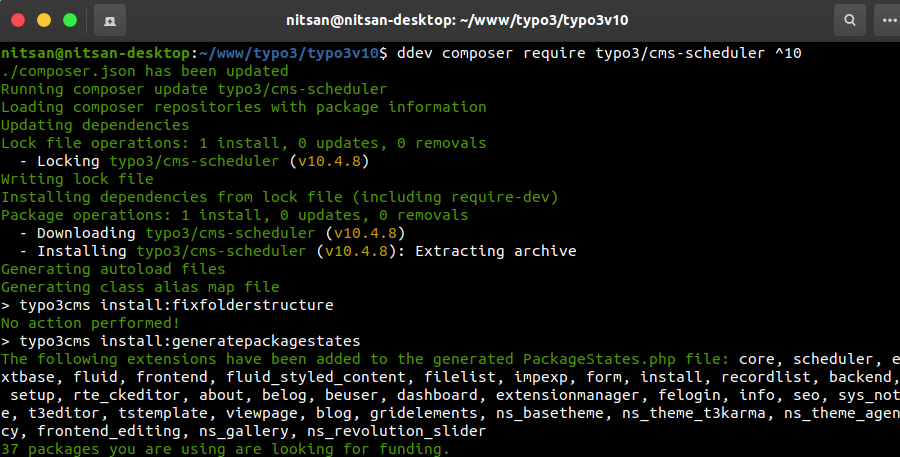
If your site uses Composer, install the Scheduler extension with:
composer require typo3/cms-scheduler
After installation, clear caches and ensure the extension is loaded.
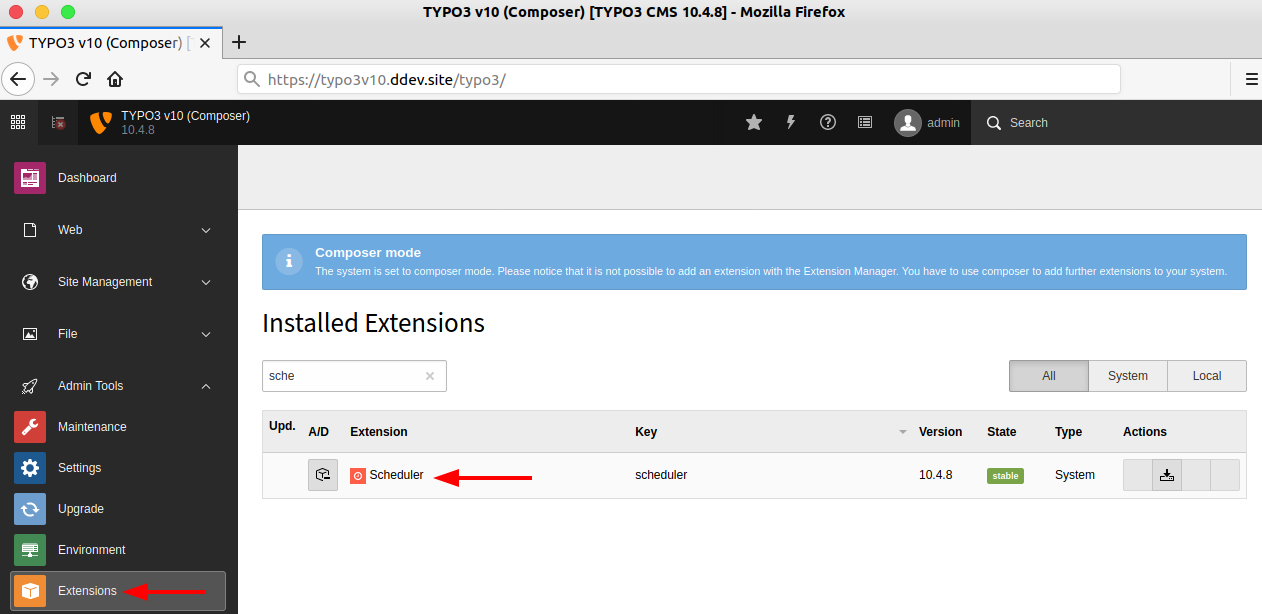
For non-Composer installations, or if Scheduler is already present:
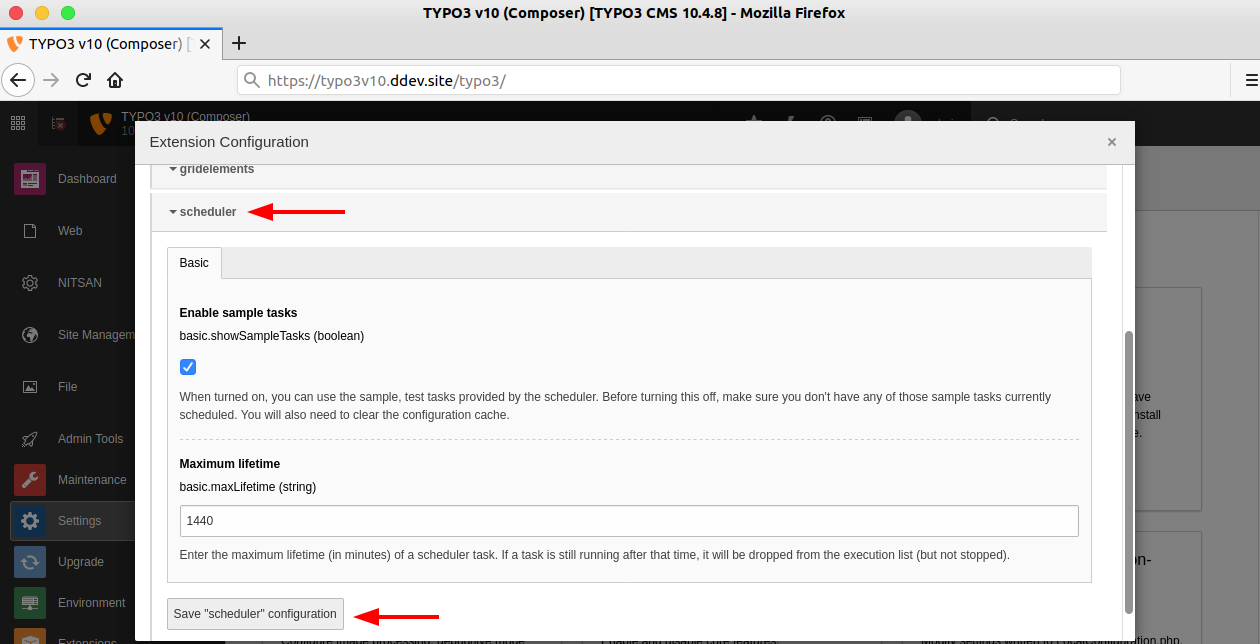
Once activated, configure Scheduler settings:
Before scheduling tasks, it’s important to verify that TYPO3 Scheduler is working correctly. This ensures your tasks will run reliably when triggered by cron or manually.
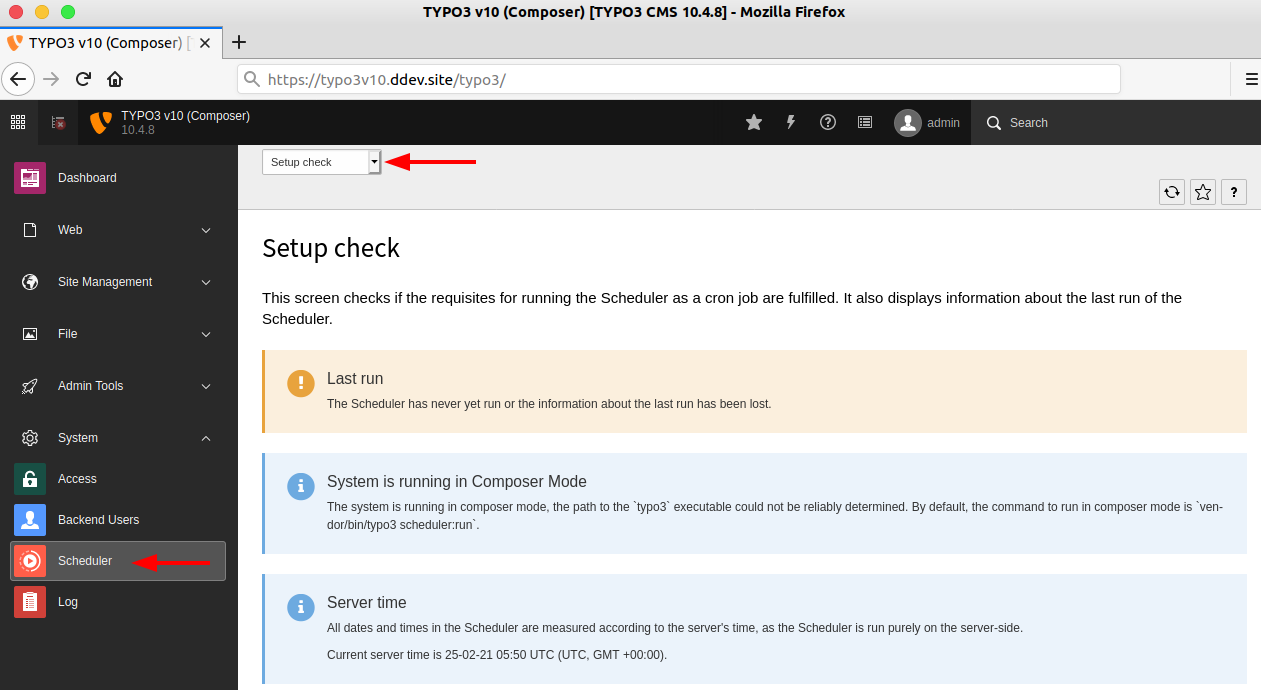
Tip: If any warnings or errors appear, contact your system administrator or check server configurations. Common issues include:
To confirm that Scheduler executes tasks correctly:
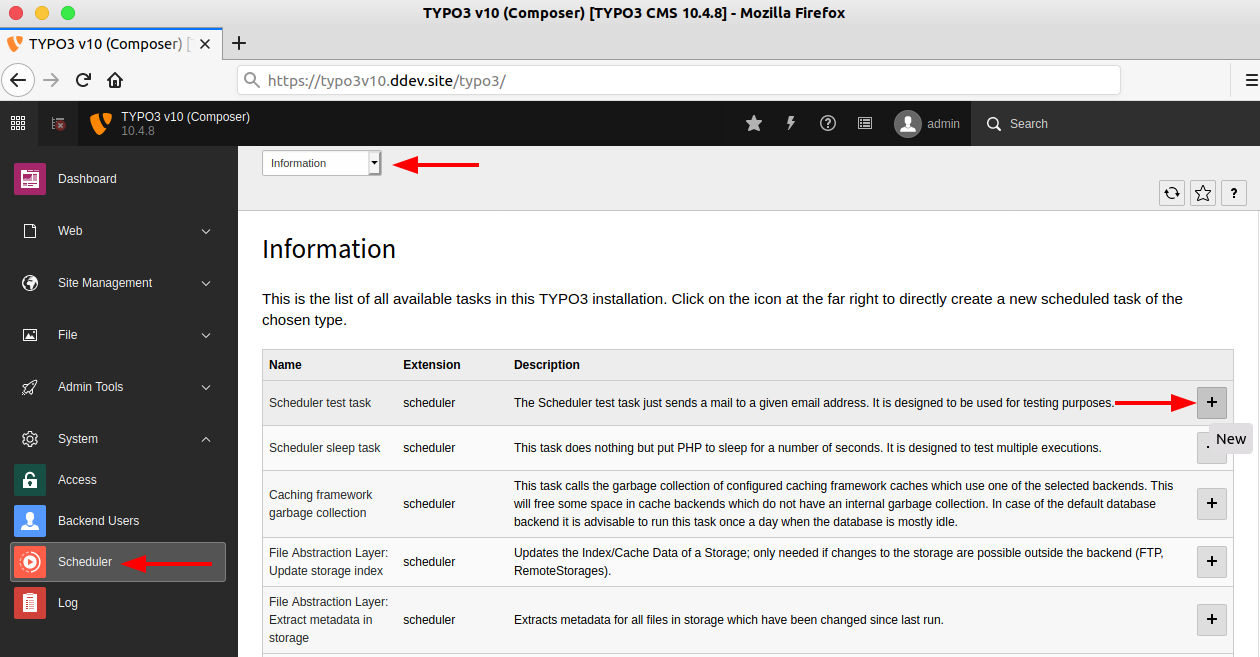
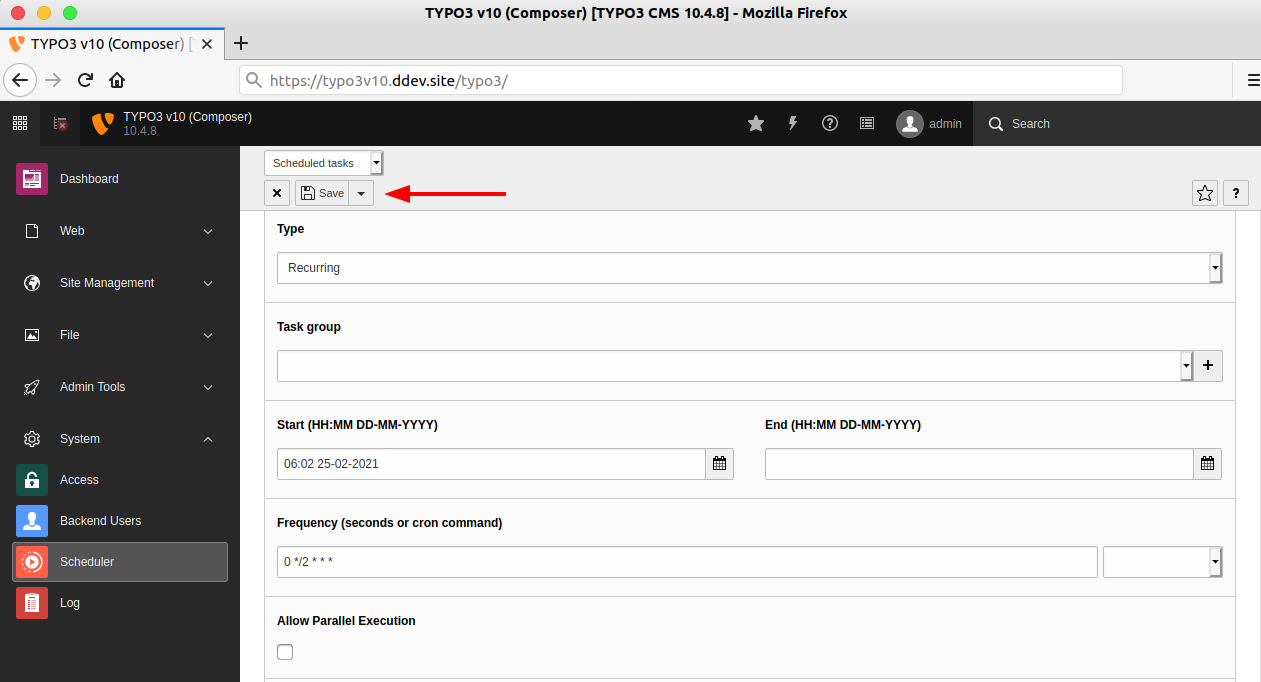
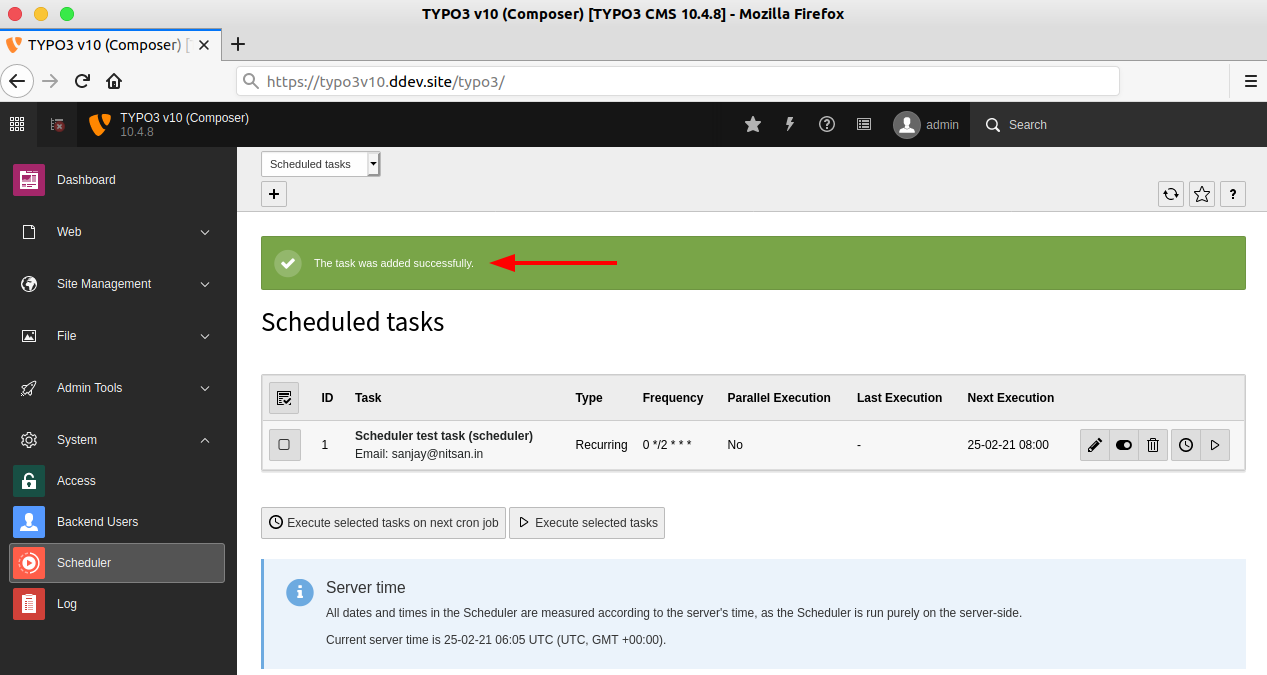
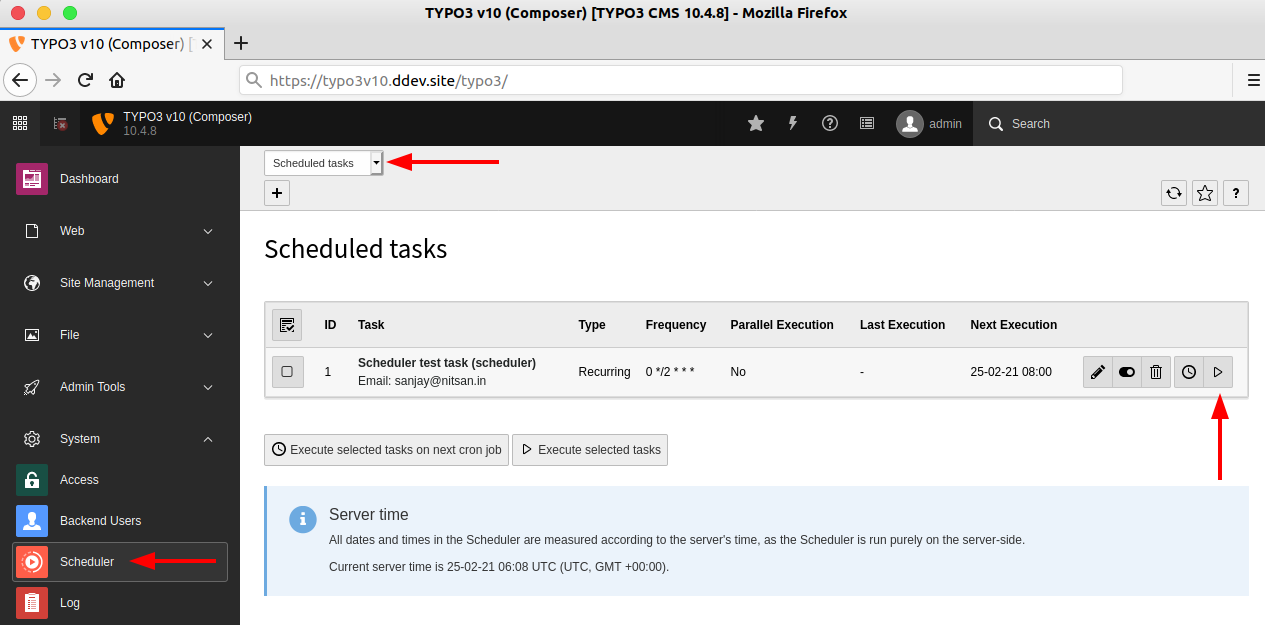
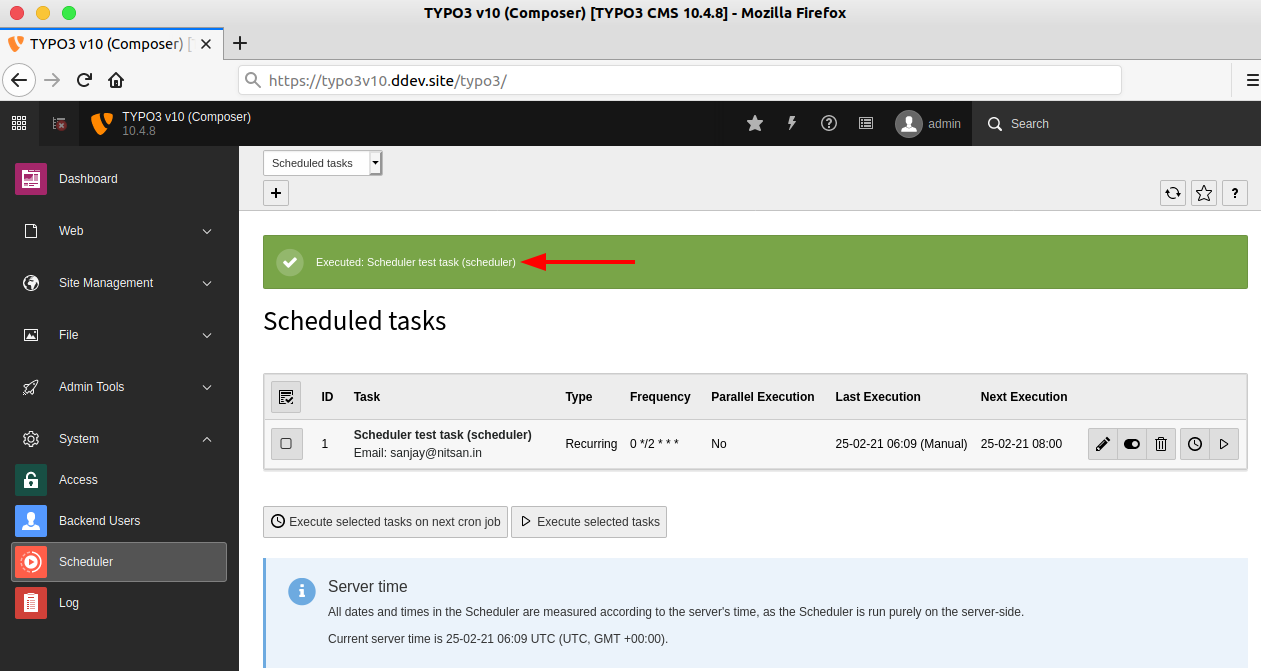
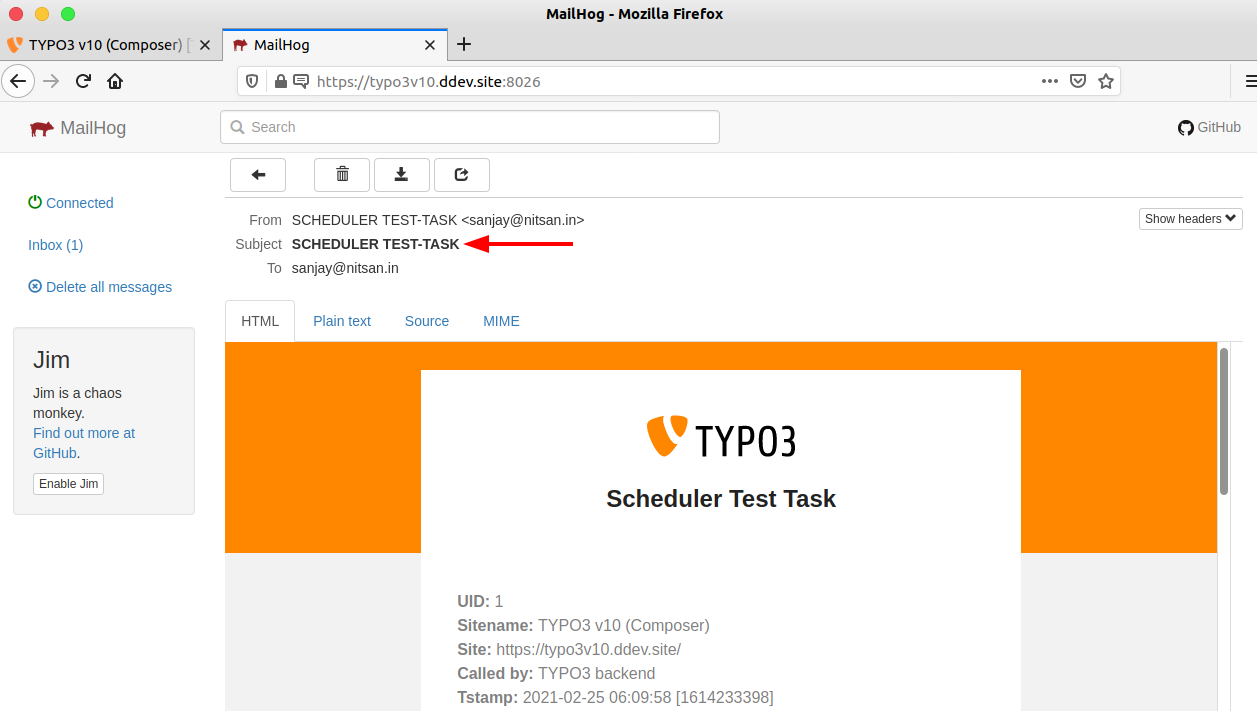
Optional: Stop a running task by clicking Stop Scheduler.

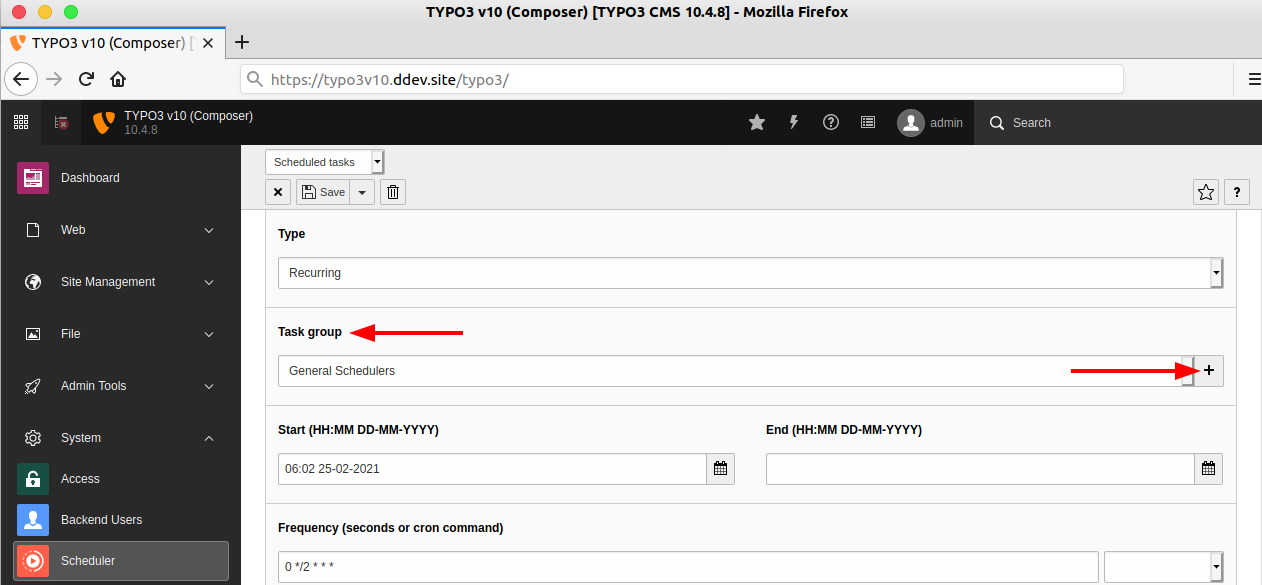
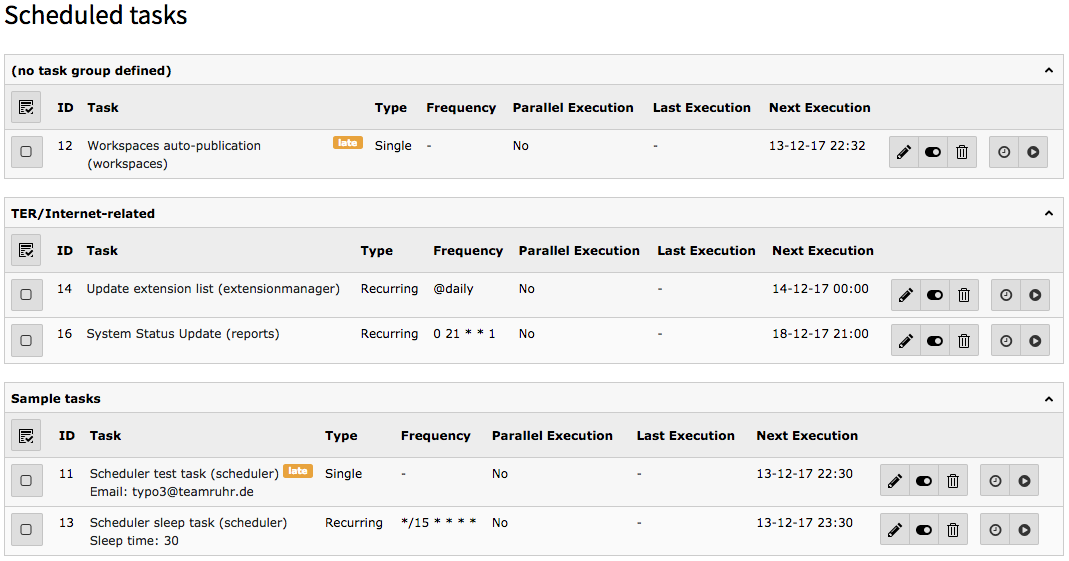
The main command to run Scheduler tasks is:
vendor/bin/typo3 scheduler:run
Common flags and their use:
| Flag | Purpose | Example |
--task | Run a specific task by ID | vendor/bin/typo3 scheduler:run --task=1 |
-f | Force execution, ignoring last run | vendor/bin/typo3 scheduler:run --task=1 -f |
-v | Verbose mode for debugging | vendor/bin/typo3 scheduler:run --task=1 -v |
--help | Display help and available options | vendor/bin/typo3 scheduler:run --help |
Tips:
-v to debug task execution.-f is useful for testing failed tasks.Manual execution is recommended in these cases:
Automating TYPO3 Scheduler tasks requires configuring a cron job (on Linux/Unix) or Task Scheduler (on Windows). Below are step-by-step instructions for different environments, along with best practices and common pitfalls.
Add the Scheduler command
*/15 * * * * /usr/local/bin/php /www/typo3/sysext/core/bin/typo3 scheduler:runUse the correct user for shared servers
*/15 * * * * www /usr/local/bin/php /www/typo3/sysext/core/bin/typo3 scheduler:runTips:
which php.Win + R, type taskschd.msc, and press Enter.Create a new task
Run the following command in Command Prompt to schedule it:
schtasks /create /sc minute /mo 15 /tn "TYPO3 Scheduler" /tr “C:\path\to\php.exe C:\path\to\typo3\sysext\core\bin\typo3 scheduler:run”
/mo 15 to set the frequency in minutes.Common Pitfalls on Windows:
*/15 * * * *).Tips:
www-data or your hosting account user.Why This Setup Matters:
Configuring cron properly ensures your TYPO3 Scheduler tasks run automatically, reliably, and without manual intervention. Following best practices prevents common pitfalls like overlapping tasks, permission issues, or missed executions.
Why TYPO3 Doesn’t Auto-Run Tasks
| Method | Description | Use Case |
| Cron | Standard task scheduler available on Linux/Unix systems. Calls the TYPO3 Scheduler CLI script at fixed intervals. | Most common and widely supported method for running scheduled tasks. |
| Systemd Timer | Modern Linux alternative to cron. Can trigger services based on events, time, or intervals. | Useful for servers that prefer systemd-native scheduling or require more precise control. |
Key Points:
Tips for Server Setup:
which php.To get the most out of TYPO3 Scheduler, it’s important to organize tasks, schedule essential jobs, and leverage Symfony CLI for advanced automation. Below is a comprehensive guide.
Organizing tasks into groups ensures clarity, efficiency, and easier troubleshooting.
Recommendations:
Cache Cleanup or Newsletter Dispatch.Tip: Task groups make reporting and debugging easier when many tasks are scheduled.
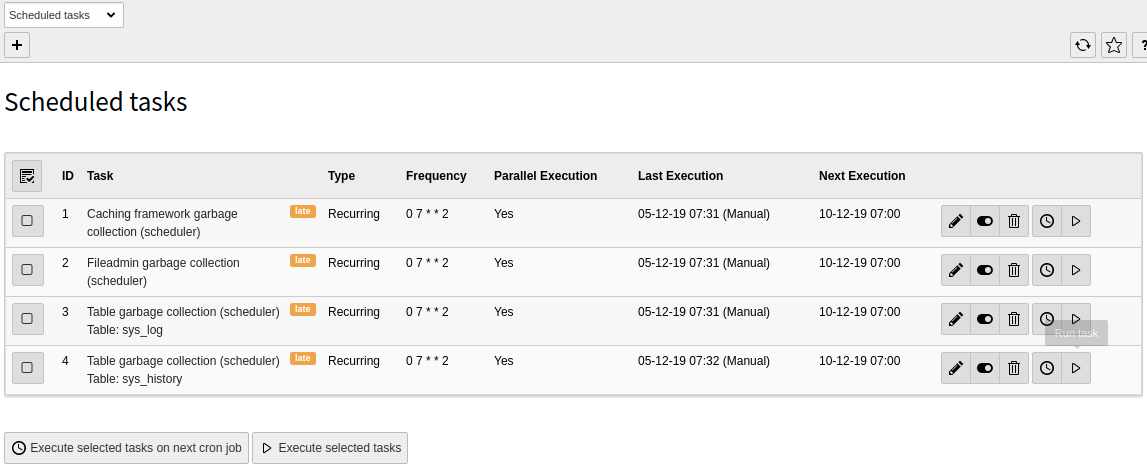
For an optimized TYPO3 instance, configure the following tasks:
These tasks ensure your TYPO3 instance remains clean, fast, and reliable.
TYPO3 Scheduler allows you to create custom tasks using Symfony console commands. These tasks can be executed manually via CLI or scheduled via cron for full automation.
Create a Services.yaml file inside your extension: (typo3conf/ext/yourextension/Configuration/Services.yaml):
services:_defaults:autowire: trueautoconfigure: truepublic: falseVendor\Extension\Command\TestScheduler:tags:- name: "console.command"command: "myext:test"description: "An example description for a command"hidden: false
Tip:
autowire and autoconfigure ensure your services are automatically recognized by TYPO3.hidden flag controls whether the command appears in --help.Step 2: Create Scheduler Command Controller Class
Create the command class in typo3conf/ext/yourextension/Classes/Command/TestScheduler.php:
<?phpnamespace Vendor\Extension\Command;use Symfony\Component\Console\Command\Command;use Symfony\Component\Console\Input\InputArgument;use Symfony\Component\Console\Input\InputInterface;use Symfony\Component\Console\Output\OutputInterface;use Symfony\Component\Console\Style\SymfonyStyle;class TestScheduler extends Command{protected function configure(){$this->setDescription('Test Scheduler')->setHelp('Description of the test scheduler')->addArgument('id', InputArgument::OPTIONAL, 'Task ID');}protected function execute(InputInterface $input, OutputInterface $output){$io = new SymfonyStyle($input, $output);$id = $input->getArgument('id');if (!$id) {$io->error('No id provided');} else {$io->success('Successfully run id=' . $id);}return Command::SUCCESS;}}
Why it matters: This class defines the logic for your custom task and integrates seamlessly with TYPO3 Scheduler.
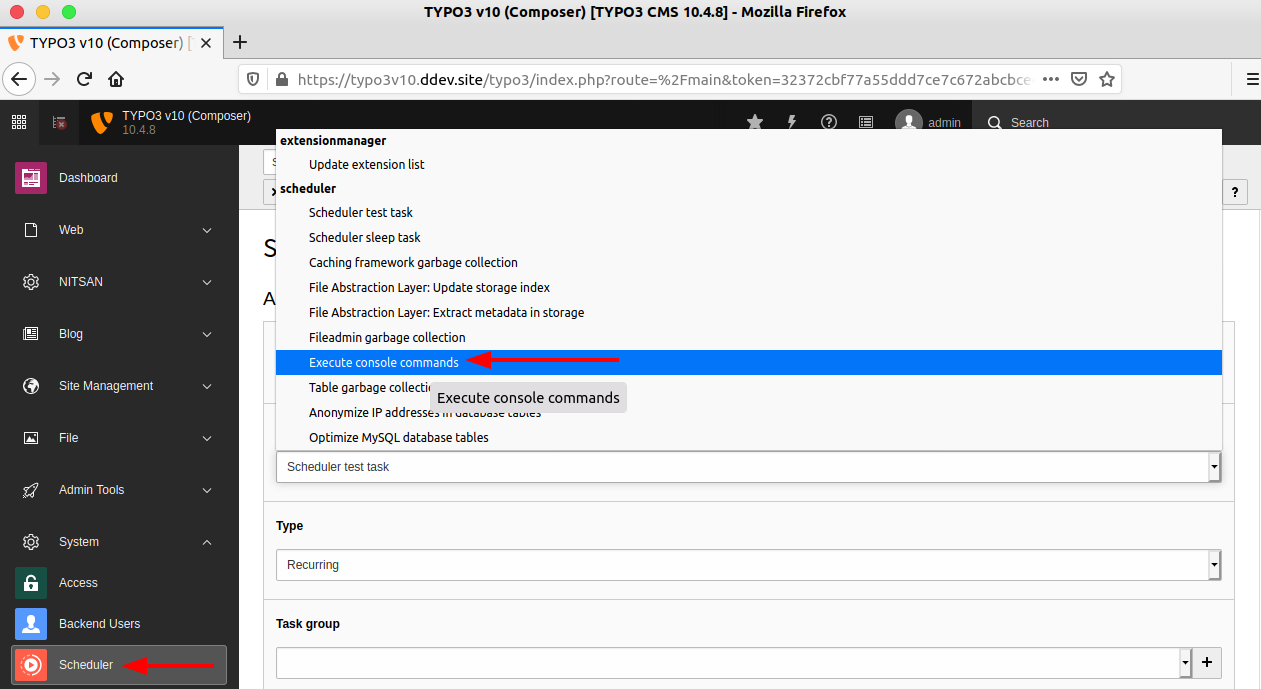
myext:test TYPO3 Scheduler.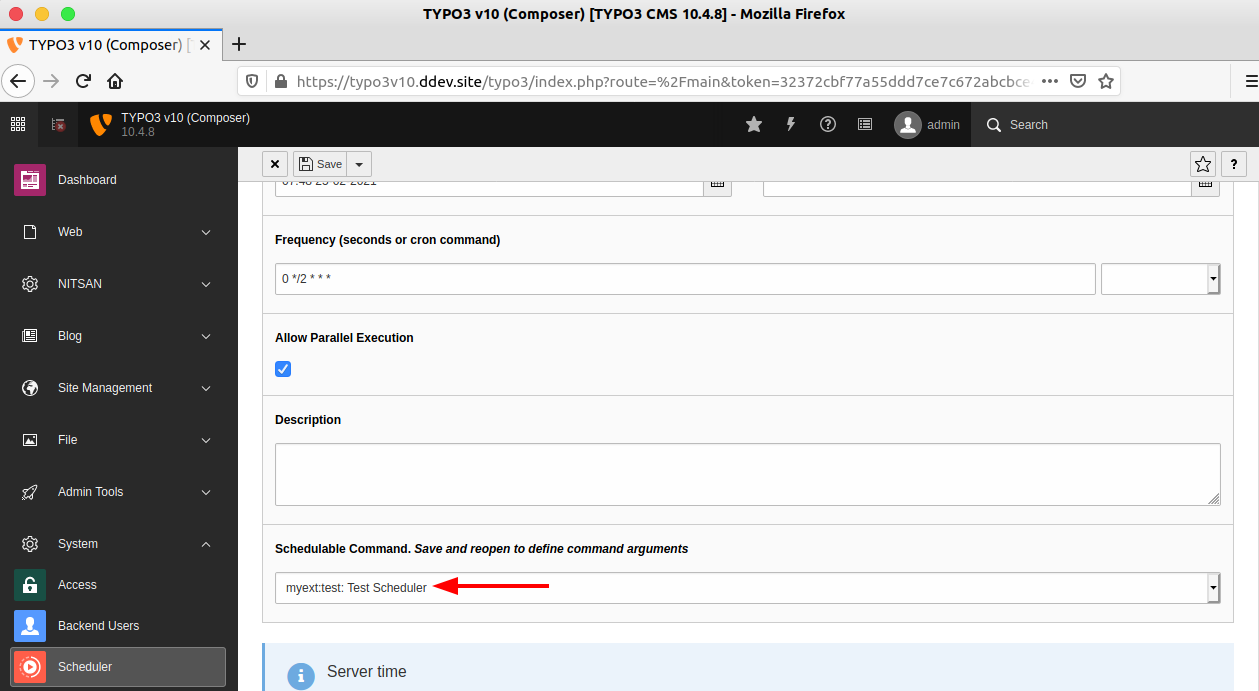
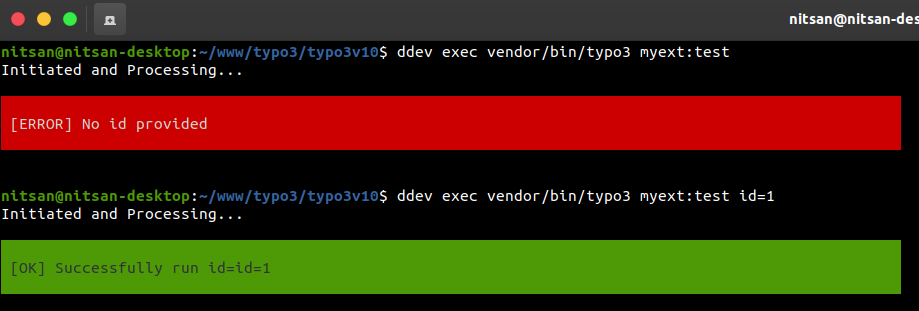
For Composer-based TYPO3 installations:
composer dump-autoloadvendor/bin/typo3 myext:testvendor/bin/typo3 myext:test id=1
Without arguments, the command runs the default behavior.
Help Command:
vendor/bin/typo3 myext:test -h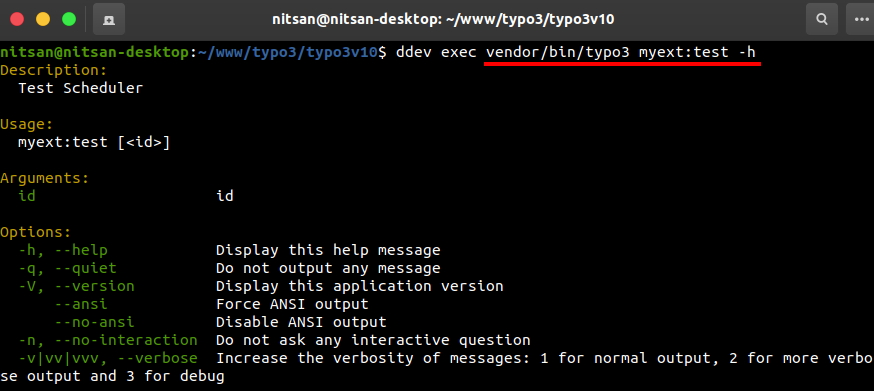
Add the task to your server’s cron:
crontab -e*/15 * * * * /usr/local/bin/php /www/typo3/sysext/core/bin/typo3 myext:test
Tip: Adjust the frequency to match the criticality of the task.
/usr/local/bin/php /www/typo3/sysext/core/bin/typo3 myext:test id=5
Tip: Regular monitoring prevents missed executions and allows proactive troubleshooting.
Even when TYPO3 Scheduler is configured correctly, issues usually happen at the handoff between the backend task setup and the server-side trigger.
In TYPO3 14.3, the official docs recommend starting with Setup Check, which shows when the scheduler last ran and warns you if it has never run at all. TYPO3 also provides scheduler:list, scheduler:run, and scheduler:execute for command-line troubleshooting.
vendor/bin/typo3 scheduler:run.scheduler:list to confirm the task exists and is available.TYPO3 Scheduler is a powerful built-in tool for automating recurring tasks, improving maintenance, and keeping your TYPO3 installation running efficiently. From basic task management and cron job setup to custom Symfony console commands, it gives administrators and developers the flexibility to handle both routine and advanced automation needs.
With the right setup, regular monitoring, and a few essential maintenance tasks in place, you can keep your TYPO3 instance clean, stable, and easier to manage. If you run into issues while configuring TYPO3 Scheduler or creating custom tasks, use the troubleshooting steps in this guide to identify and fix them quickly.
If you still have questions or want to share your experience with TYPO3 Scheduler, feel free to leave a comment.
No. TYPO3 Scheduler manages the tasks, but you still need a server trigger such as cron to run due tasks automatically.
Yes, but only manually from the backend or CLI. For automatic recurring execution, you still need cron or an equivalent server-side scheduler.
It depends on your tasks. TYPO3 supports frequencies in seconds or cron-like expressions, so run it only as often as your most time-sensitive tasks need.
The most common causes are a broken cron setup, a disabled task, the wrong next execution time, or a blocked parallel run. Start with Setup Check and the Scheduler logs.
Yes. TYPO3 can run Symfony console commands as Scheduler tasks through Execute console commands.
Yes. Save the task first, then reopen it to define command arguments.
Use Setup Check in the Scheduler module. It shows the last run and warns you if Scheduler has never run.
Start with caching framework garbage collection, fileadmin garbage collection, and table garbage collection, because these are official core tasks intended for regular maintenance.
Wolfgang Weber
Brand & Communication LeadWolfgang Weber shapes TYPO3 with passion and expertise. As a TYPO3 enthusiast at T3Planet Shop, he has contributed to TYPO3 projects that make websites faster and more secure. Outside of TYPO3, you’ll probably find him exploring local cafés and enjoying football.
More From Author